¶ Clarity Ecommerce WordPress Plugin
¶ Overview
This WordPress plugin makes it easy to manage eCommerce functionality on your website. It allows you to append scripts to the head and footer of your site, and create or manage eCommerce pages.
¶ Features
- Appending scripts to the head and footer of the site.
- Creating and managing eCommerce pages.
- Enabling or disabling the script injection.
- Setting eCommerce API's hosted URL.
¶ Installation
- Upload the
clarity_ecommercefolder to the/wp-content/plugins/directory - Activate the
Clarity Ecommerceplugin through the 'Plugins' menu in WordPress.
¶ Usage
Navigate to the Clarity Ecommerce menu in your WordPress admin area to manage script injections and eCommerce pages.
¶ File Structure
clarity-ecommerce-scripts.php: Appends scripts to the head and footer of your site.clarity-ecommerce-page-manager.php: Creates, removes, enables, or disables the eCommerce pages.
If you add new pages or want to manage an existing one, use the page management function in the clarity-ecommerce-page-manager.php file.
¶ Installation
Git repo: https://dev.azure.com/clarity-ventures/CEF-Product/_git/WordpressPluginLatest release (updated 12-27-2023): https://clarityventures-my.sharepoint.com/:u:/g/personal/jesse_webb_claritymis_com/EWBDdUWIM7xBnREfy5dbU4EBC8srSD7i4Fwxpk4FQ8XlVg?e=Rf5LCf
¶ CORS Configuration of the API
For the site to function correctly, there are several CORS settings that need to be applied for the ServiceStack and the API, taking into consideration both relative paths and root URLs.
¶ Relative Paths
You might need to specify the relative paths of the routes. Below is an example of how these paths are structured in the appSettings:
"Clarity.Routes.Cart.RelativePath": "/cart",
"Clarity.Routes.Catalog.RelativePath": "/newhopefront/catalog",
"Clarity.Routes.Checkout.RelativePath": "/newhopefront/checkout",
...
¶ Root URLs
In addition to setting the 'RelativePath', 'RootUrl' may need to be set too. For some elements, this path needs to be explicitly specified and must not be '/' or 'null'. Below are some examples:
"Clarity.Routes.Site.RootUrl": "http://nhwa-stg.clarityclient.com",
"Clarity.Routes.Site.RootUrlSSL": "https://nhwa-stg.clarityclient.com",
"Clarity.API-Storefront.Requests.RootUrl": "https://nhwa-stg.clarityclient.com",
"Clarity.Routes.UI.RootUrl": "https://nhwa-stg.clarityclient.com",
"Clarity.Routes.Images.RootUrl": "https://nhwa-stg.clarityclient.com",
¶ Settings configuration
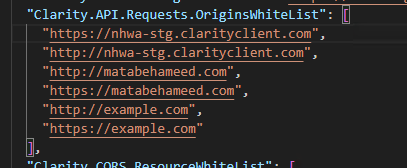
The variable 'Clarity.API.Requests.OriginsWhiteList' must include the requesting domain.
¶ IIS Routing Configuration
The CORS configuration extends to the route management in IIS where it involves two crucial parts: the site roots web.config and the API-Storefront's sub-application web.config. Follow these steps, making sure to replace <example.com> with your actual domain in both cases:
- Sub-application's rewrite.outboundRules.config: Enable a rule named "CORS by Whitelist Only". And setup the
rewritemapas below:
<rule name="CORS by Whitelist Only" enabled="true">
    <match serverVariable="RESPONSE_Access-Control-Allow-Origin" pattern=".+" negate="true" />
    <conditions>
        <add input="{CORS_whitelist:{ORIGIN_HOST}}" pattern=".+" />
    </conditions>
    <action type="Rewrite" value="{C:0}" />
</rule>
<rewriteMap name="CORS_whitelist">
    <add key="https://example.com" value="https://example.com" />
    <add key="http://example.com"  value="http://example.com" />
    <add key="example.com"         value="example.com" />
</rewriteMap>
- Site Root's application: Add an outbound rule named
Enable CORS for Fontsand setuprewritemap.
<rule name="Enable CORS for Fonts">
      <match serverVariable="RESPONSE_Access_Control_Allow_Origin" pattern=".*" />
      <conditions>
        <add input="{CORS_whitelist_web9:{ORIGIN_HOST}}" pattern=".+" />
        <add input="{REQUEST_URI}" pattern="^[^\?]+\.(ttf|otf|eot|woff|woff2|svg)(\?.*)?$" />
      </conditions>
      <action type="Rewrite" value="{C:0}" />
</rule>

<rewriteMaps>
  <rewriteMap name="CORS_whitelist_web9">
    <add key="https://example.com" value="https://example.com" />
    <add key="http://example.com"  value="http://example.com" />
    <add key="example.com"         value="example.com" />
  </rewriteMap>
</rewriteMaps>
Make sure to follow these steps, and note that they should be done for each domain where the API is hosted.
¶ Further Documentation
Chris Reddick has generously compiled a great Word doc available here:
Headless_eCommerce_Wordpress_Setup.docx