¶ Overview
By default a new Connect Client project fires up using a Lite (in memory) instance for hangfire storage. This version works GREAT when in development because it gives a fresh database for hangfire every time you start the application. This prevents any annoying persistent job from the last time you ran the application. However, this poses an issue when moving into UAT and Production as every time the app resets any job success/failed data is lost which can be valuable information.
This documentation is a quick run through of how to enable SqlServer Hangfire Storage for UAT and PRD live environments.
¶ Steps
¶ Set your connection string
-
In your appsettings there should be a node for "ConnectionStrings"

-
Add the connection string to the database that you are intending to use for the Hangfire tables
-
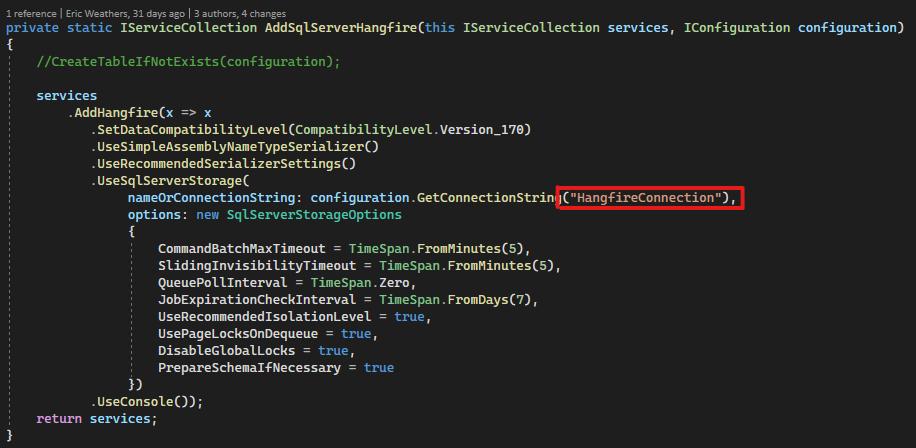
Add the ConnectionString Name "HangfireConnection" the ClarityConnect HangfireServices uses this name as the connection.

¶ Enable SqlServer Over LiteDb
-
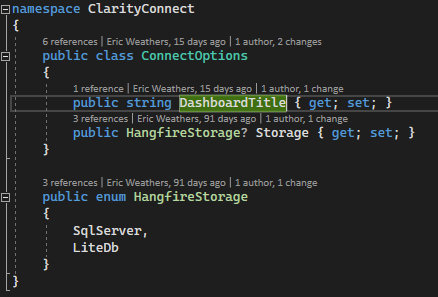
In the ClarityConnect project there is a file called ConnectOptions
-
Taking a look we see that there is a property called Storage
-
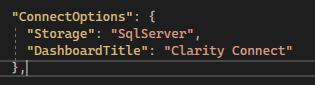
We need to add this property to the node in appsettings and set the value as "SqlServer"
-
With these settings changed Connect will now tell hangfire to use SqlServer storage at the Database designated in the Connection String.
¶ Optional (But recommended)
-
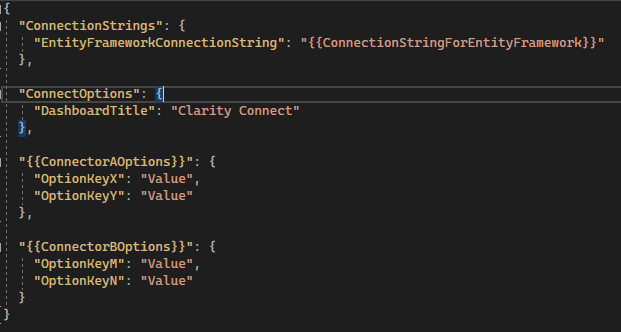
Create a second file in the client project for appsettings.development.json
-
Copy all of the appsettings over to this new file EXCEPT for the HangfireConnection and ConnectOptions.Storage settings.
-
Now, when running Connect from Visual Studio the app will use an in memory storage (Fresh database every debug session), but when publishing will use SqlServer