¶ Create the Resource Group in Azure
-
Navigate to https://portal.azure.com
-
Ensure that the organization selected is CONNECT SAAS
- If you don't have access to this portal please message Eric Weathers or Cole Jansen to be added as a collaborator
-
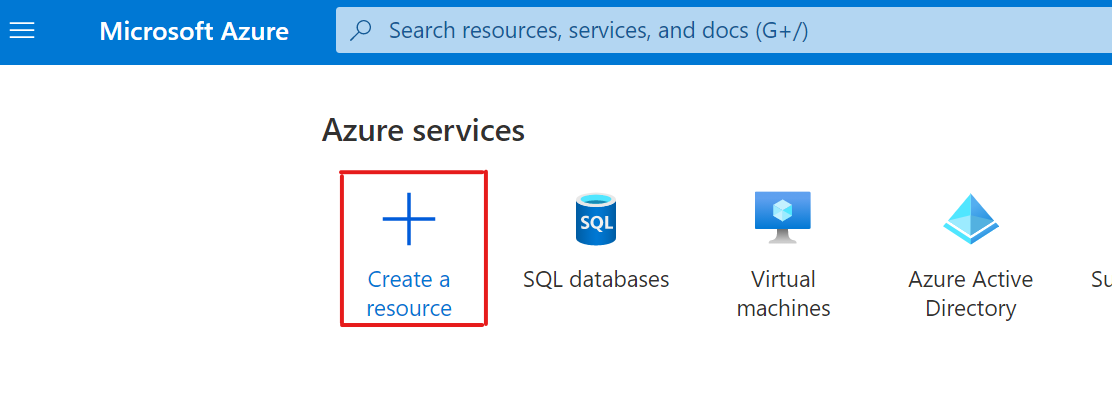
In the main menu select 'Create a Resource'
-
Search for 'Resource Group' and hit enter
-
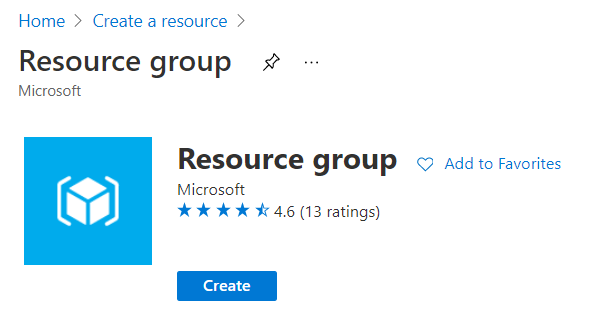
If you don't automatically navigate to the Resource Group Overview. Find it in the list. Then click 'Create'
-
-
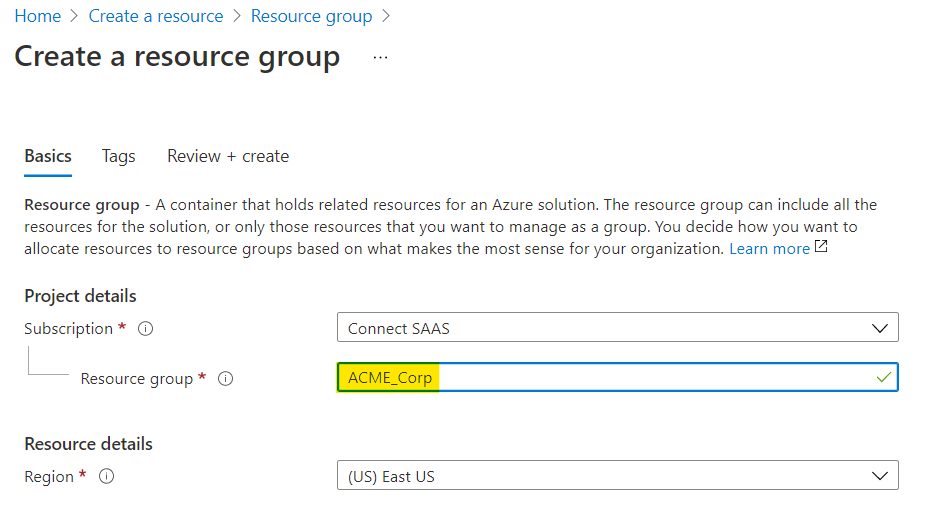
Name the Resource group to the name of the client
-
Click 'Review + Create'
-
Click 'Create'
¶ Create the SQL Database for the Resource Group (if necessary)
-
Navigate to portal.azure.com/home again
-
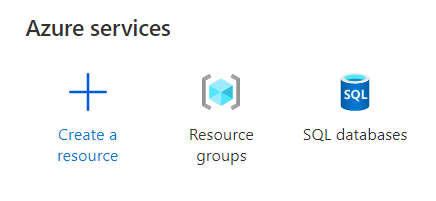
Select the service at the top or search for 'SQL databases'
-
Click 'Create'
-
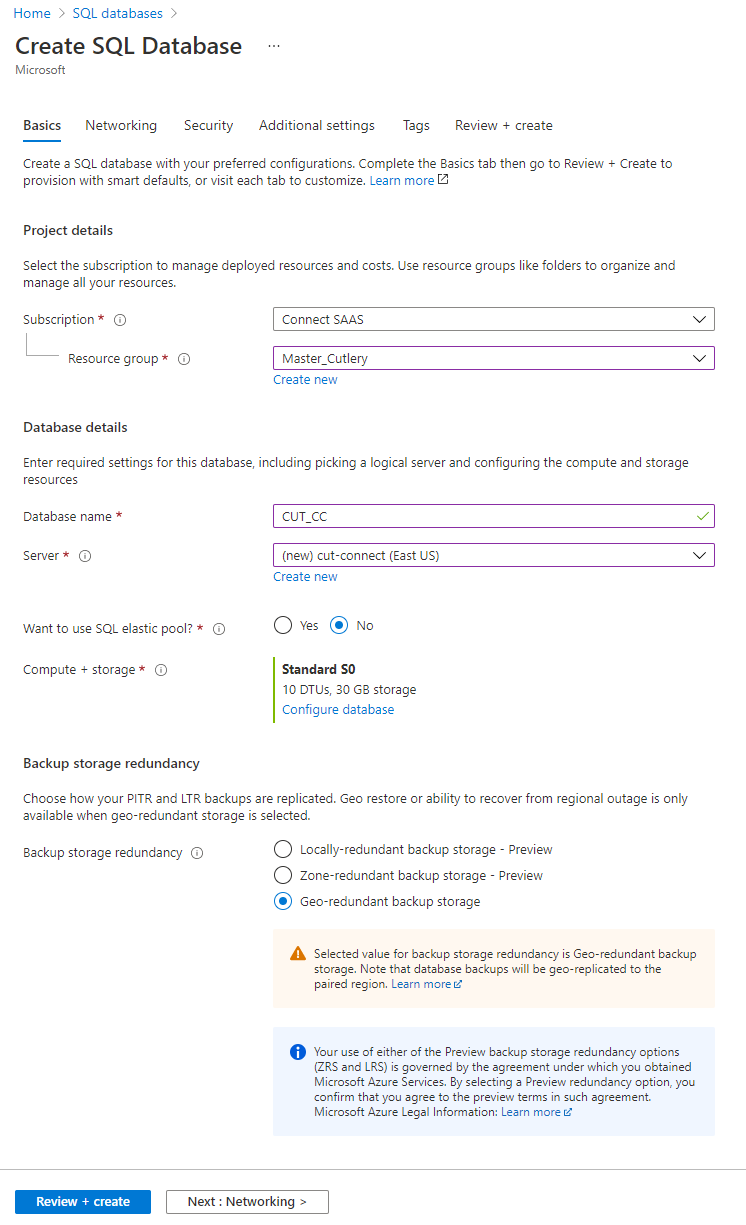
Make sure that the Resource Group selected is the Resource group that you selected above
-
Name the Database '{{project}}_CC'
-
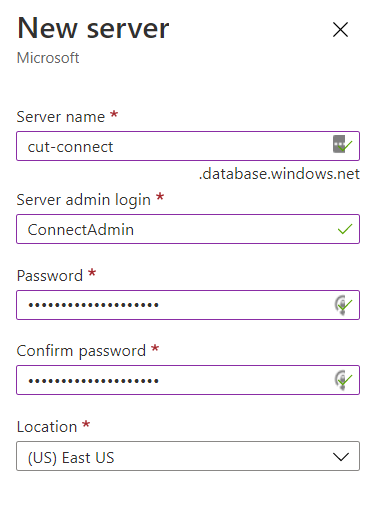
For Server click 'Create new'
-
Set server name to '{{project}}-connect'
-
Set server admin login: 'ConnectAdmin'
-
Set Password: "Please find in VaultWarden under reference account"
-
Confirm password
-
Leave Location: '(US) East US'
-
Click OK
-
-
Elastic Pool: 'No'
-
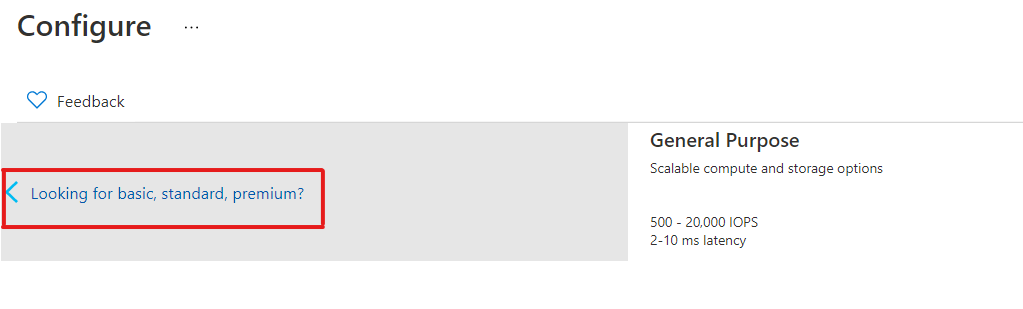
For Compute + storage click 'Configure Database'
-
In the configure screen. Click 'Looking for basic, standard, premium?'
-
Select 10 DTUs
-
Select 30 GB Data max size
-
Click Apply
-
-
Leave the rest default and click 'Review + create'
-
Click 'Create'
-
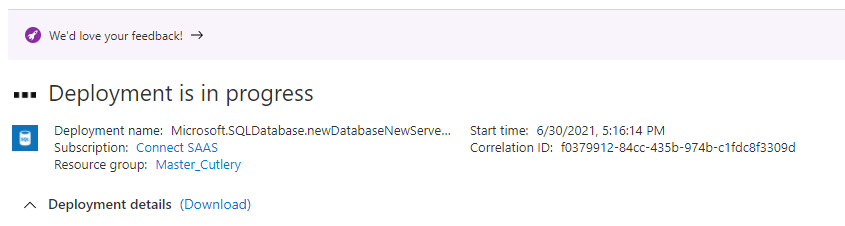
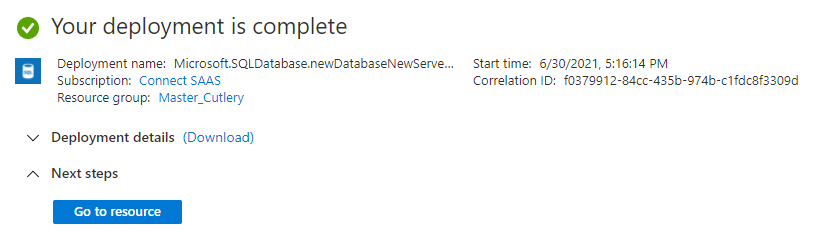
Wait for Deployment to finish
-
-