¶ Salesforce Documentation
¶ Additional Documentation
- https://resources.docs.salesforce.com/234/latest/en-us/sfdc/pdf/api_rest.pdf
- Salesforce Developers
- Setting up a sandbox
Salesforce Documentation v1.md
¶ Authentication
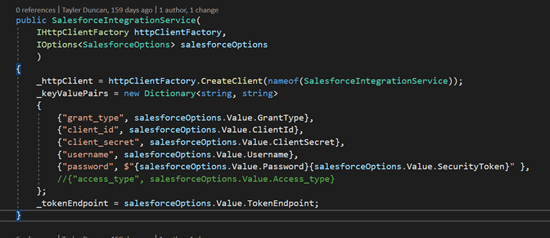
- Salesforce uses Auth2 to get authentication
- Example
"SalesforceOptions": {
    "TokenEndpoint": "https://test.salesforce.com/services/oauth2/token", //////LIVE URL: "https://login.salesforce.com/services/oauth2/token"
    "Username": "{Admin}",
    "Password": "{Password}",
    "SecurityToken": "3hrpwhxzsPUxVuWk3KURw86X",
    "ClientId": "{Client ID}",
    "ClientSecret": "{Client Secret}",
    "Url": "https://{StoreName}.my.salesforce.com",
    "access_type": "offline"
}
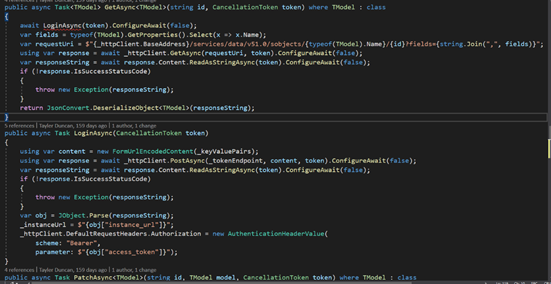
- The Connector will take care of logging into the TokenEndpoint and retrieving a session ID
- Client will need to setup a Connected app for Clarity Connect
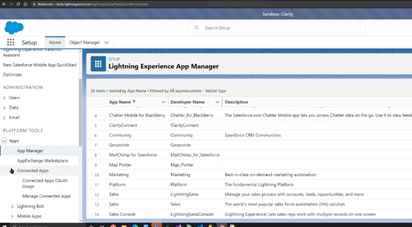
- Once this is setup you will have access to the Client ID and Secret
¶ Salesforce
- The Connector can be found in Evolve QA Here
- Everything is accessible from the rest API
- Salesforce uses filters to refine searches for list requests
- Filters can be found in the Object
- Connector is currently configured to go to this /services/data/v51.0/sobjects/

- We may want to change this to an app setting
- Any field that is followed by “__c” is custom field
- Anything followed by “__r” is a custom object
- Salesforce requires that fields you wish to be returned are specified in the URL
- Connect is configured to do this for every field in a model
/services/data/v51.0/sobjects/Account/1?fields=id,Name,Description
¶ Jobs
¶ Accounts
- Accounts will primarily be using “Where LastModifiedDate > {CompareDate}” Filter to find recently updated accounts
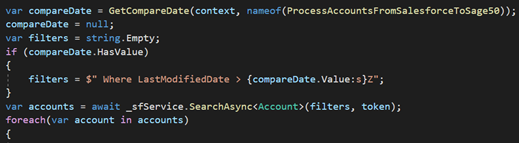
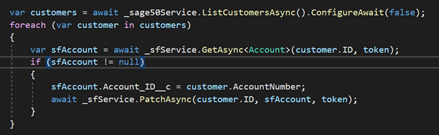
- Here is an example of updating a Salesforce account
¶ Invoices/Sales Orders
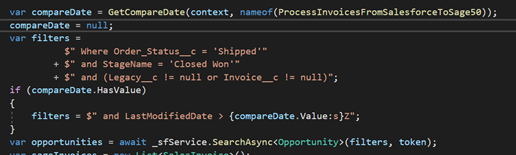
- Salesforce generally doesn’t have support for invoices
- An Opportunity can be used as both an Invoice and a Sales Order inside of Salesforce
- Invoices may require more specific filter depending on Client requests
¶ Salesforce UI
- The most important tool will be the Object Manager
- This is found by clicking on setup
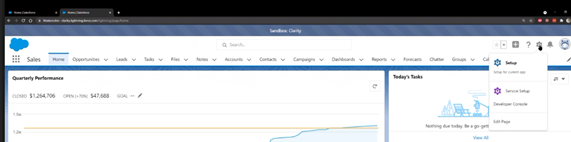
- Then Followed by clicking on Object Manager
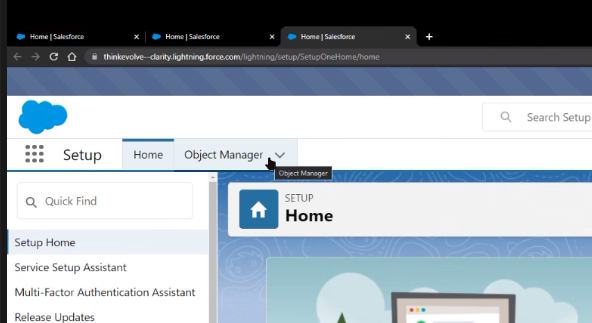
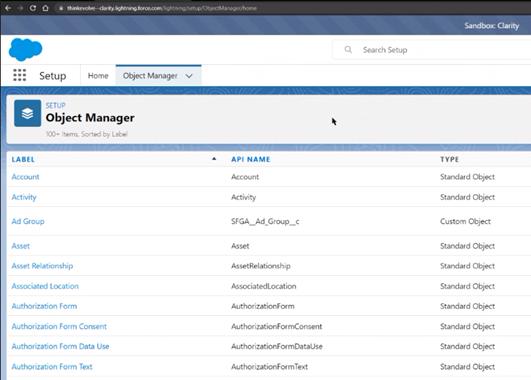
- Now this will show all objects available
- Once you click on the label of the object you can then see the details
- Click on Fields & Relationships will give you a detailed list of all the property in that object
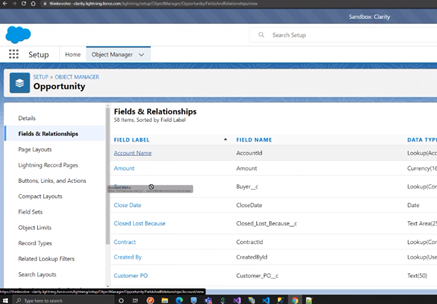
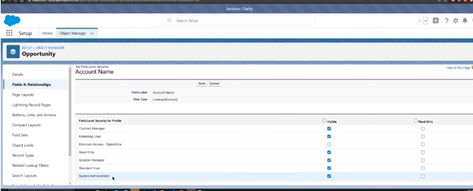
- If problems occur getting back data from the endpoint for the field, check the field level security
- Click field level security inside the field length
- You should see the set field level security button
- Be sure that the system administrator checkbox is visible