¶ Key Terminology
- View: To interact with Sage 300 through the ACCPAC library, views are opened to read and write to.
- Compose: Views can be "composed" with other views. Composing is almost always mutual (OE0500 composes with OE0520 composes with OE0500). Modifying a value in one view, may modify other values in views that have been composed.
- Subview: Subview is used to distinguish parent vs child. OE0500 (sales order detail) is a subview of OE0520 (sales order header) since OE0500 is a child of OE0520.
- ACCPAC: ACCPAC is Sage 300's old name. It's partly used now to refer to the API since the DLLs all contain ACCPAC in their names.
¶ Helpful Documentation:
- Application Object Model (AOM) Documentation Files:
- These document all the tables, views, and fields for a specific version of Sage 300.
- 2022
- 2021
- 2020
- Zip Download (Many Years)
- Using View Protocols
- This documentation is helpful for understanding the Sage 300 satellite as pushing data into and reading data out of Sage 300's API is complex.
¶ Known Integrations
STEP (Connect v4.7)
- Developers: (P) Anonymous User
- Integrations: Products (From), Inventory (From), Sales Orders (To), Shipments (From)
- Current Branches:
4.7/develop
VESTIS (Connect v3)
- Developers: (P) Austin Gregg
- Integrations: Customers (To), Sales Orders (To), Products (From), Inventory (From), Prices (From), Transactions (To), Refunds (To)
- Current Branches:
?
¶ Authentication
¶ Getting the Company ID
You will need to open the Database Setup application to find the Company ID reliably. This application can be found at:
C:\Sage\Sage300\Runtime\a4wsetup.exeC:\ProgramData\Microsoft\Windows\Start Menu\Programs\Sage\Sage 300 2019\Database Setup.lnk
You will need to authenticate with this application and then you should see something like this:
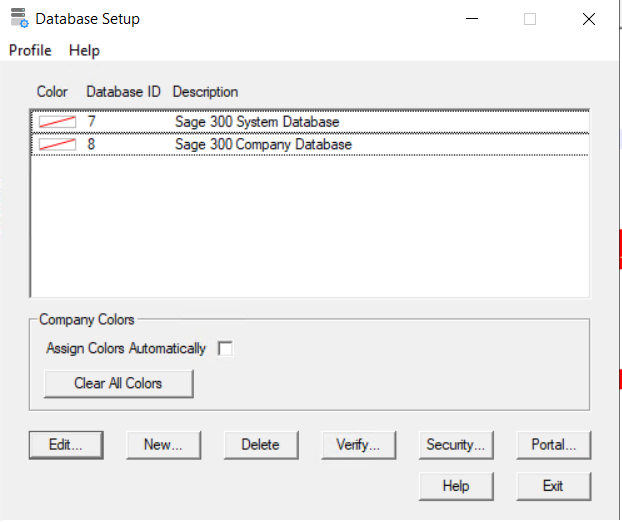
The description field should match the Sage 300 instance you normally open in the UI. The Database ID column shows the corresponding Company ID needed to interact with Sage 300.
¶ Hosting the Sage 300 Satellite (v4.7)
See the 'Building the Satellite' documentation for information on building the satellite. Transfer all the files from build/Satellite.Modules.ESM.Sage300-Impl to a folder on the server that will host the satellite. The Sage 300 satellite must be deployed to the same machine that the Sage 300 server is running on.
It is deployed as a Windows service. To create the service run the following command: new-service -name "Clarity-Sage300-Satellite" -BinaryPathName "PATH TO SATELLITE EXECUTABLE" Then use the Services application to set the startup type to Automatic.
You will want to modify satellite.appsettings.json. Here's an example/explanation of each setting:
{
    // The host address to listen on. 0.0.0.0 is generally fine.
    "ListenHost": "0.0.0.0",
    // The port the satellite listens on.
    "ListenPort": 5000,
    // This setting exists from a failed attempt to support HTTPS.
    // For now, leave true.
    "Insecure": true,
    // List of Sage 300 credentials
    "Credentials": {
        // The Default credential is special. Any request that does not specify
        // a credential name will use this set of credentials to connect to Sage 300.
        "Default": {
            "CompanyID": "",
            "UserID": "",
            "Password": ""
        },
        // A credential set named Prod. Any request with the credential name Prod
        // will use this set of credentials to connect to Sage 300.
        "Prod": {
            "CompanyID": "",
            "UserID": "",
            "Password": ""
        }
    },
    // List of token strings that indictate a valid connection.
    // The satellite just employes a basic string match for now.
    "ValidTokens": [
        "TestToken"
    ]
}
NOTE: If you edit any files in the Satellite.Modules.ESM.Sage300 or Satellite.Modules.ESM.Sage300-Impl projects, you will likely need to redeploy the satellite. The type generator does not modify these projects; as such, you do not need to redeploy the Satellite to interact with new types.
¶ Connecting to Sage 300 (v4.7 Satellite)
To connect to Sage 300, you will need the Company ID, a User ID, and the password to that User. These are the same credentials you would use to log into the Sage 300 UI.
In satellite.appsettings.json, credentials are stored here:
"Credentials": {
  "Default": {
    "CompanyID": "",
    "UserID": "",
    "Password": ""
  }
}
Each credential has an associated name (the example name here is 'Default'). When a request is made to the satellite, the name of the credential set to be used should be provided ('Default' is used if no name is provided).
¶ Connecting to the Satellite (v4.7)
TODO Anonymous User
¶ CRUD Operations
¶ Create
To create an object in Sage 300, call PushMany on a SatelliteClient with the push strategy set to Create. This function will generate the necessary PushRequest and send it to the satellite. Creation occurs for the entire tree of objects. For example, creating a OE0520 (sales order header) will also create all OE0500 (sales order detail) records within.
¶ Read (By Key - Satellite)
Reading a singular value from the satellite based on a key is not currently supported.
However, it is recommended to read from the database directly (which is supported).
¶ Read (Many - Satellite)
==While reading from the satellite is supported, it is recommended to always read from the database unless necessary.==
To read objects in Sage 300, call ReadMany on a SatelliteClient with a Sage 300 filter (a blank string returns everything). This function will send the necessary ReadRequest-s to the satellite. Please note, reading from the Satellite is slow since this returns the entire tree of objects (EX. reading an OE0520 (sales order header) also reads all OE0500 (sales order details)).
¶ Update
Like creation, to create an object in Sage 300, call PushMany on a SatelliteClient with the push strategy set to Update. If the satellite is unable to find the record, it will error. This only applies to the base record being updated, everything else is inferred. For example, updating a OE0520 (sales order header) with a new line will not error out if it's unable to find the associated line, it will instead create a new line.
Limitation: Updating a record does not delete any associated records. If you we're to update a sales order that originally had 3 lines to have 2; it will still have at least 3 lines afterwards (it could be anywhere from 3 to 5 lines).
¶ Delete
Deleting is not currently supported by the Satellite.
¶ Connect Specifics
¶ Building the Satellite
To build the satellite, you will need the DLLs from a Sage 300 version (make sure it's the same version). These DLLs are normally found at C:\Program Files (x86)\Common Files\Sage\Sage 300 ERP:
ACCPAC.Advantage.COMSVR.Interop.dllACCPAC.Advantage.dllACCPAC.Advantage.Server.dllACCPAC.Advantage.Server.RemotingManager.dllACCPAC.Advantage.tlbACCPAC.Advantage.Types.dllACCPAC.Advantage.Types.tlb
Copy these files to Modules/ESM.Sage300/ACCPAC . You should then be able to build the Satellite.Modules.ESM.Sage300-Impl project.
¶ Type Generation (v4.7)
The Sage 300 connector is able to generate view and database types from the AOM definitions. It is recommended to download the AOM ZIP of the Sage 300 version you are working with from here. Copy all the .XML files from that ZIP to Modules/ESM.Sage300/TypeGen/AOM. Run the C4.Modules.ESM.Sage300-TypeGen project to generate types.
Because of the shear number of tables/views that are apart of Sage 300, entities are separated into different folders based on their 2-letter prefix (Sage's AOM documentation also organizes them this way). For example, ICITEM is put into the IC folder.
The type generator has a config (comments and trailing spaces are allowed):
{
    // This is just for development of the type generator. When true, no files
    // will be written. Instead the generator will read *all* .xml files it can
    // and will run the generator for them (to see if any exceptions occur).
    "DebugGenerator": false,
    // NOTE: Paths here are relative to build/C4.Modules.ESM.Sage300-TypeGen/bin/
    // Since the generator is ran from that directory normally.
    // --
    // Path to the folder containing all AOM .xml files
    "AOMPath": "../../../Modules/ESM.Sage300/TypeGen/AOM/",
    // Where to output the table (database) types:
    "TableOutputPath": "../../../Modules/ESM.Sage300/DbTypes/",
    // Where to output the view (satellite) types:
    "ViewOutputPath": "../../../Modules/ESM.Sage300/Types/",
    // A list of strings of tables/views to generate types for.
    // Any table/view that starts with *any* of these strings will be generated.
    // For example, ICITEM will also cause ICITEMO to be generated.
    "Include": [
        // Inventory
        "ICITEM",
        "ICILOC",
        "POPORL",
        // Pricing
        "ICPRIC",
        // Orders
        "OE",
    ],
    // A list of names of tables/view to not generate. This list must match exactly and overrides Include.
    // For example, ICITEM will prevent ICITEM from being generated but ICITEMO will still generate.
    "Exclude": [
        // This view is not supported by the satellite since it composes with two different sets of views.
        "OE0490",
    ]
}
The type generator prints out the following information to the log:
- Any .XML file that was skipped (and why).
- Any C# file that was generated.
- Any .XML file that failed to be read and the exception that occurred (only when Debug is set to true). These exceptions currently occur because some XML files contain control characters.
- Note: When the generator is not in debug mode, exceptions bring generation to a halt.
¶ Known Customizations
- Products
- Product Grouping
- Sales Orders
- 3rd Party Personalization Plugin (this applies on the Shopify side)
- Sales Order
- Miscellaneous Charges
- Custom Mappings/Logic for Order Line Items
- Miscellaneous Charges
- Payments
- Customer Payments using Gift Cards
- Custom Workflow Logic to extend Payments Sync
- Customer Payments using Gift Cards
- Returns
- Return Transactions
- Custom Sync
- Return Transactions
¶ 'Optional' Fields
Users can create custom fields in Sage 300 for certain entities. These fields are called 'Optional Fields' by Sage 300, but these fields can be made non-optional. These fields are stored in a separate table with an O postfix (EX. the optional fields for the ICITEM table are in ICITEMO).
Since these fields can be made non-optional, you may have to add these fields when pushing in new records.
¶ Outlying Issues
- The Satellite currently uses GRPC.Core (which is in maintenance-only mode).
- The ACCPAC library requires .NET Framework and there is currently no other GRPC server implementation that supports .NET Framework.
- The satellite could potentially be converted over to a REST API.
- Because
Satellite.Modules.ESM.Sage300is a shared project (instead of a normal C# project), majstro does not currently add it to the solution file. - Reading from the Satellite is untested.
- Reading from the Satellite has low performance.
- Updates do not delete associated records (see Update operation).
- Read-by-key is not supported by the Satellite.
- Delete is not supported (see Delete operation).
¶ Common Model Mappings
¶ Common Model Workflows
Phase 2