This guide will walk through how to restore a backup for the Microsoft Store's Remote Desktop application so that all internal servers are more easily accessed.
¶ Download Microsoft Remote Desktop from the Microsoft Store
Navigate to the microsoft store
- Windows key and type microsoft Store
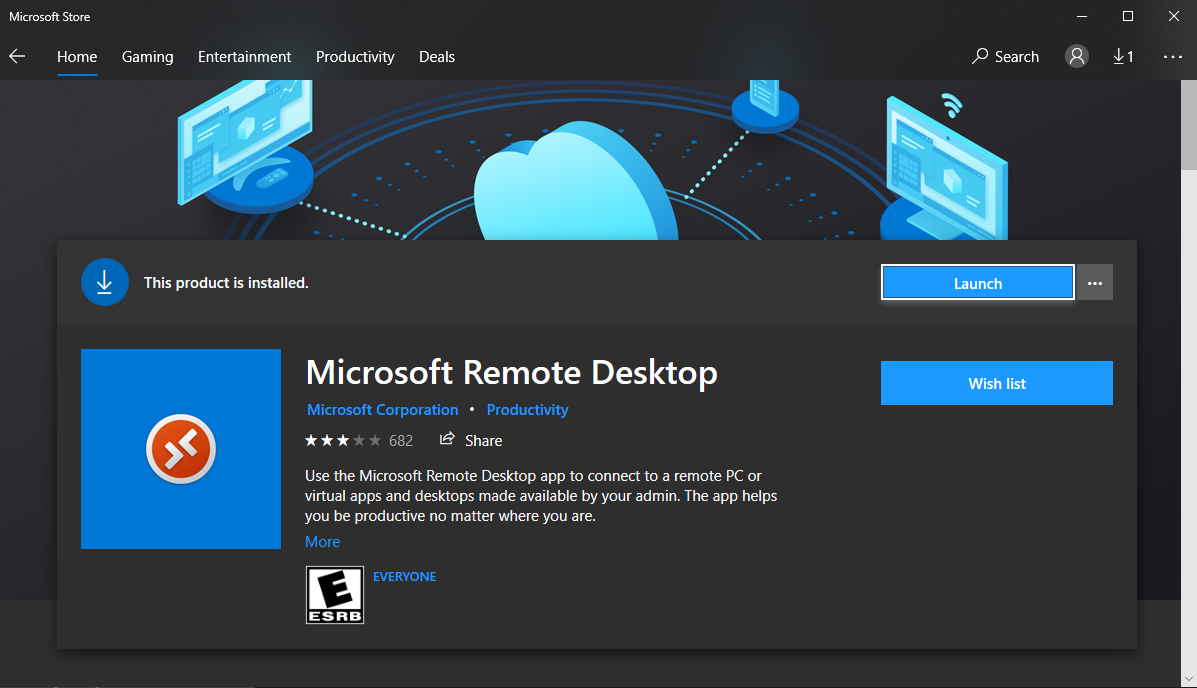
- Once Microsoft Store opens Search for Remote Desktop and click the icon shown below.
- Click "Get" > "Install"
¶ Restore Default Backup file
Download the following file
In the Microsoft Remote Desktop app
-
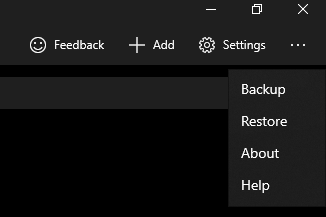
Click the three dot menu
-
Click "Restore"
-
Select the ClarityInternalServers.rdb file that you just downloaded
¶ Add your user
-
Click Settings
-
Settings manager opens in the main window
-
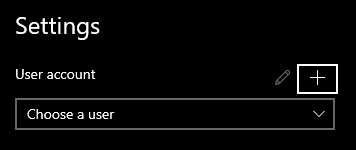
Under "User Account" click "+"
-
Fill out your Username/Password/Display Name of your HQ account (i.e. hq\First.Last)
-
Click "Save"
¶ Add your user to a box
-
On one of the boxes
-
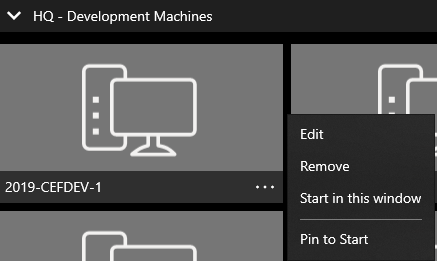
Click the 3 dot menu and click "edit"
-
Under User Account drop down, select the user you just created
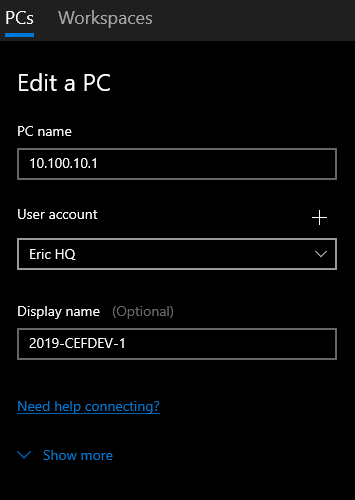
-
Click Back and click on the box you just added the user to
-
This should now open up a connection to the server
¶ (OPTIONAL) Backup/Edit/Restore the config to quickly update the attached user account to all other boxes
-
In the main 3 dot menu > Click "Backup" and save the file. (C:/Data/Tools) recommended
-
Find the saved file and edit in Notepad ++ (or any other text editor you wish)
-
Find the box you already saved the user to.
-
Copy the line "CredentialsId": "{{guid}}"
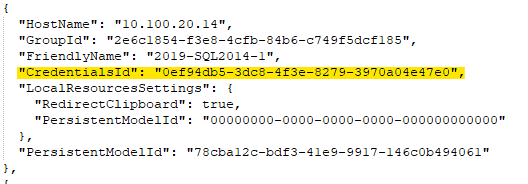
-
Open up a Find and Replace (ctrl+h)
- Ensure that
-
Save the file
-
Re-Restore the newly saved file and check that the user has been saved to the other boxes instead of having to set each one manually