¶ Summary
How to submit a project status report (PSR) for Clarity Connect standardized integration projects. The article below will indicate the differences between a Packaged PSR and a Standard PSR, how to generate a report, how to submit reports to a client, and an example for you to review.
- Tools: PowerBi, Clarity Dashboard
- Sphere: Accounting/Reporting
- Cadence: Bi-Weekly
¶ Standard PSR
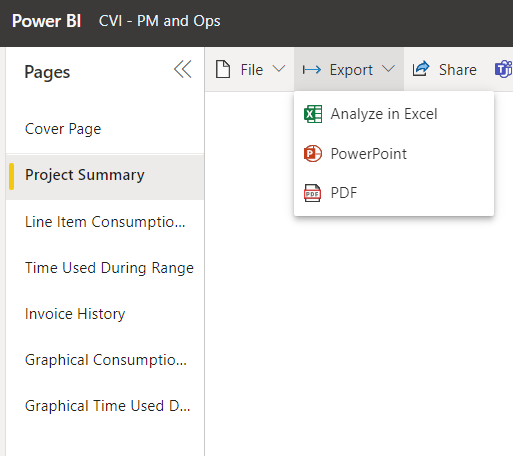
All project status reports are accessible within Power BI. However, some reports may be modified to show certain fields. The most common report is the Standard PSR
- Standard PSR: The standard PSR shows the full project hours available and the time used on the project. Includes the following
- hours paid, hours used, hours remaining, and hours credited
- A date range of hours used
- Invoice history
- Graphs displaying line items used
¶ How to Generate a PSR
The creation of a package PSR follows the same format as the standard PSR.
- Ensure you audit EP to make certain that time is logged in the correct line item.
- Ensure you run the utilities within the Clarity Dashboard.
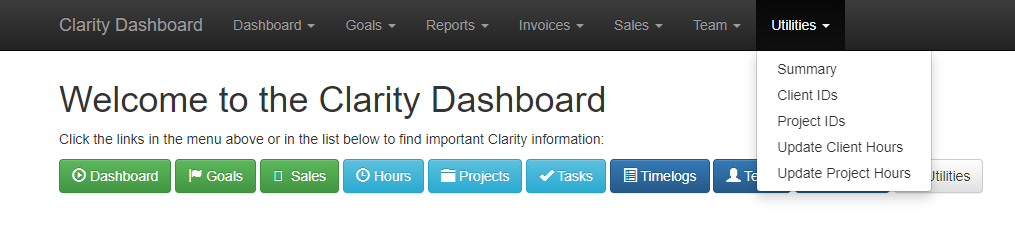
- Run both Update Client Hours and Update Project Hours
- Verify that the PSR has the correct customization hours provided by the sales client handoff
-
- Export the PSR into a PDF
- Title the PSR with the following title structure:
- YYYY.MM.DD_CLIENT_PPSR
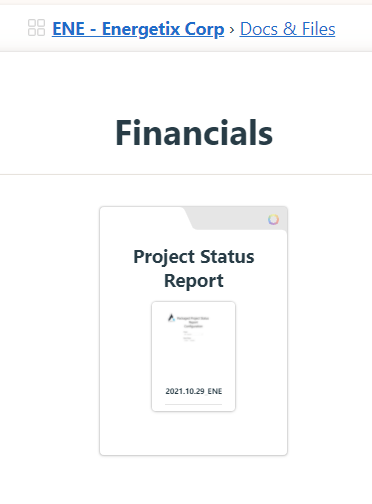
- Add the PSR to the Project Team files under Financials → Project Status Reports
- Attach the PSR to the Basecamp in the Docs & Files section under the folder structure Financials → Project Status Reports
- Include a client note to ensure the client understands and reads the PSR

¶ How to Submit a PSR Client Note
It is important to give our clients an understanding of the documentation being provided. The PSR client note gives the client a quick summary of what the PSR includes, the hours remaining on the project, how the hours have been consumed, and if we believe a change request is necessary.
¶ Format
When submitting a PSR to clients, always be certain to follow a specific format.
- Introduction
- Attached is our latest packaged project status report which includes the customization hours used on the project thus far.
- Hours report
- Hours total
- Hours Used
- Hours Remaining
- Summary of hours
- Summary of how the hours have been used
- Change Request discussion
- Discussion on if additional customization hours are needed
¶ Example Hours Report Summary
Hi Team,
Attached is our latest project status report, including the Hours Used, Hours Paid, Credited hours, and Current Hours Balance.
Hours Used: ##
Hours Paid: ##
Current Hours Balance: ##
We have primarily used the hours on Discovery meetings, whitepaper assistance, environment setup, etc. As we are leaving discovery, I do not foresee our team having to use any additional customization hours until we are in UAT.
Once we get into user testing, we may need additional hours for mapping changes or workflow adjustments requested by your team. We can either pursue additional support hours to be held on hand. Otherwise, we can await UAT to assess if changes are requested. I am happy to meet with your team to discuss details if needed.
Thanks,
¶ Subscribers
It is important to include the management team and the client when finalizing your post. This section will help you ensure you notify the correct team members of your post.
- Before posting, select the “Let me choose who to notify...” option.
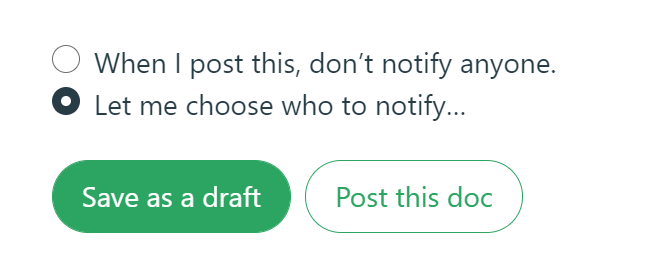
- From here a pop-up will appear asking who to notify. Select the "no one option". This will clear the list and we can select the appropriate team members from here.
- From here you will select your clients and the following team members:
- Operations Team
- Chris Reddick
- Brandon Murphy
- Stephanie Johnson
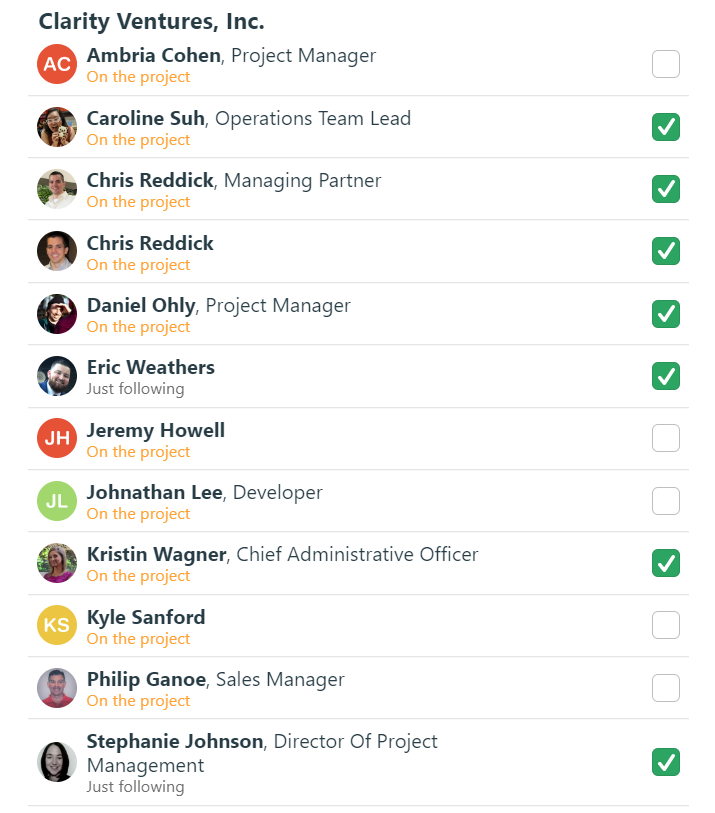
- Once all recipients are selected, we can click “Save Changes” to finalize.

¶ FAQ
- I accidentally posted without notifying anyone or the correct team members! How can I add people to a finalized post?
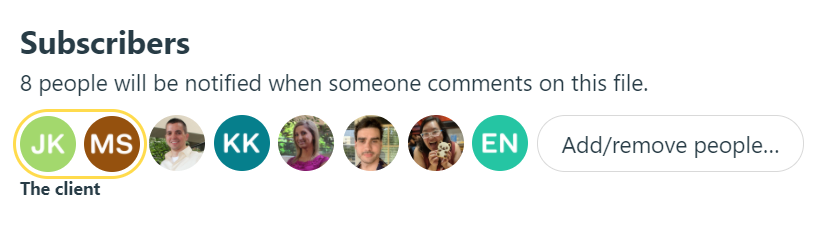
- To add people to a post that was already finalized, use the add or remove people button in the Subscribers section.