- Technology: CRM, Clarity Dashboard and Power BI
- Sphere: Financial Reporting
- SDLC: Throughout the lifecycle of the project
- Cadence: As needed but minimum once after every sprint
CRM for Windows users: https://crm2015.claritymis.com/
CRM for Mac users: https://crm2015.claritymis.com/CRM2015/main.aspx
Clarity Dashboard: http://reports.cmishq.com/
PowerBI: Power BI
Running the utility is especially important before you send PSRs to the client to make sure you're showing them the most up to date hourly balance. If you tell them their hours balance is 50 when it's actually 30 and then you allocate 50 hours into the next sprint, the client will want to know why we ended up negative. Running the utility will save you a lot of stress in the long run.
To start, make sure that you log into CRM first before logging into the Dashboard
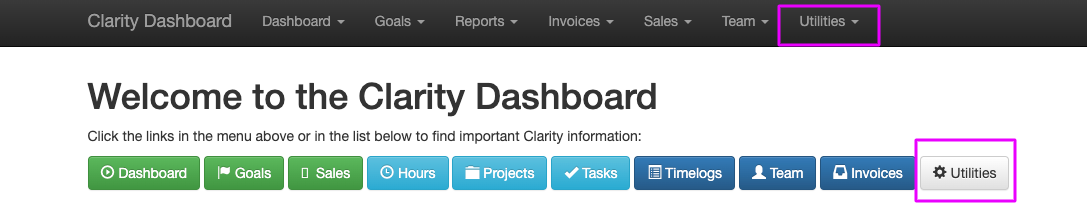
Click on either Utilities option
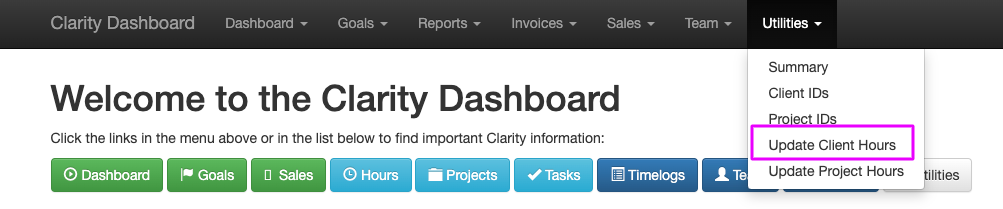
If you select the dropdown, click "Update Client Hours" first and wait for it to finish running.
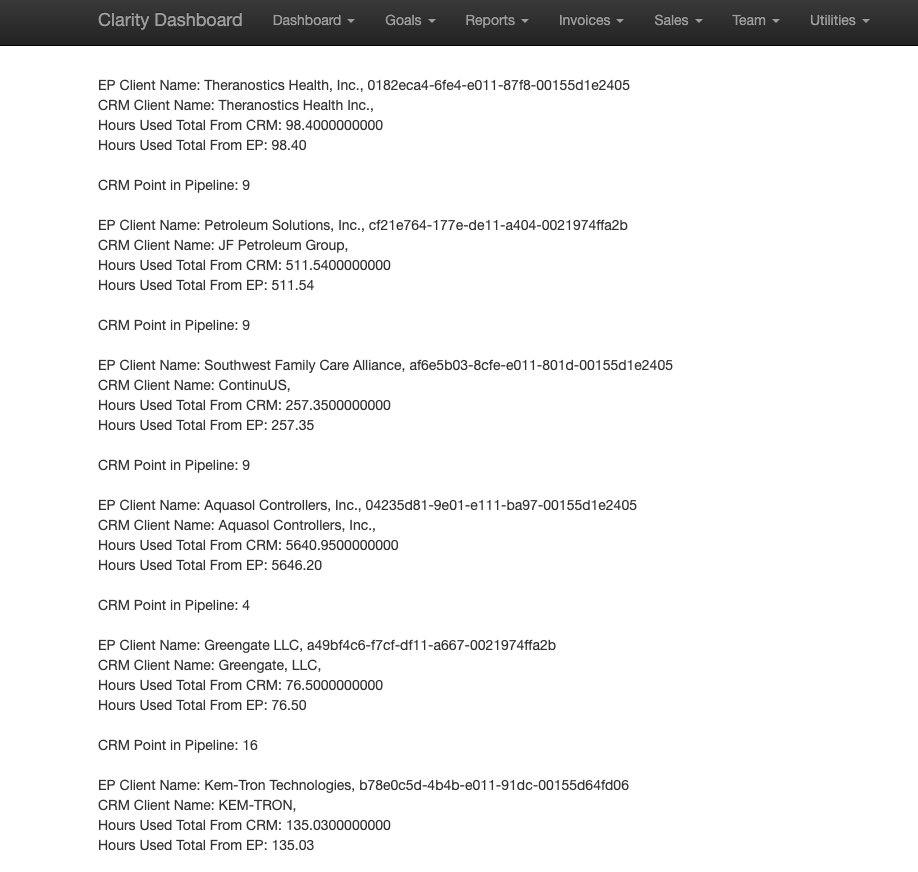
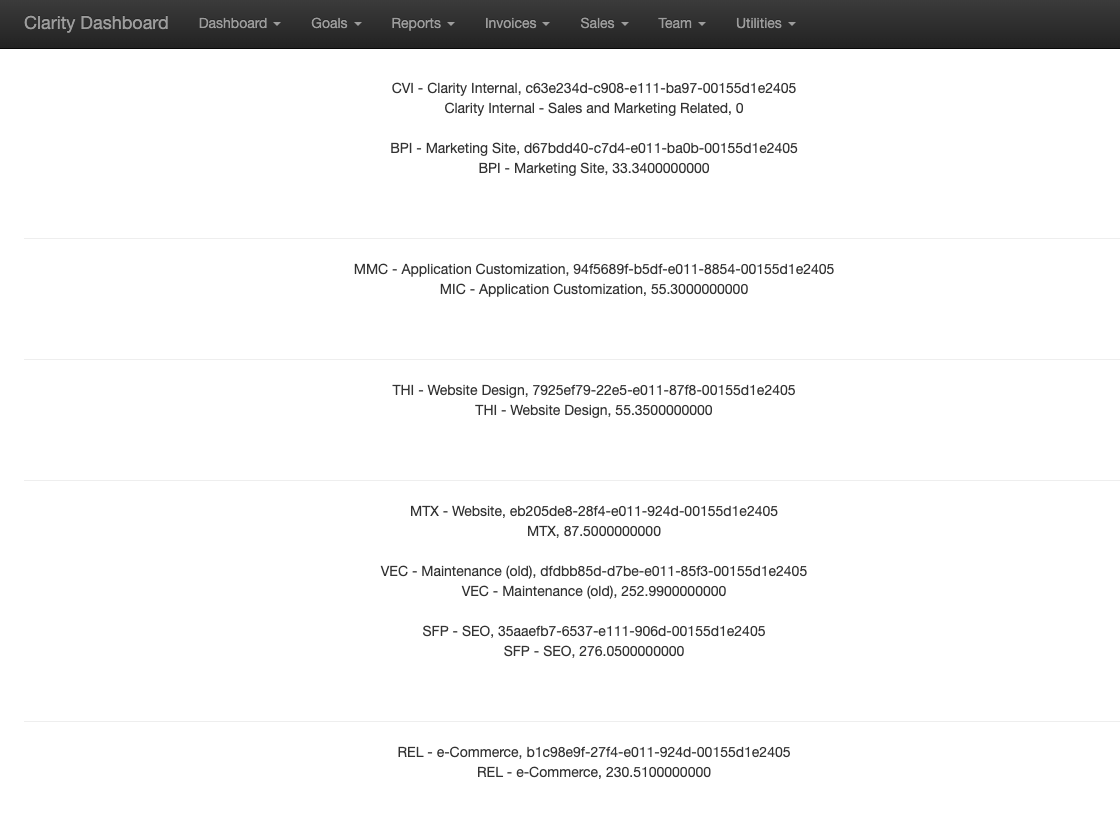
The page will look like this when it's complete:
Next click "Update Project Hours" and wait for it to finish running.
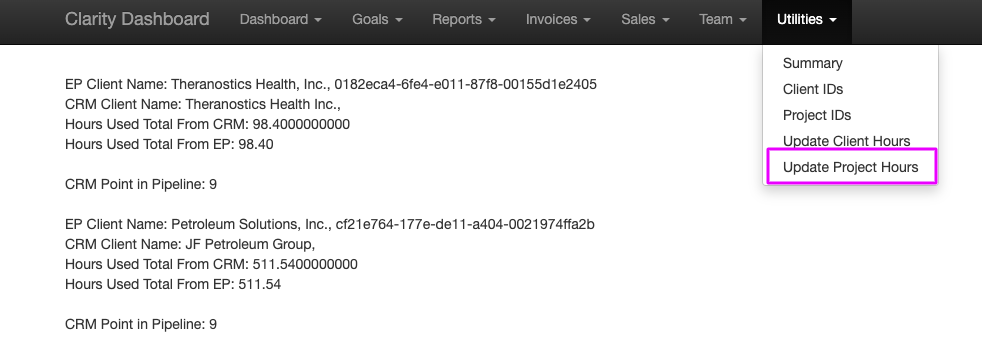
The page will look like this when it's complete:
To confirm the utility ran correctly, you'll want to pull up the applicable project in Power BI and CRM and compare their hours.
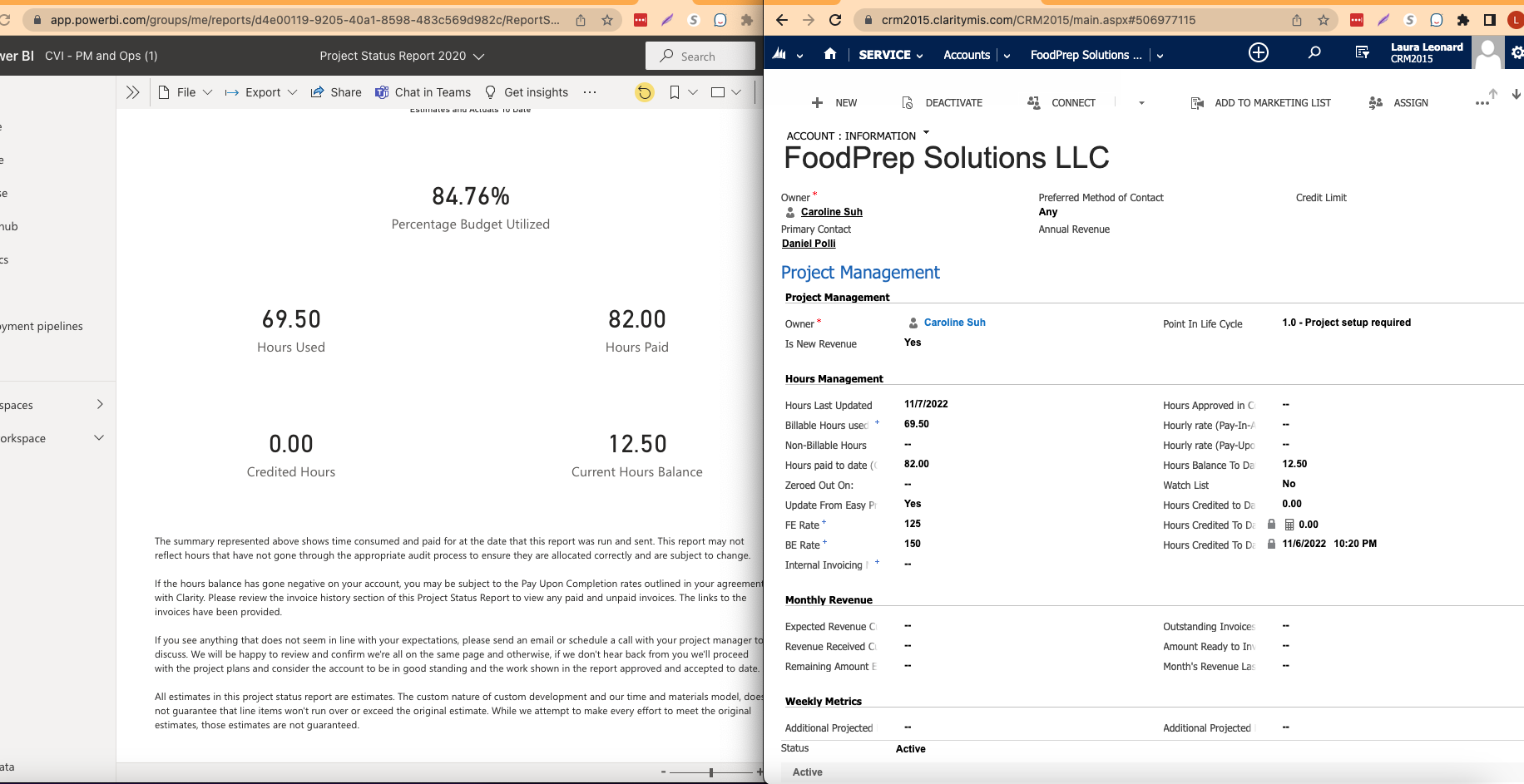
Tip for CRM, if you're having trouble finding a client, you can search for their acronym with asterisk (*). FoodPrep Solutions LLC's acronym is FPS, so I would search it in CRM as F*P*S*
This video will show the steps to run the utility: