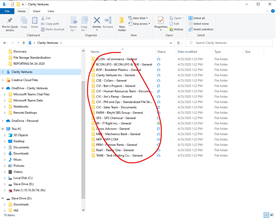
This article provides an in depth overview regarding the differences between OneDrive, Microsoft Teams, and Sharepoint, how the three tools interact, and how to set up a sync to allow for team members to navigate files in their project Teams Channels.
¶ Microsoft Teams
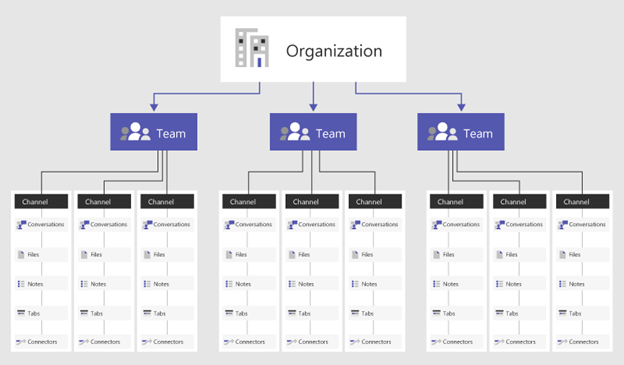
Team’s serves as not only a communication tool, but a way organize important documents and files as well. In addition, when a team is created within Microsoft Teams, a default channel is created called General. This creates an Office365Group which automatically creates an Outlook based calendar, a separate SharePoint site for that team, and a General file folder available for use in Teams, OneDrive, and SharePoint.
Teams Hierarchy Diagram:
¶ Microsoft OneDrive
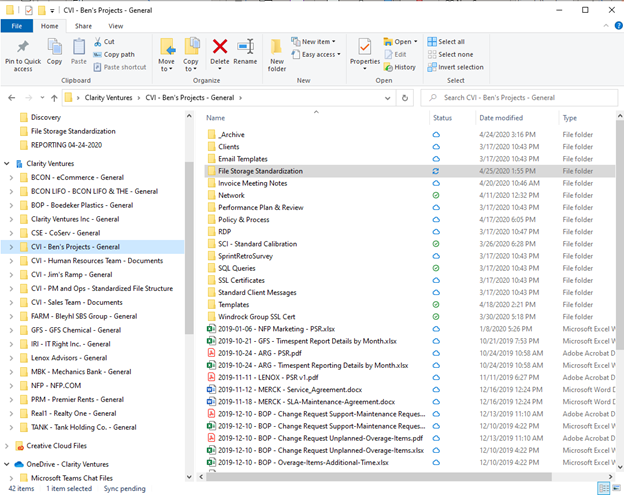
Microsoft OneDrive allows you to sync files and folders with SharePoint. The user can make and delete files and folders from within Windows Explorer or MacOS File Manager, making it easy for an end user to manipulate files stored in Clarity’s Microsoft SharePoint. There is no difference between the way files and folders are managed using default file explorer used in Windows or MacOS.
¶ Microsoft SharePoint
https://support.office.com/en-us/article/what-is-sharepoint-97b915e6-651b-43b2-827d-fb25777f446f
Organizations use SharePoint to create websites. You can use it as a secure place to store, organize, share, and access information from any device. All you need is a web browser, such as Microsoft Edge, Internet Explorer, Chrome, or Firefox.
SharePoint’s cloud-based file storage will used as all of Clarity Ventures’ file repository. Files will be manageable from within Microsoft Teams or Microsoft OneDrive. With Office365 backups, it is easy to ensure we have protection against a catastrophic event.
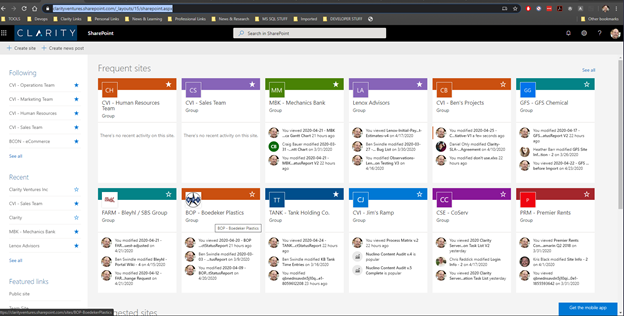
To see all your teams in SharePoint, visit the following URL:
https://clarityventures.sharepoint.com/_layouts/15/sharepoint.aspx
¶ Synchronizing to Office365Group Files
Teams and SharePoint are two separate applications, but they are already integrated by our Office365 subscription. No action is needed to sync Teams and SharePoint.
To sync your SharePoint files with OneDrive so you can manage them within Windows or MacOS file explorer please observe the following steps:
First, make sure Microsoft OneDrive is installed. If not, it can be installed from your Office365 landing page.
¶ Sync files in SharePoint
NOTE: You must synchronize within SharePoint if you want to be able to sync all files within a single team to one folder in OneDrive. In Microsoft Team’s you can only synchronize a single channel to a single folder. So each channel would be its own folder within OneDrive if you sync within Microsoft Teams.
Step 1 – Navigate to the Team you want to synchronize.
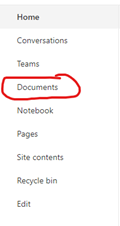
Step 2 – Navigate to the Documents Page in the Sidebar Navigation.
Step 3 – Left click Sync.

Step 4 – Allow SharePoint to open Microsoft OneDrive.

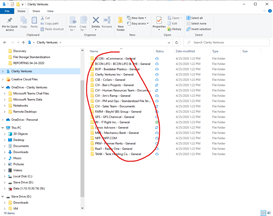
Step 5 - Confirm your files synchronized with OneDrive.
¶ Sync Files in Teams
NOTE: You must synchronize within SharePoint if you want to be able to sync all files within a single team to one folder in OneDrive. In Microsoft Team’s you can only synchronize a single channel to a single folder. So each channel would be its own folder within OneDrive if you sync within Microsoft Teams.
Step 1 – Navigate to the Team you want to synchronize with OneDrive.
Step 2 – Navigate to the Channel you want to synchronize.
Step 3 – Navigate to the Files within that Channel.

Step 4 – Click Sync.

Step 5 – Confirm the Files synchronized with OneDrive.