After adding yourself as a user to the system using SSO, they will not have to do that again.
Step 1: Navigate to https://dashboard.netmaker.clarityinternal.com
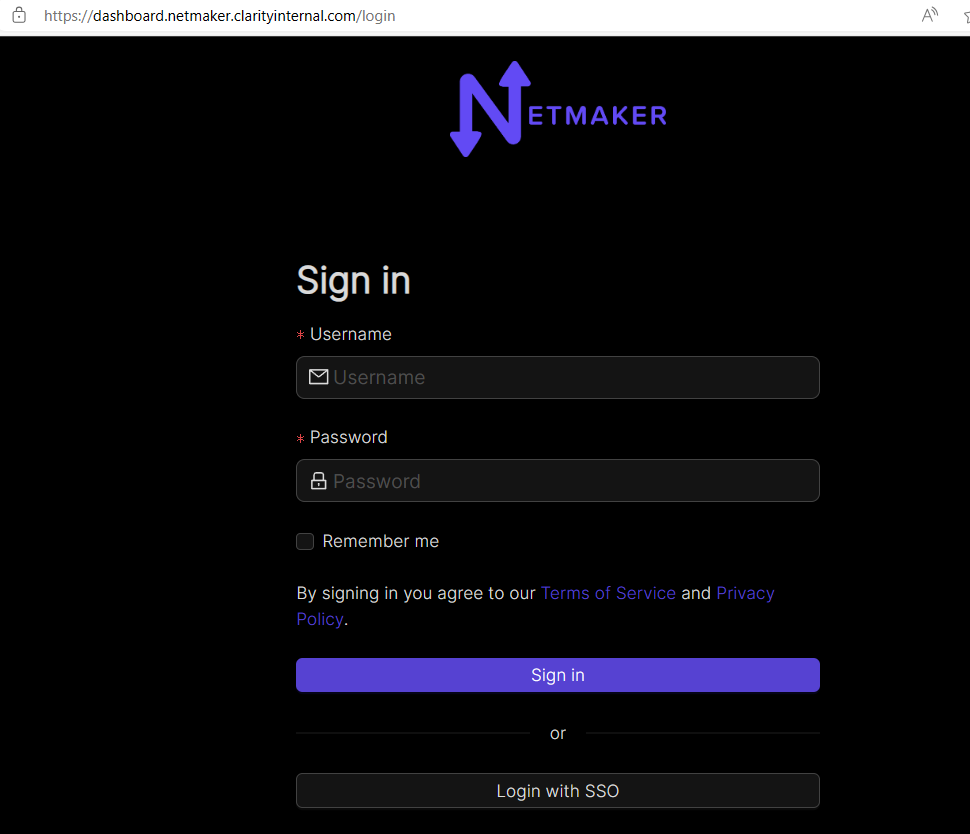
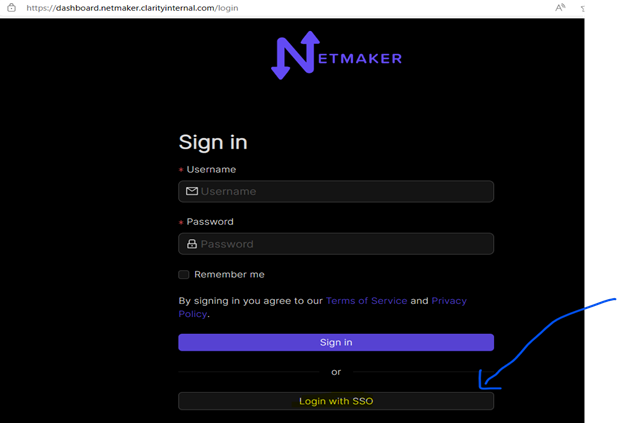
Step 2: Click "Login with SSO"
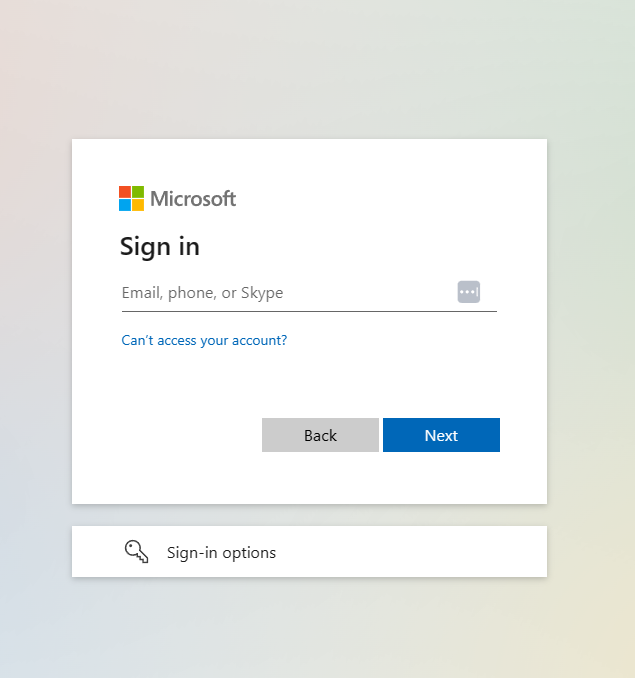
Step 3: Input your O365 credentials for your claritymis.com user account.
Note: If you have "Remember me" selected for you Microsoft login or after logging into O365 in your default browser, you may be redirected back to the login screen. This is normal and doesn't indicate an error. Behind the scenes, this process adds you to the OAuth user list, enabling a Clarity Network Administrator to attach you to our network.
==After successful authentication on this step, please let Paul Collado know via email or DevOps teams chat that you have completed this step so that I can attach your account to the environment. Otherwise, you will not have an environment to connect to on your VPN client.==
Step 4: Download the remote access client for your OS. If on Windows, please use the x86 MSI installer.
At the time of this SOP, the latest version is v0.22.0:
https://fileserver.netmaker.org/releases/download/v0.22.0/remote_access_client_x86.msi
All clients:
https://fileserver.netmaker.org/releases/download/v0.22.0/
Step 5: ==Run the Remote Access Client software as an administrator from the downloaded location on your computer.== Otherwise, the client will ask for Administrator's permissions:
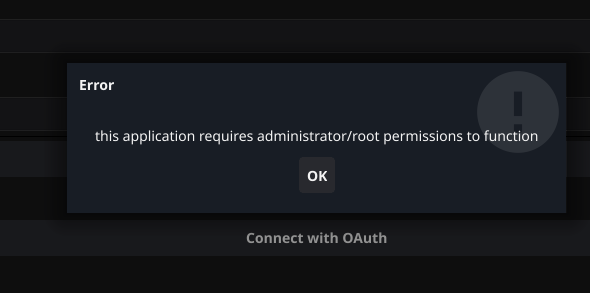
Input the server address in the server address field: api.netmaker.clarityinternal.com, then click Login with OAuth.
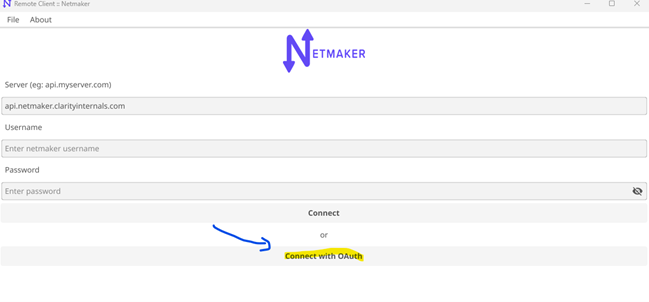
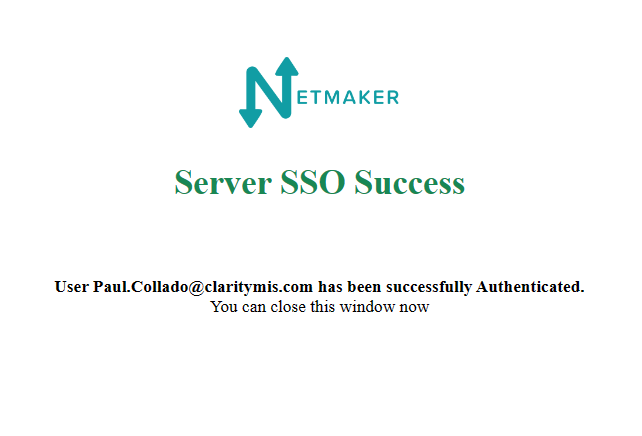
Step 6: You will be redirected to your browser where you must authenticate with O365 credentials. Once successfully authenticated, you will be redirected to a page indicating you have succeeded and asking you to close the page.
Administrators: ==Please login to the Netmaker Dashboard with the devops@claritymis.com team via Team’s chat that we can confirm your account is properly enabled in the Netmaker portal====.==
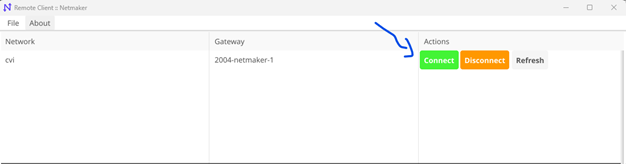
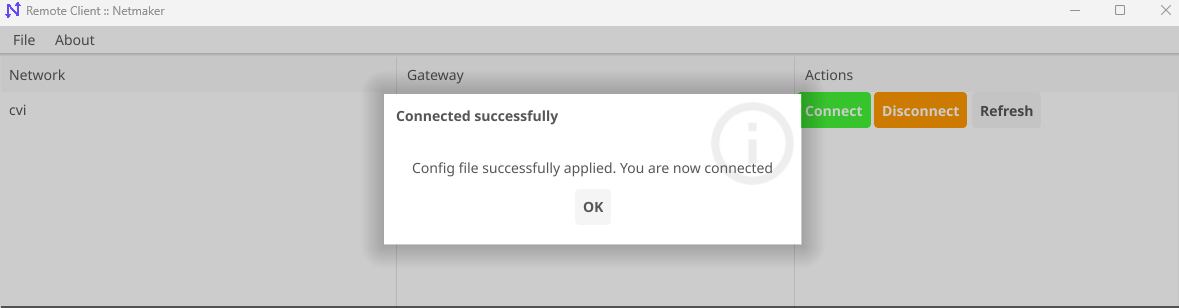
Step 7: At this point you should be on the network. You can go back to the remote access client and click Connect to be confirm successful connection. You will most likely get a message stating you are already connected as show on the below 2 screens:`
All clarity resources will be available to you at this point. Any issues please report back to Devops@claritymis.com team via email or Team’s chat.