Below is a description of best practices regarding meeting recordings and written follow-ups.
Every time that you meet with a client you should record the meeting and you should create meeting notes to summarize what was discussed in the meeting. Both the recording and notes should be preserved for future reference.
- Technology: Teams, Word, Basecamp
- Sphere: Communication
- SDLC: Throughout the project lifecycle
- Cadence: During and after every client meeting
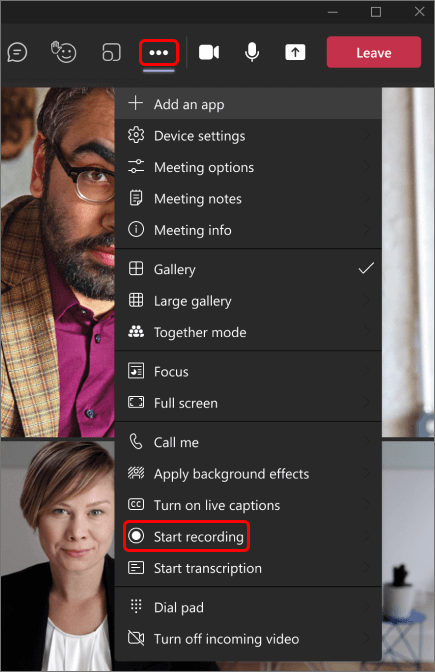
- All client meetings should take place via the Teams application. Once you have started or joined the meeting you should start the meeting recording:
Go to the meeting controls and select More actions (three dots) > Start recording.
During the meeting you should present your agenda and you should take notes via Word. A sample meeting agenda for a Bi-Weekly Project Update Meeting can be found here.
Once the meeting has concluded, you should download the meeting recording:
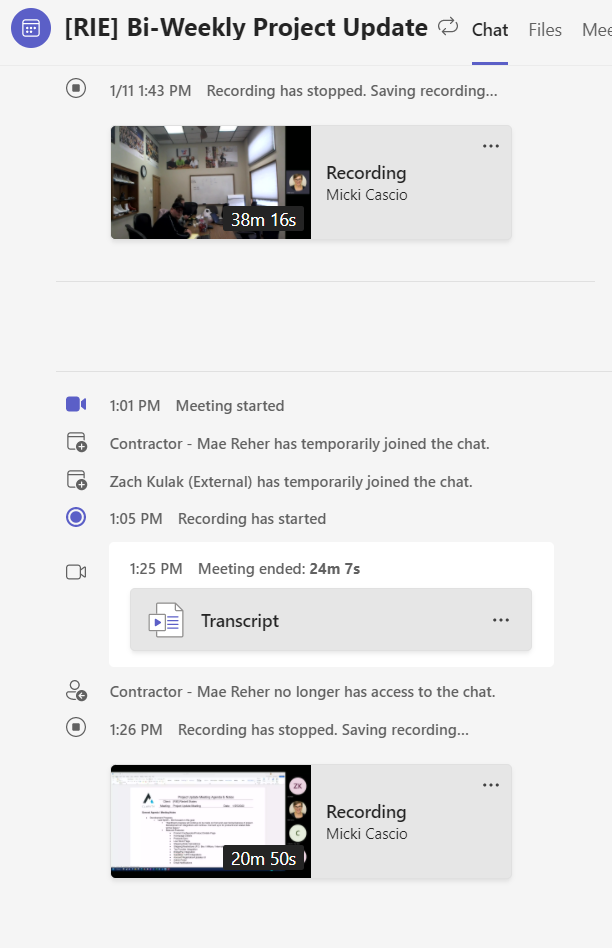
In the Teams application, navigate to the channel that the meeting was in and click on the recording.
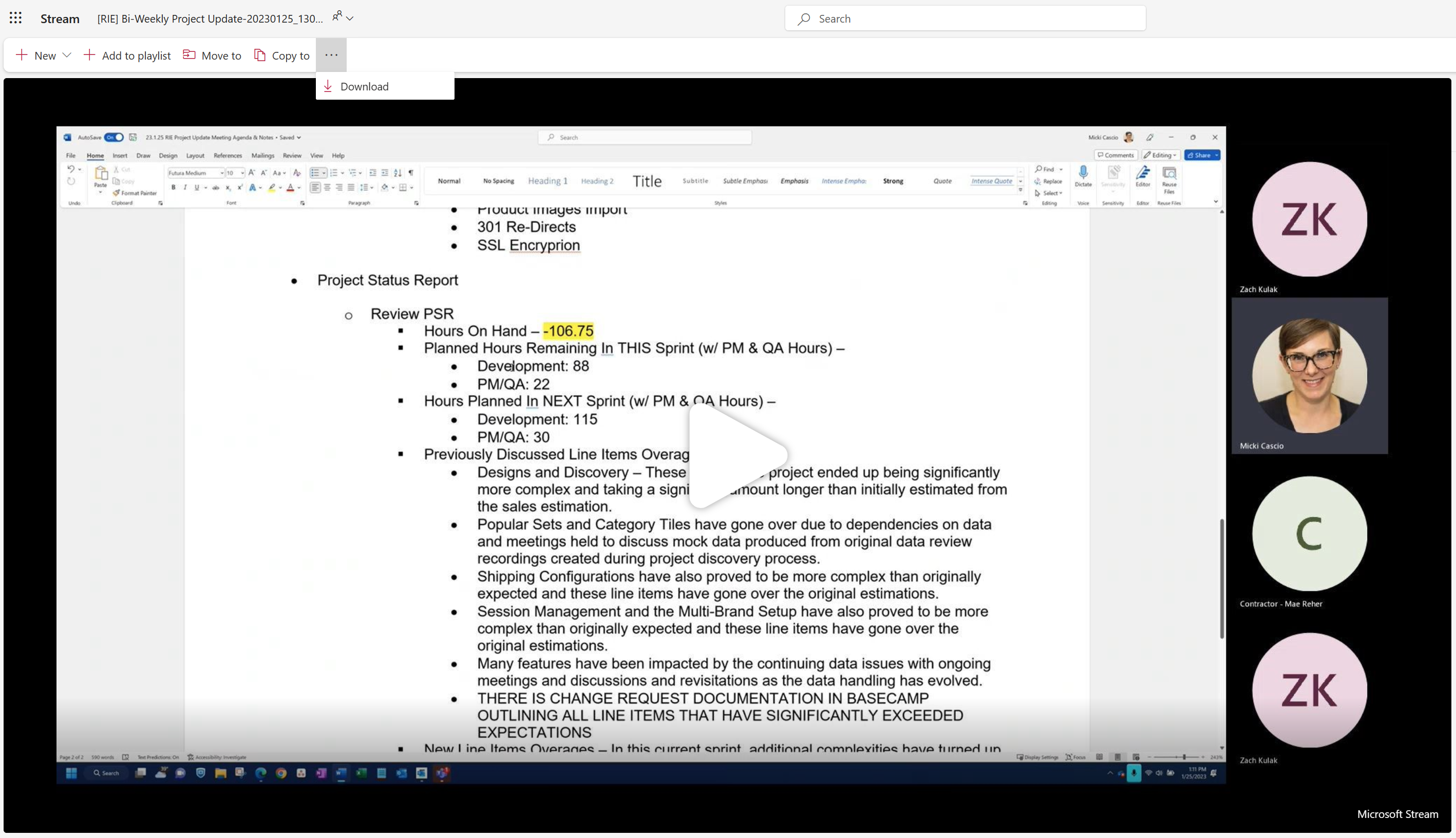
Clicking the recording will open a webpage with the video of the meeting recording. From here you should download the meeting recording. Go to More actions (three dots) > Download.
Once you gave downloaded the meeting recording, it will appear in your downloads on your computer.
Alternatively, you can also select the "Copy To" option and copy the recording into the project's Teams Channel.
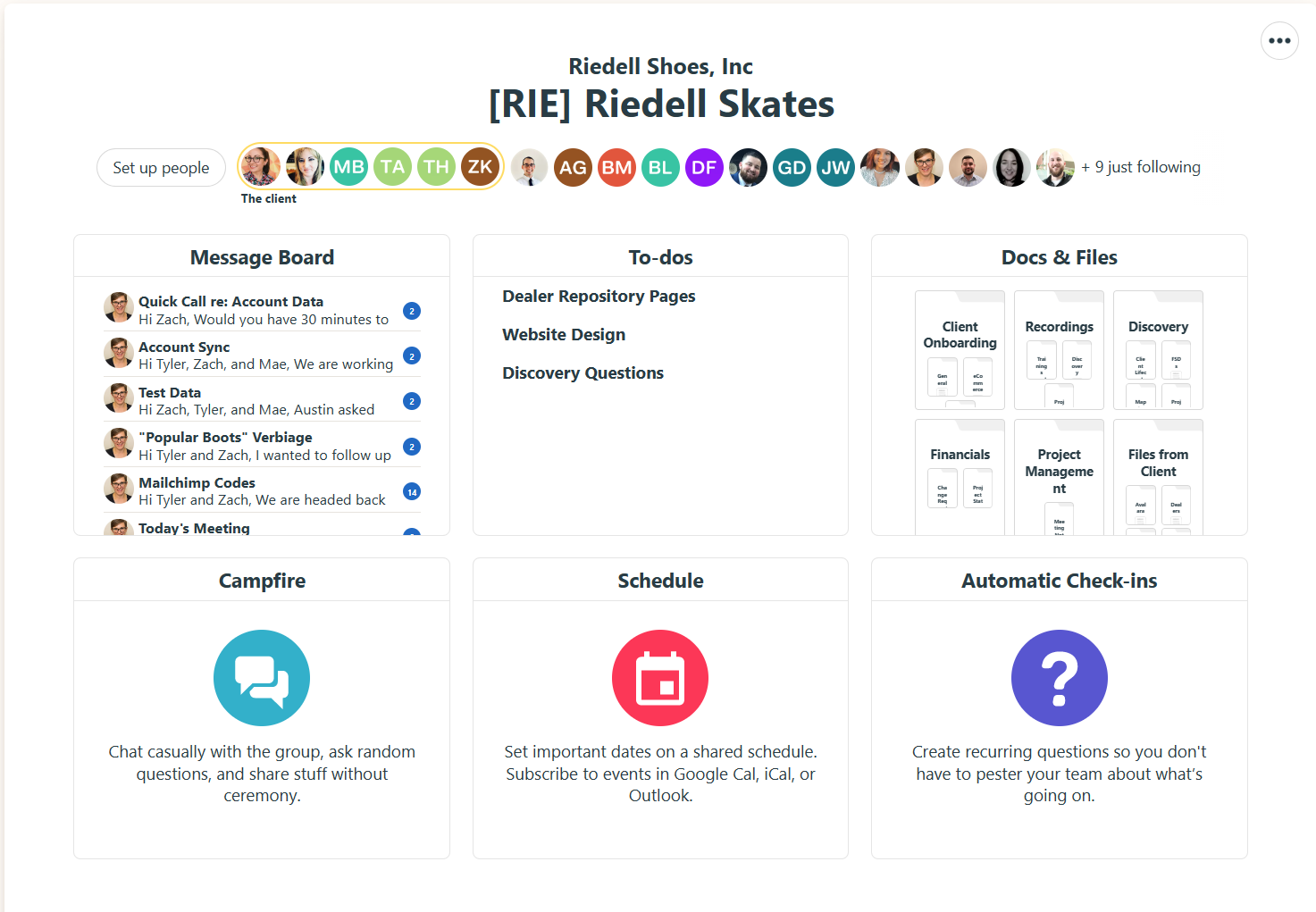
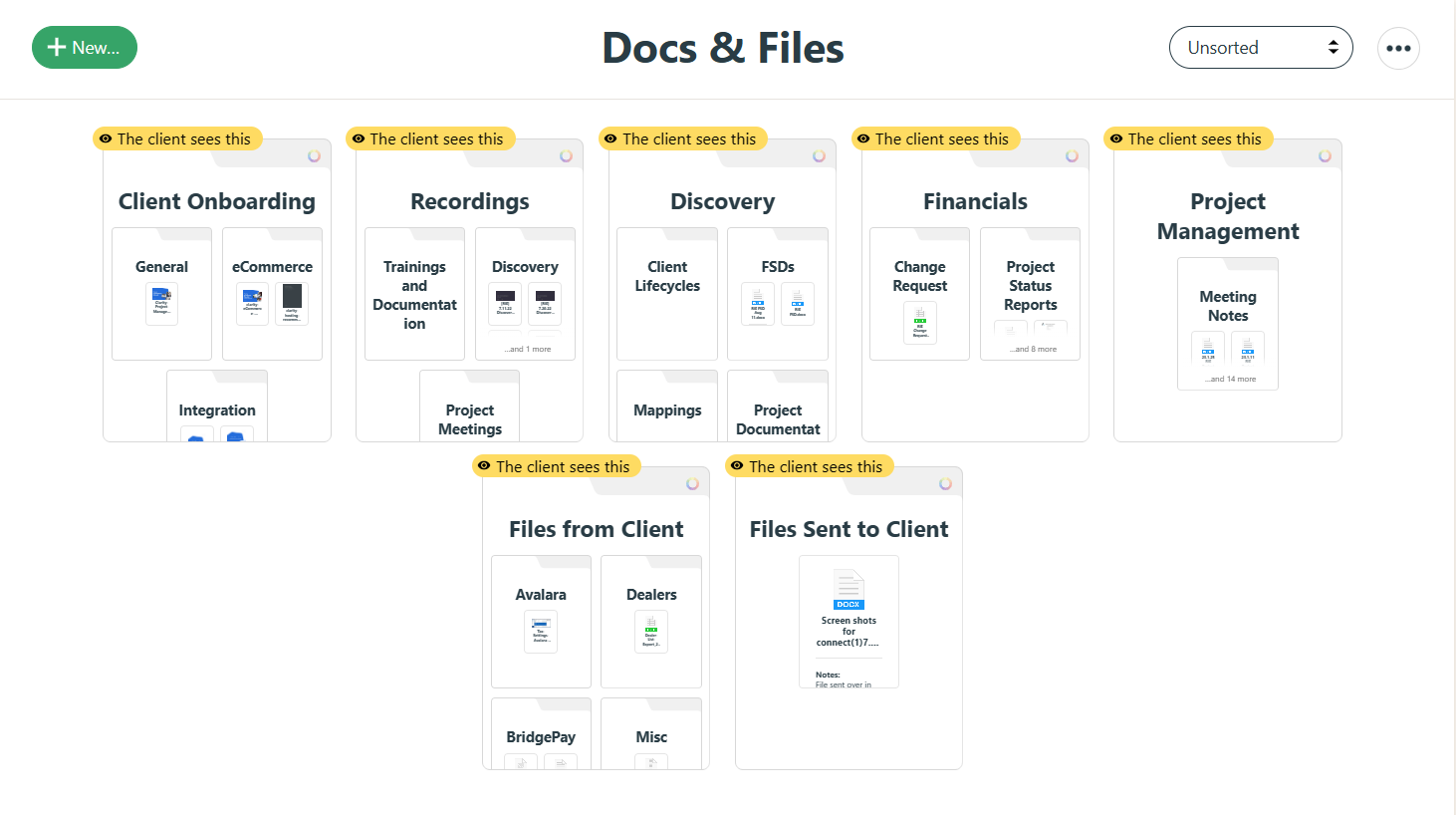
Once you have both the meeting recording and your meeting notes ready, you should upload both files to the relevant project's Basecamp. These files should be uploaded to the Docs & Files section of the project's Basecamp:
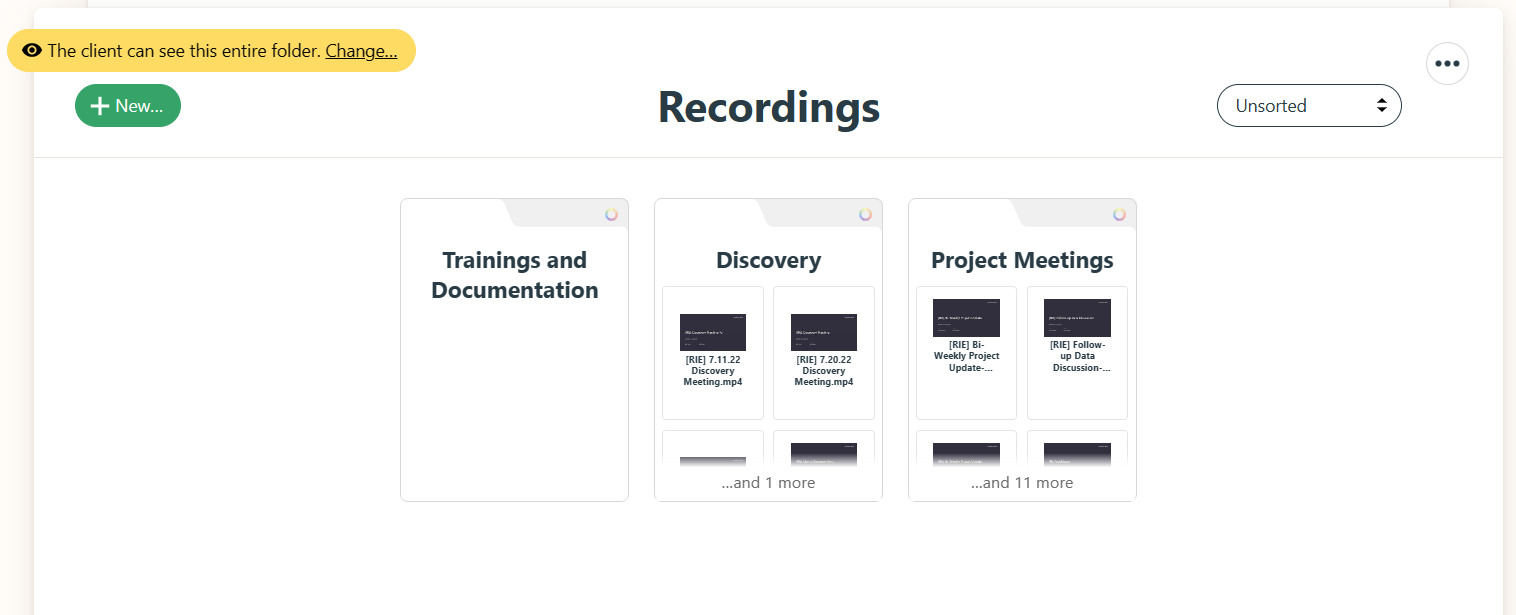
Within the Docs & Files section, the meeting recording should be saved to the "Recordings" folder and the meeting notes should be saved to the "Project Management" folder.
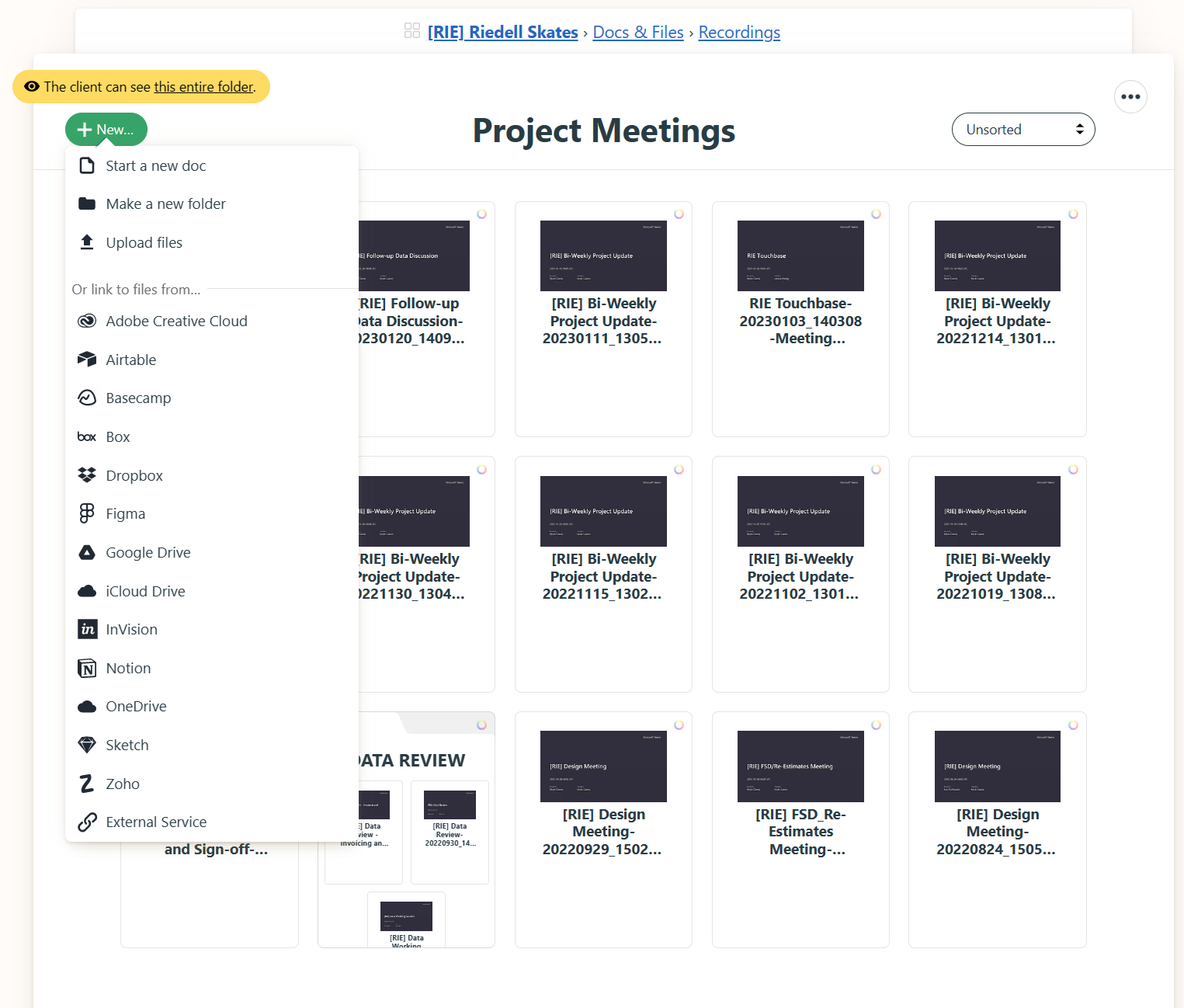
Within the "Recordings" folder, the meeting recording should be uploaded to the relevant sub-folder to the meeting topic.
Within this sub-folder, go to New > Upload files and select the appropriate meeting recording file to upload.
The same process should be following for the meeting notes file in the "Project Management" folder and "Meeting Notes" sub-folder.