¶ Table of Contents
- Introduction
- Requirements
- Template
- Notes Process
- How to Prep for Meetings?
- Where to Take Notes During the Meeting?
- How to Format Notes?
- Where to Save the Meeting Notes?
- How to Follow Up on Notes?
- Example Meeting Notes
¶ Introduction
Every meeting, whether internal or external, requires meeting notes to ensure the capture of information provided during the meeting. Recordings and transcriptions are useful but not a replacement for taking notes during the project. The purpose of this article is to review how to take notes, best practices, and how to follow up on meeting notes.
¶ Below are a few requirements for ALL Clarity team attendees:
- All team members present on the call need to have active notes detailing their understanding of the meeting
- All team members must ensure the context of the meeting is understandable from reading the notes alone*
- *Exceptions may include individuals who are given minimal action items such as those included on the call as backup (e.g. Management, Sales, & Senior Developers)
- All team members must format their notes in accordance with the template provided below
- All team members must upload their notes into the correct Team channel file path
- General → Project Management / Discovery → Meeting Notes
¶ Meeting Notes Template
Provided as an attachment is the current (2021) template for meeting notes.
Project Status Meeting Agenda & Notes.docx
Non-Project Management roles may use alternative templates approved by their department.
¶ Notes Process
The process outlined below must be followed to ensure all team members are using the same methods.
¶ How to Prep for a Meeting
Ahead of the project status or Discovery meeting, it is important to know the agenda for the upcoming meeting. The following process covers best practices on how to prepare an agenda for the meeting.
- Review the previous project status meeting notes to ensure you have a frame of reference to the last call
-
Review your previous notes at least 24-48 hours in advance of the meeting.
-
Block off 30 minutes on your schedule to review prior notes and create a meeting agenda.
-
DO NOT wait to review the notes until right before the meeting. You will likely catch information that needed follow up or additional information.
-
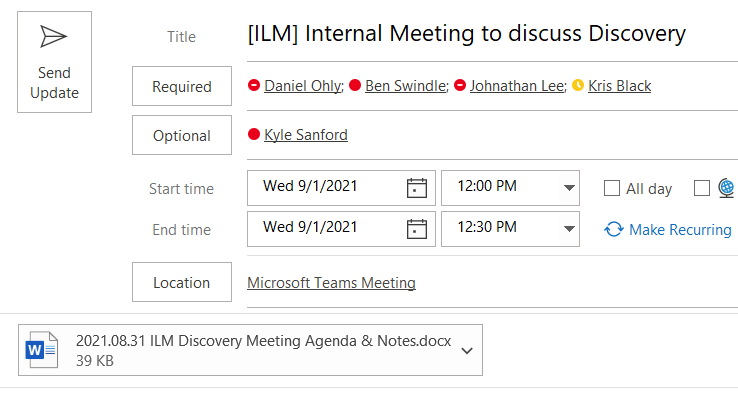
- Provide the agenda to the client team ahead of the next meeting either by pasting your agenda in the meeting body or by attaching the meeting notes into the meeting
- Example:
- Example:
- IF you do not know what the next meeting needs to cover, review with the internal Clarity team or request to move out the client meeting to avoid wasting time
- ALWAYS reach out to your PMO Manager to confirm if a request to reschedule the meeting should be done
¶ Where to Take Notes During the Meeting
Once the meeting has began, you should pull up a notes software via one of the methods below:
- Microsoft Word file in OneDrive: A Word file can be saved to your OneDrive using the following title format:
- YY.MM.DD CLIENT Project Status Meeting Notes
- If you choose to save to OneDrive, notes can be revised and should then be saved to the customer's Teams folder → General → Project Management → Meeting Notes.
- YY.MM.DD CLIENT Project Status Meeting Notes
- Teams Meeting Notes: using the meeting notes section in teams is useful as the notes can be referenced by going back to the meeting. This also allows the customer/participants to see the notes as they are being written.
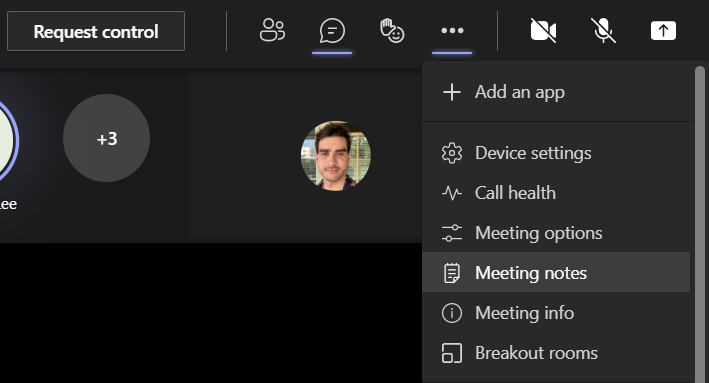
- Clicking the elipses on the Teams meeting allows you to select meeting notes
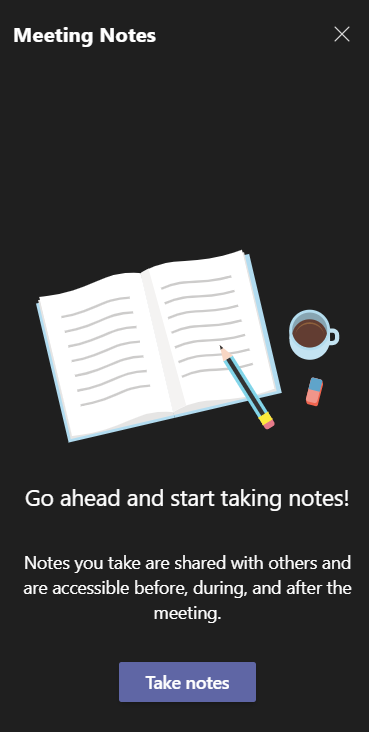
- Click: Take Notes
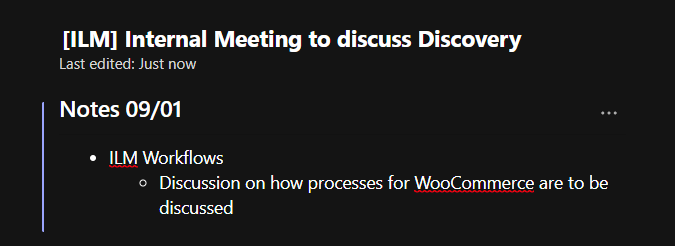
- Type the notes date and begin typing notes in the section below
- Once the meeting concluded, copy the meeting notes into the Word document template provided above
- Clicking the elipses on the Teams meeting allows you to select meeting notes
¶ How to Format Notes?
The Notes Template follows this format:
- General Agenda
- Involves the important items to be discussed during the meeting. Can relate to what developers have done so far, what was discussed at the last meeting, status of prior action items, what's happening with the project timeline or budget and why it's happening.
- Meeting Notes
- All relevant information discussed in the meeting.
Below is a format that can be used for the body:
- Header
- A short subject title of what the discussion is currently going over that can be referenced to other documentation. The best subject titles relate back to the IIW user stories.
- DO NOT be afraid to ask what the discussion is referring to as attendees may assume that everyone is on the same page
- Example:
- Product Sync
- Summary
- A short summary of what the discussion is going over so context is provided for someone reading the notes.
- DO NOT forget to provide some context to the discussion as meeting notes become useless if no information is provided
- Example:
- Issues noticed in the Product sync are due to the lack of information on product kits.
- Elaboration & Discussion
- Additional elaboration on what is being discussed and short form of specific details discussed.
- TRY to avoid transcribing every work and instead focus on the purpose of the discussion point.
- Example:
- [CLIENT] indicates that they are unsure if they want to have Product kits synced by directionally
- CLARITY DEV says the kits can be partially integrated but then updated by the eComm admin after the integration
- Action Items
- Record the output of the discussion and ensure there is always some form of output from the discussion.
- ALWAYS refocuse the conversation back to some action item, even if the output is simply [CLIENT] to discuss internally
- ALWAYS bold the action item to ensure it is easily found on rereads
- Example:
-
Action Item for [CLIENT]: CLIENT to provide fields required for product KITs
-
Action item for CLARITY: Map in the product kit fields and update the IIW to match the new requirements
- Note: additional cost may apply
-
- Action Items
- Project goals that arise as a result of the meeting. Tasks to be completed, items to be addressed and goals to be met before the next meeting, as well as long term.
¶ Where to Save the Meeting Notes?
Once the meeting has concluded, ensure you have enough time after the meeting is concluded to save the notes to a proper document saved in the Teams channel.
- Update the template with the correct date & title following the format below
- Format:
- YY.MM.DD CLIENT Project Status Meeting Notes
- Example:
- 21.09.01 ILM Project Status Meeting Notes
- Format:
- Copy and paste the note into the body of the document
- Under the section header of Meeting Notes
- Save the document into the Teams Channel
- General → Project Management → Meeting Notes
¶ How to Follow Up on Notes?
Once the notes have been saved, you will want to ensure all relevant team members have the notes and the action items are being reviewed. Failing to add the notes to the channel will lead to action items being missed or forgotten
- Teams
- Copy and paste the meeting notes into the Teams Channel message thread
- Provide a title indicating the date and title of the meeting
- YYYY.MM.DD CLIENT Project Status Meeting Notes
- Include relevant team members on the message so they can review the notes
- You can also @ general the channel to get the attention of the team
- Attach the meeting notes into the Teams message by selecting the attachment icon
- Basecamp
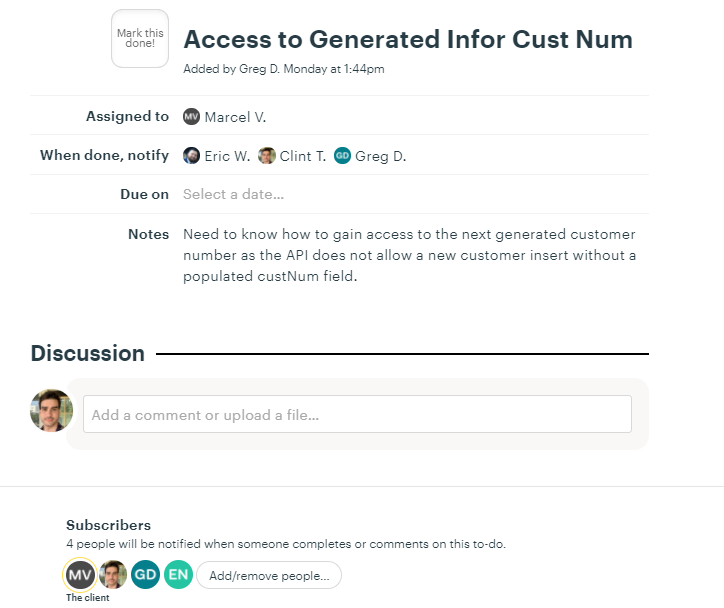
- Set up Basecamp to-dos for client action items
- Basecamp to-dos should include the relevant client and Clarity team members on the "Assigned to" and "When done, notify" sections
- Include team members in the subscriber section so they receive email updates
- Provide a summary of the action item using the notes above
- Example:
- Basecamp to-dos should include the relevant client and Clarity team members on the "Assigned to" and "When done, notify" sections
- Set up Basecamp to-dos for client action items
¶ Example Meeting Notes
Please review the attached meeting notes to see how notes should be formatted:
2021.08.26 CUT Project Status Meeting Agenda & Notes.docx
Meeting Notes
- User Acceptance Testing
- Customer Testing
- Customer Code
- Customer_code will be generated if the field is null when synced from Infor to Magento
- Action Item for CB/I: CB/I to test and confirm
- Customer_code will be generated if the field is null when synced from Infor to Magento
- Term Code
- Term code will be mapped to terms_code. Where is it coming from and what is the format?
- The terms_code from infor can be mapped directly into Magento terms code field
- If there is a terms_code of 120, do we map it anyways?
- A possible lookup needs to be performed on the terms list to confirm if new terms are applied
- Alternative, ClarityConnect sends over the full list from Infor whether or not it exist in Magento
- Action Item for Clarity: Clarity to post terms_code list to Magento if it exist in Infor
- Master Cutlery will manually update the terms in Magento
- Action Item for Clarity: Clarity to post terms_code list to Magento if it exist in Infor
- Term code will be mapped to terms_code. Where is it coming from and what is the format?
- Region ID
- Magento only supports IDs up to 65 but ID of 74 is showing up
- Data Issue: Customer has Country code of US but should be CA
- Action Item for MC: Matt to run updates to Infor
- Data Issue: Customer has Country code of US but should be CA
- Magento only supports IDs up to 65 but ID of 74 is showing up
- Confirm Data in Infor
- Eric posted a list of missing Infor values (null) that are throwing errors in Magento
- Action Item for MC: Master Cutlery to perform updates to fix data issues noticed by the integration
- Alternative fix, if phone number is null, then grab phone number from the account
- Eric posted a list of missing Infor values (null) that are throwing errors in Magento
- Customer Code
- Product/Inventory Testing
- Inventory Status Flag
- When an item is marked as obsolete in Infor then the status should update in Magento but we need to confirm the workflow
- Action Item for Clarity: If the product is obsolete, the product should be disabled
- One Product status across all three sites
- When an item is marked as obsolete in Infor then the status should update in Magento but we need to confirm the workflow
- Store Updates
- Each website has a different store code, and each web store will need to be updated
- Action Item from CB/I: Kristine to provide the store code for Clarity to change
- Are all the stores need to be updated for each sync (pricing, inventory, etc)
- Pricing should stay the same across all B2B stores
- Action Item for Clarity: One sync update for the first store code then another update for the second store code, etc.
- B2C will default to the B2B pricing if no other pricing is provided
- Action Item for Clarity: One sync update for the first store code then another update for the second store code, etc.
- Stock quantity can stay the same across all storefronts
- Pricing should stay the same across all B2B stores
- Since the other B2B is not online, how do we know which store to send to?
- Action Items for CB/I: Kristine to provide updates on how ClarityConnect knows when to update each storefront
- Each website has a different store code, and each web store will need to be updated
- Inventory Status Flag
- Order Testing
- Store Updates
- Do we need to pull orders from all "stores" or will the endpoint be acceptable?
- Action Item for CB/I: Kristine to look into what is required for the order sync
- Do we need to pull orders from all "stores" or will the endpoint be acceptable?
- Store Updates
- Customer Testing