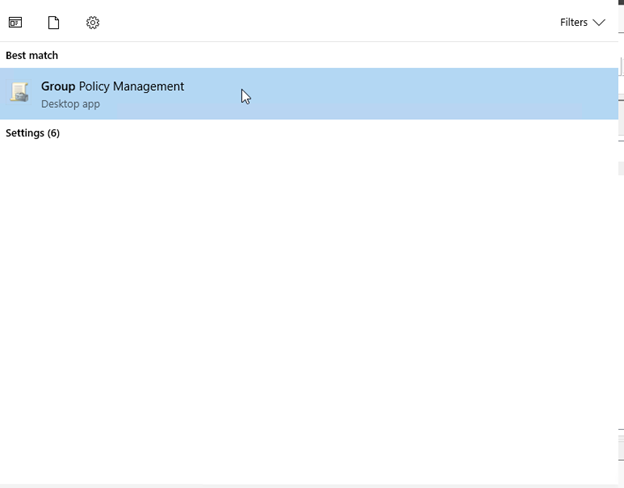
I. 1. Go to the Domain Controller, on the HQ Domain that would be AD-1 and on the Corp domain that would be DC2016. Search for Group Policy Management.
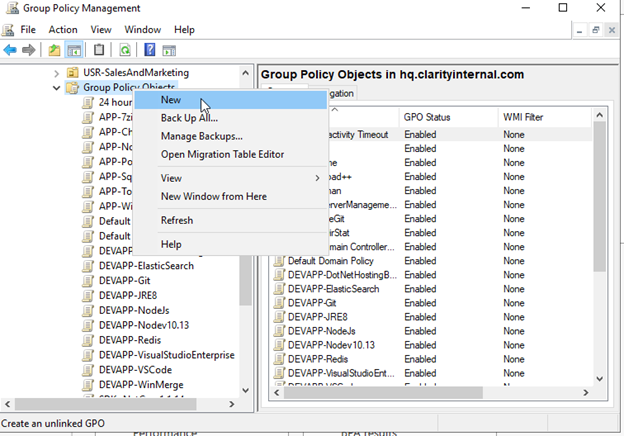
II. Within Group Policy Management right click Group Policy Objects, and select New.
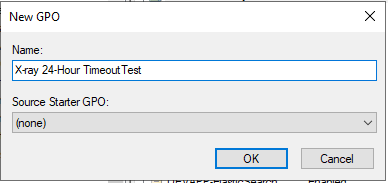
III. Enter a specific title related to the object, as this will be a test policy, it will be called X-ray 24-hour Timeout Test.
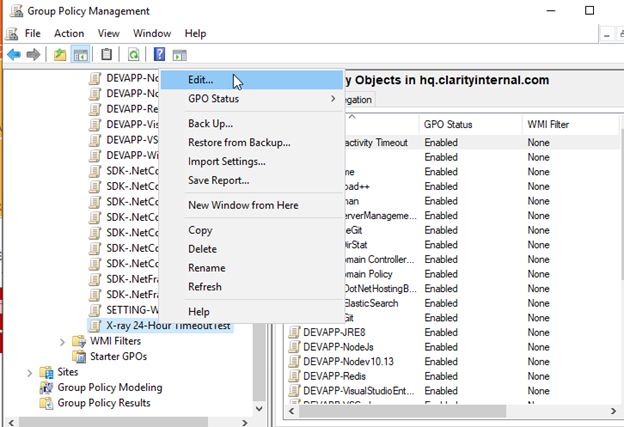
IV. Once the GPO has been created, right click it and select Edit.
V. Once in side the editor, select User Configuration and then go to Policies and then to Administrative Templates, Control Panel and then Personalization.
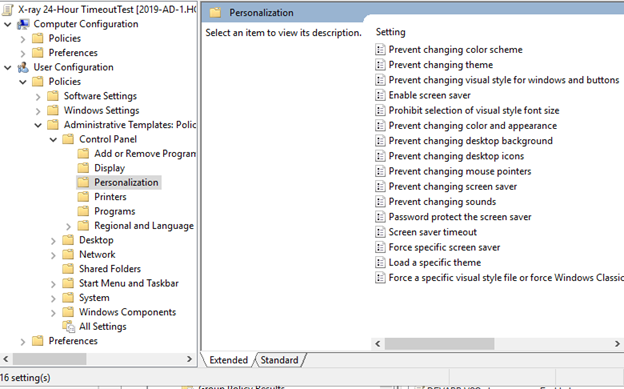
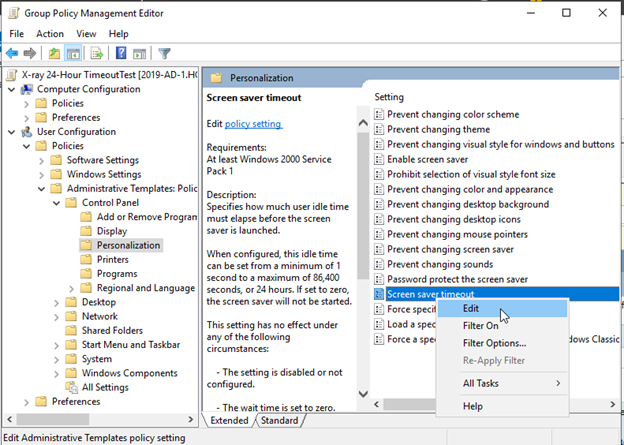
VI. Then find the option titled Screen Saver Timeout, right click and Edit.
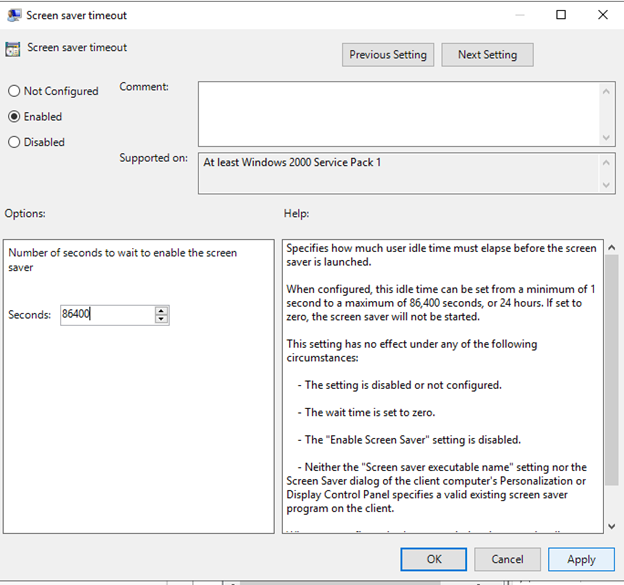
VII. Select Enabled, set the seconds to the max amount of 86,400 seconds and then hit Apply.
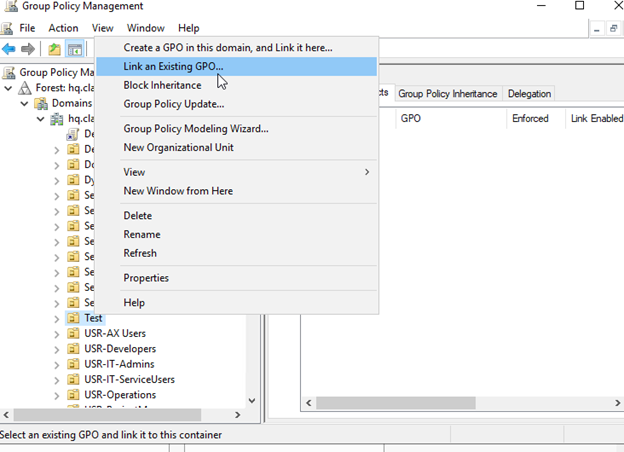
VIII. After you have applied the polices, link the GPO to the appropriate OU.
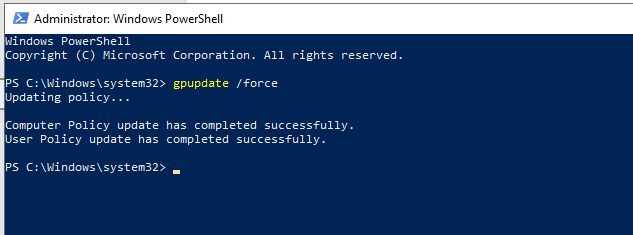
IX. From there once you add the GPO go to the relevant machines and open Powershell. From there enter gpupdate /force. After typing it hit Enter and wait for it to finish the process and then restart the computer.
X.