To restore guest files on a development machine (that has automated backups in place via Veeam), complete the steps below:
- Login to the Veeam.corp.claritymis.com machine with appropriate credentials (Administrator/Domain admin, etc.)
- Once logged in, locate and open the "Veeam Backup and Replication" application
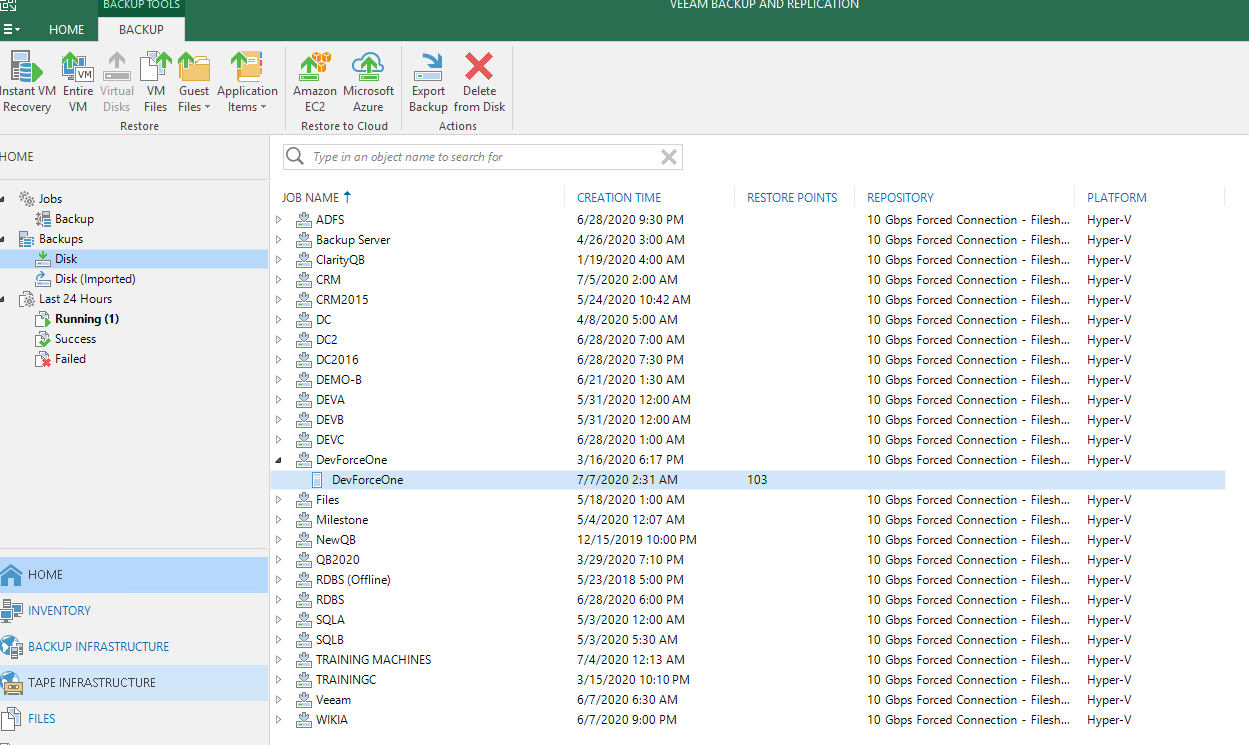
- Click on the "Home" menu option and find the list of backups and then click on "Disk" and then find the machine of interest and expand the machine to show the restore points.
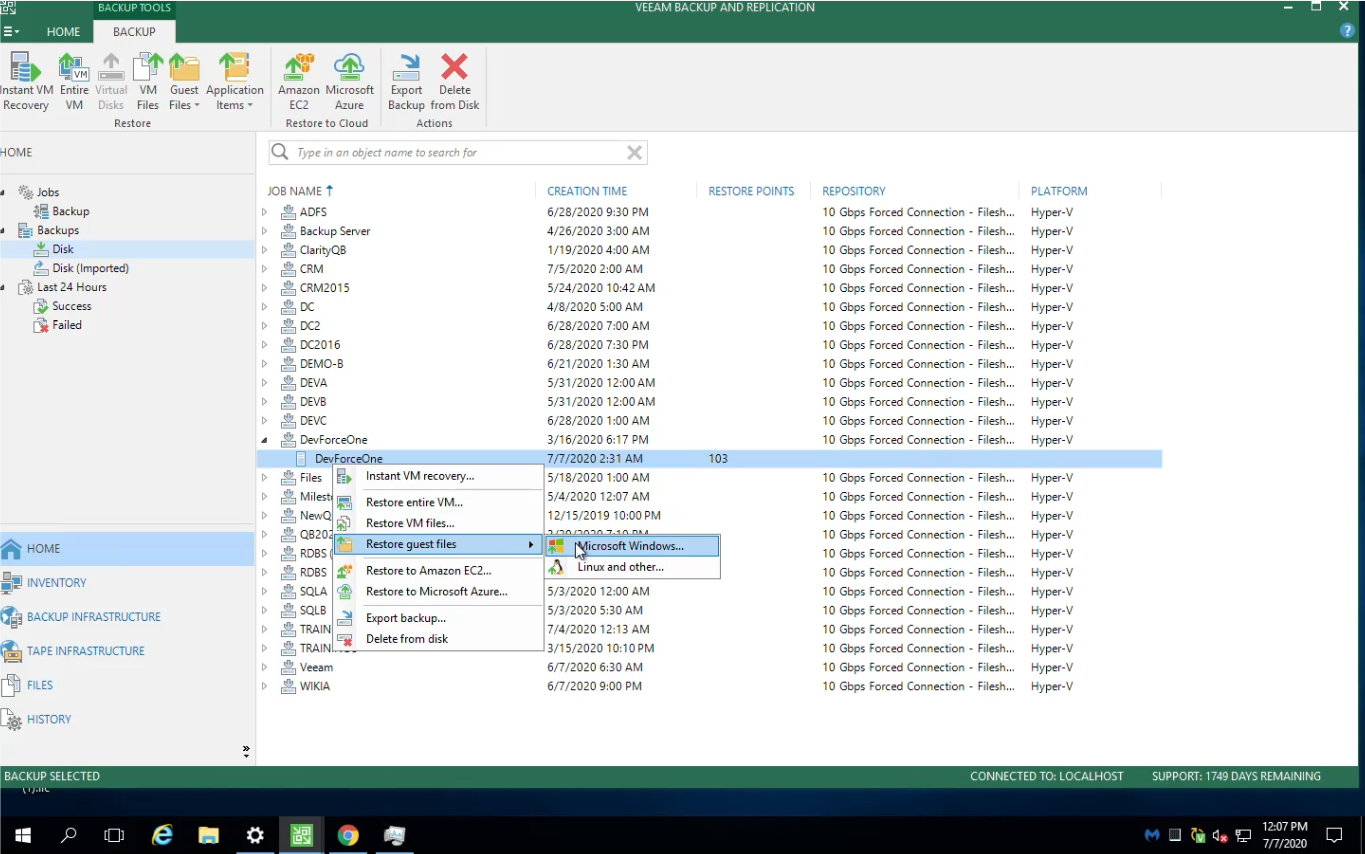
- Right-click on the restore points/machine name and click "Restore guest files" and then select "Microsoft Windows"
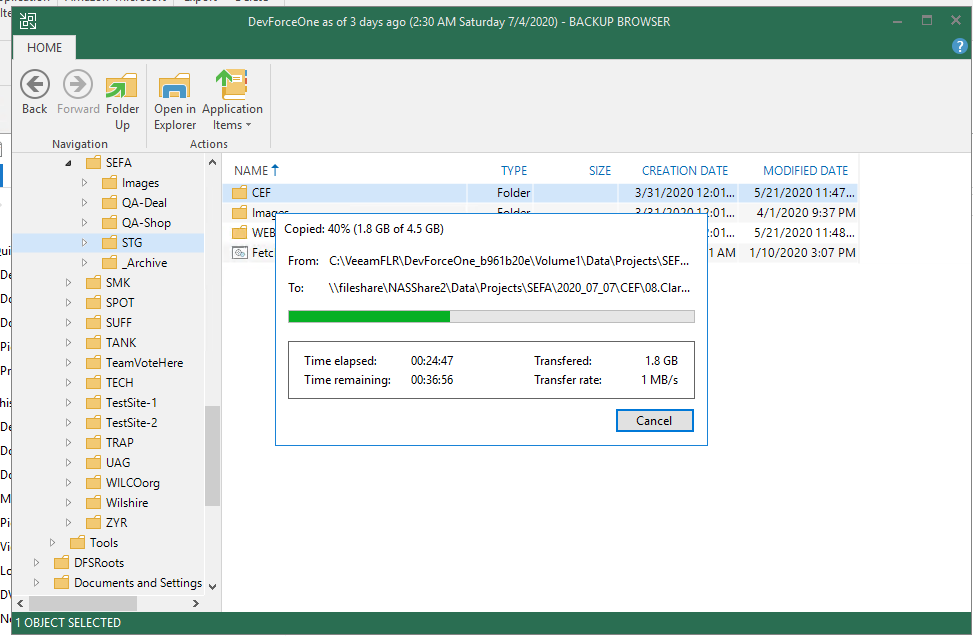
- This will load a dialog box showing the windows explorer view where you can locate the desired folder/folders and select the appropriate folder or files.
- Right-click on the folder or file(s) and select "Restore" or "Copy to" - we typically recommend "Copy to" and then setting up a file location on the NAS drive so there is a backup in place in case it's needed again later.
- Once you've determined the file location, simply finish the process (indicate "Restore" or "Copy to" with a location), and then Veeam will typically run for quite a while (usually takes about 30-90 minutes depending on the number of files). Keep in mind it's having to piece together incremental backups in order to "build" the accurate set of files as they were on the day you're restoring to.
The images below correlate to the steps above, showing the process with correlating visuals.