¶ Description
In this article, I will describe each step in migrating an existing SSL certificate to a new server and ensuring that it will auto-renew when it expires.
¶ Pre-migration Checklist
- Decrypt the configuration files. (VERY IMPORTANT STEP)
- Review settings.json to check if all paths and services configured there are available on/from the new machine.
- Review firewalls and other security settings to make sure than win-acme will be able to access all the resources it might need for validation (e.g. FTP services, Azure Managed Resource Identity, etc.).
¶ Move Program Files
- Move program Files
Before you move the program files make sure to decrypt the configuration files!
The files in the directory that contains wacs.exe can be copied to the new machine (I typically place these files in C:\win-acme\, but can have a custom path if want).
Alternatively, you can download the latest release, but in that case, make sure to check the upgrade instructions for possible breaking changes to take into account.
¶ Move Configuration Data
- Move the configuration files to the new machine. They are stored in the
ConfigPath(typically%ProgramData%\win-acme\acme-v02.api.letsencrypt.org, though that can be customized in settings.json). Move these files to another new machine.- If the file path for the configuration data does not exist on the new machine, create it and copy the data to that path.
NOTE: After moving the configuration files, you only need to keep the configuration .json files for the SSL certificate you wish to use on the new server. Delete the certificates and the configuration .json files for the SSL certs you do not wish to use on that server. wacs.exe will automatically name the files, so in order to identify the correct cert and the correct config .json file, run wacs.exe
Manage renewals > Show details for the renewal
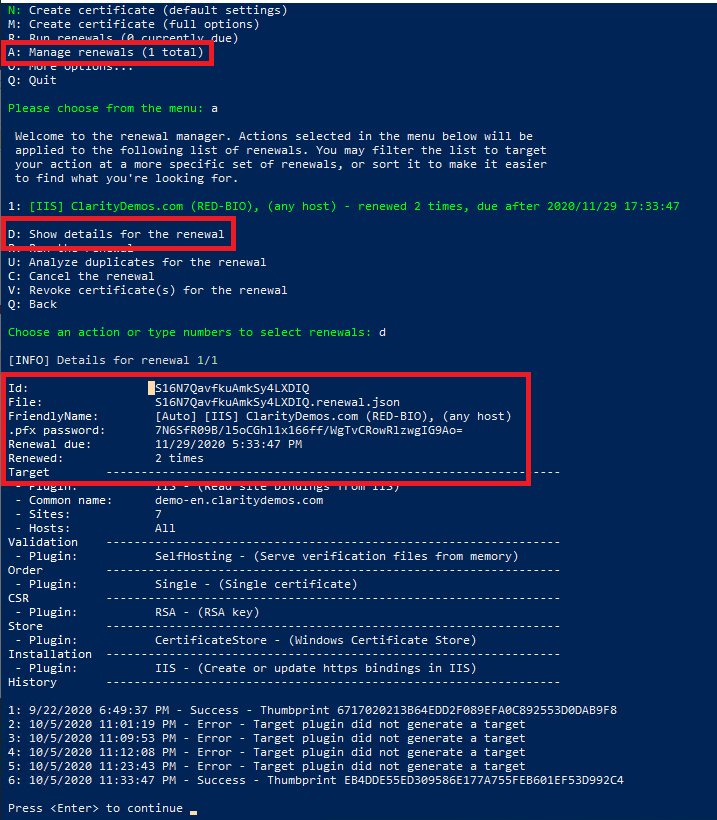
- Copy and paste to your notepad the Id and the configuration filename that matches the site's common name associated to the SSL Certificate for the site you migrated for later reference.
¶ For Example:
Filename: S16N7QavfkuAmkSy4LXDIQ-a19b62ea9c2f4df57f2e904bec3ca7a5627c4194-temp.pfxPFX File Passwords: 7N6SfR09B/l5oCGhl1x166ff/WgTvCRowRlzwgIG9Ao=Binding: demo-en.claritydemos.com
Also note the .pfx password is located here as well, but will not display correctly on the new machine if you didn't decrypt first.
¶ Pre-seed Certificates
-
Since we are using HTTP validation, you will need to update DNS to point at the new machine.
-
Move the "old" certificates to the new machine.
- Look at the (decrypted)
.renewal.jsonfiles to reveal the passwords for the.pfxfiles in theCertificateCachefolder (typically%ProgramData%\win-acme\acme-v02.api.letsencrypt.org\Certificates, though that can be customized in settings.json) and import those on the new machine. - If your renewals are still encrypted, you can access these passwords from the main menu (
Manage Renewals>Show details). In theory this could be scripted, please contribute!
- Look at the (decrypted)
-
Set the
PrivateKeyExportablesetting to true in settings.json, force renew the certificates to make this setting take effect and export and import them manually usingcertlm.msc.-
Alternatively, you can double-click on the .pfx that you want to import and run through the import wizard. Use the password you found in the previous steps to successfully import the certificate into the Windows Certificate Store.
-
-
Add the HTTPS bindings in IIS.
¶ Ensuring Renewal is Setup with No Errors
- Make sure the IIS Site Id matches the site Id on the new server. It most likely will not match and will cause an error!
- Find out the IIS Site Id on the new machine by running N: Create certificate (default settings) - All of the sites will display with a unique Id, note the Id on the new machine for the migrated site:
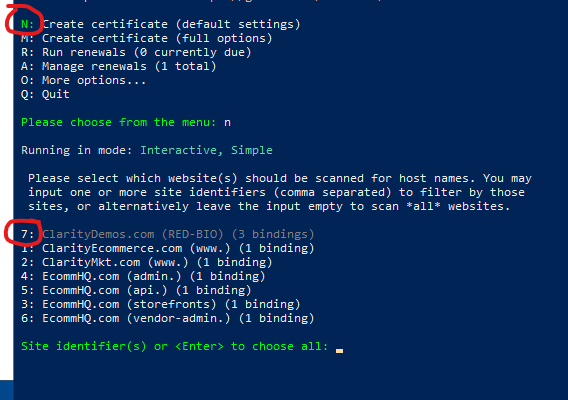
- Edit the configuration .json file for the SSL Certificate you migrated:
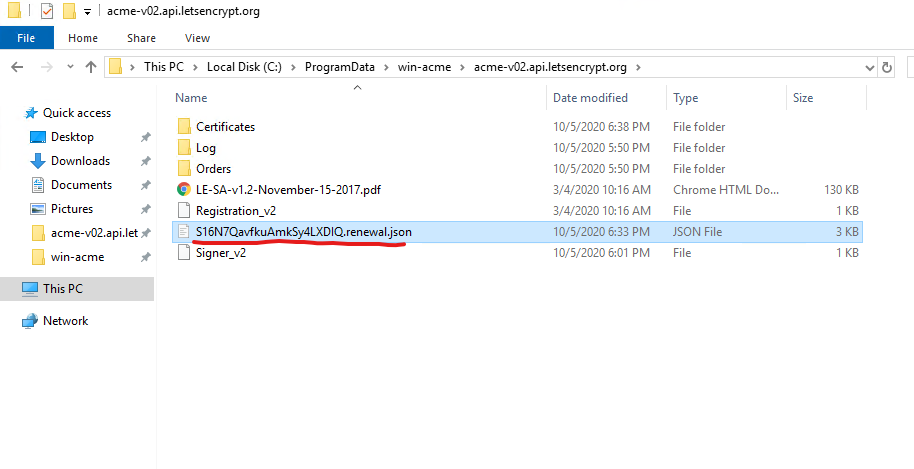
- Find the property "IncludeSiteIds" and change the value to match the new machine:
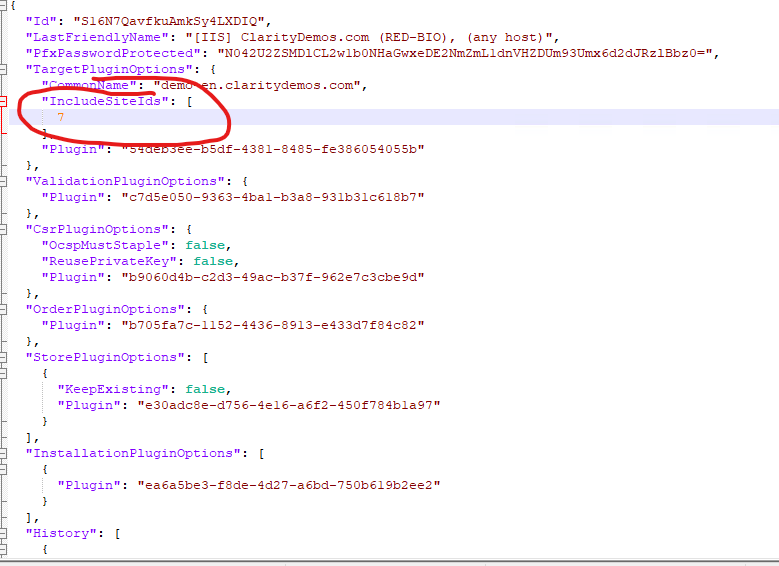
¶ Post-migration Checklist
- Review the renewal manager to see if all expected renewals are present
- Turn encryption back on (optional, but recommended in most scenarios)
- Run all renewals to check for potential validation problems on the new machine.
- If you are using email notifications, test if settings work from the new server using
More options...>Test email notification
For troubleshooting, you can run wacs.exe --verbose in order to see all the validation unfold before your eyes.
¶ Reference
Win-acme has detailed documentation, please visit their online guide for more details by clicking the link below: