# Script for Full Development Environment Install (V2)
Today we are talking about setting up your development environment so that you are prepped in working with **Clarity eCommerce Framework** and other **Clarity** development actions.
## OS, IIS and NiniteThe first thing we're gonna do is start from scratch. What I am showing here is a virtual machine that we've set up with a blank **Windows 10** install before any updates have been run. We're going to go through the full gamut.
With the first round of things to setup or install, the first thing you need to think about are what kinds of things do I need to install? What do we need to configure in **Windows** in order to be prepped and ready for development? Some of the stuff we know we're gonna need to install are things like the different browsers like **Chrome** and **Firefox** and making sure **Internet Explorer** is enabled in addition to **Edge**.
In some cases you may want to install other browsers if you're doing front end development such as **Safari**. However, in most of those cases you're probably gonna want to use **BrowserStack** instead which is a website that will create a virtual machine with just a particular version of Mac or Linux or **Windows** and whatever version of browser you need it to load up for compatibility purposes. So that's where you'll be doing a lot of that there but if it's faster and easier for you and you know that you're up applying it appropriately, you're welcome to install those things locally (just not to the servers).
There is the **IDE** software like **Visual Studio** and **Visual Studio Code**, **ReSharper**, maybe you're installing **WebStorm** or **PhpStorm**, in order to work with those particular kinds of solutions. That's all specific to what you're doing. I'm going to run a lot of different installs here, of which some are not going to be required.
### OS UpdatesSince this is a raw **Windows 10** install, I need to run the **Windows Updates**.
| Screenshot | Description || -- | -- || 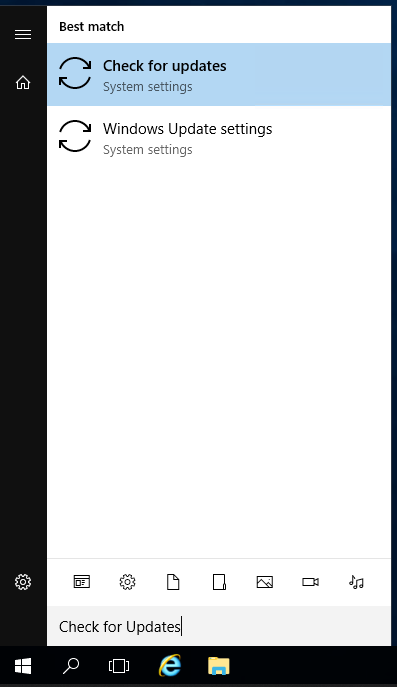 | Go to the **Start Menu** and type "*Check for updates*". Sometimes it doesn't like to do that because the *Windows** self-indexer hasn't finished running yet. || 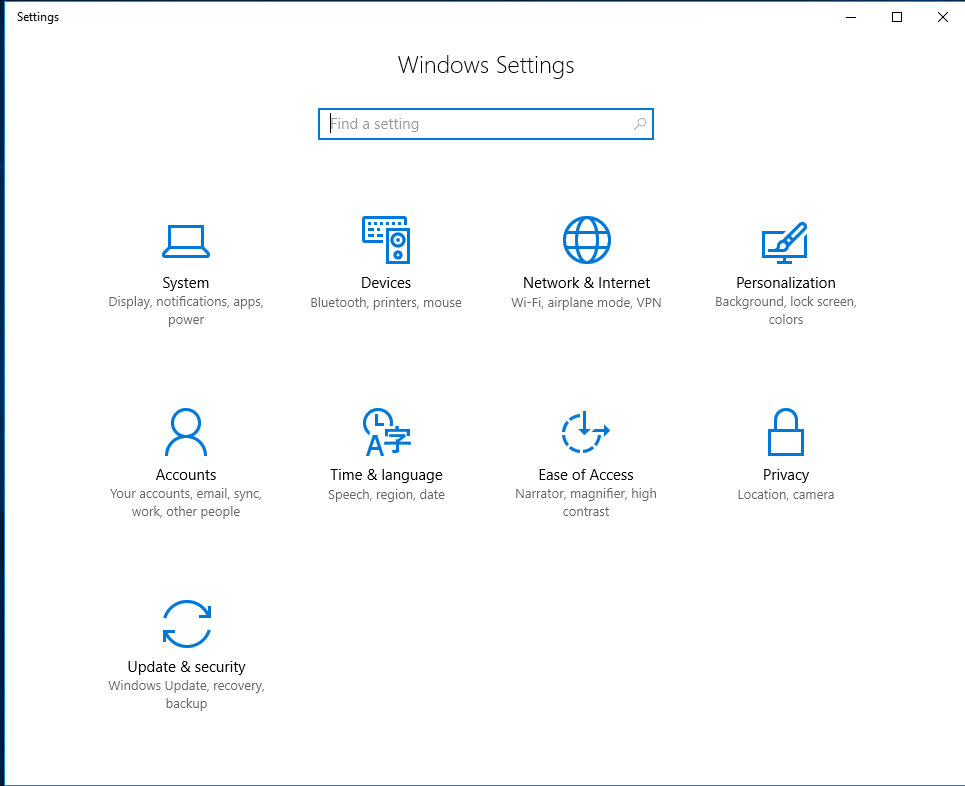 | If it doesn't come up, you can click the **Start Pearl** and choose the **Settings** gear on the left, then click on **Update & Security**. || 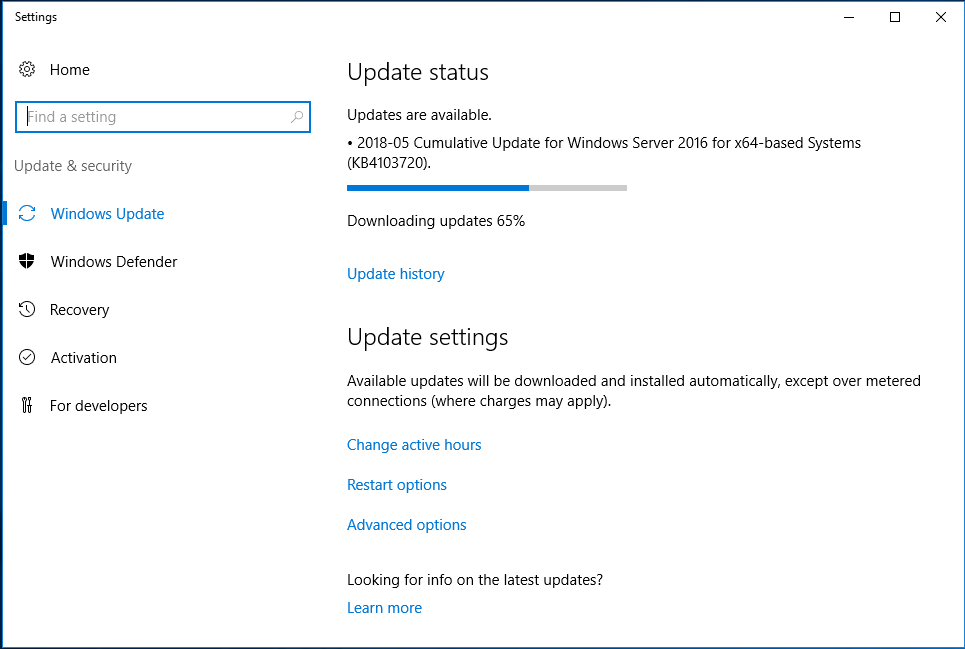 | Now in the **Updates** screen, click **Check for Updates** or **Install** if it's already got them pre-loaded. Also go into the **Advanced** area and check **Give me updates for other Microsoft products when I update Windows** and **Defer feature updates**. |
### Windows Settings
While that is running, let's go over some configuration changes I normally use. You don't have to follow these but if you do, you'll be able to work more like how I do. Some of these changes won't really go into effect until after a reboot.
I normally make the following changes to the **Windows Taskbar**:
| Screenshot | Description || -- | -- || 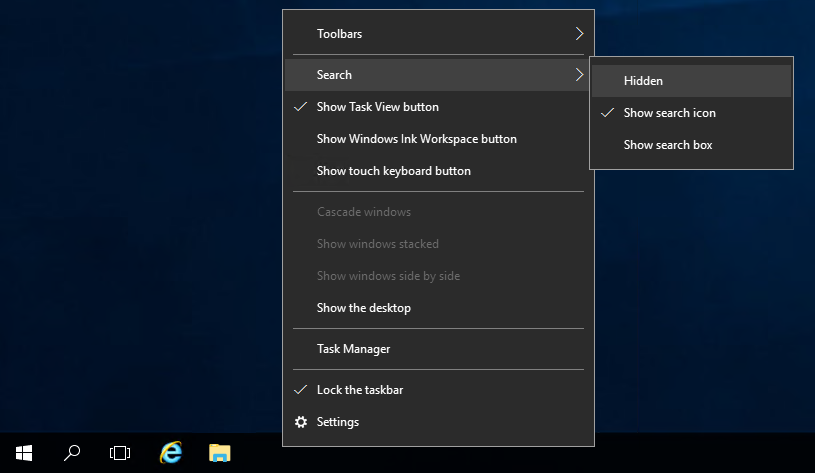 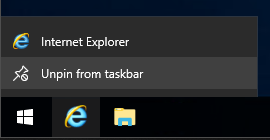 | I remove icons I don't use from the bar, such as **Cortana**, **TaskView** and **Edge** or other programs I don't need there. || 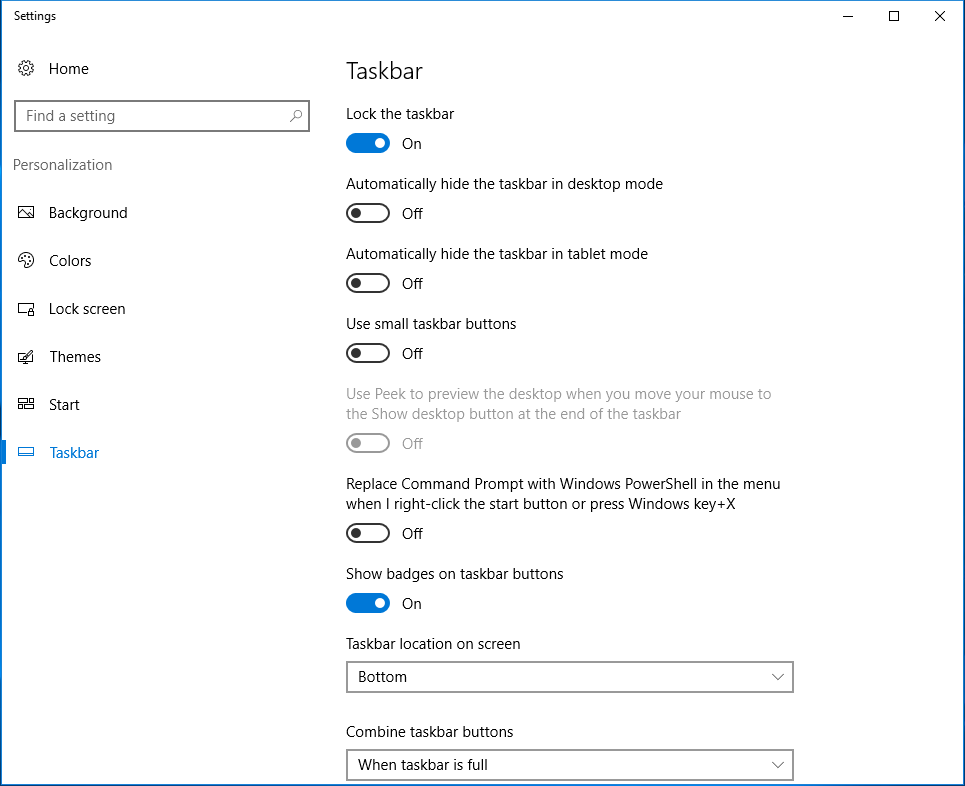 | I go in and change the bar to **only combine buttons when the bar is full** as it's better for me to read the name when multiple windows are open than to have to mouse over it first || 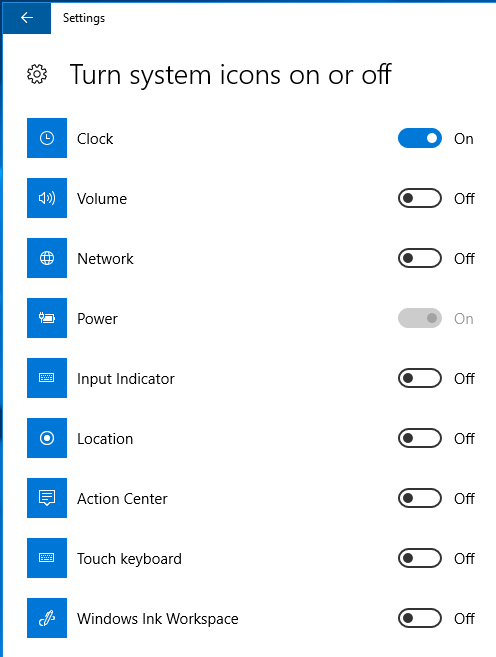 | On a Virtual Machine, I normally turn off all of the **System Icons** except the **Clock** but on local, I would keep the **Network**, **Power** and **Volume** icons as well. For tablets or touch screens, you may want to include **Touch Keyboard**. || 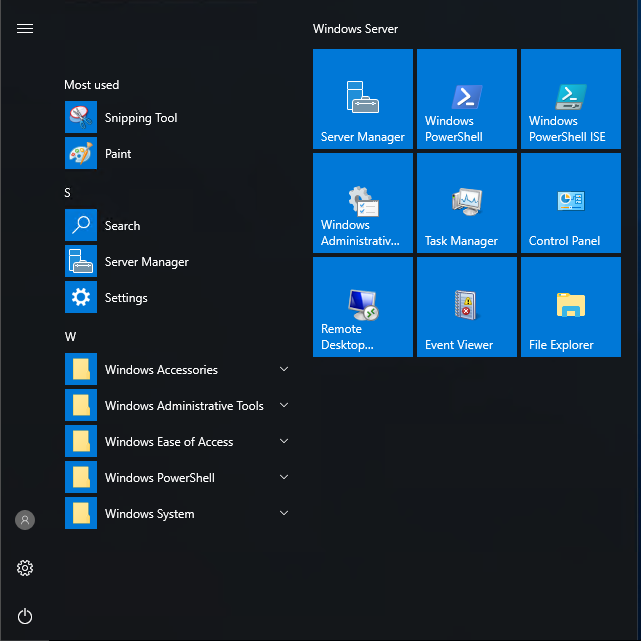 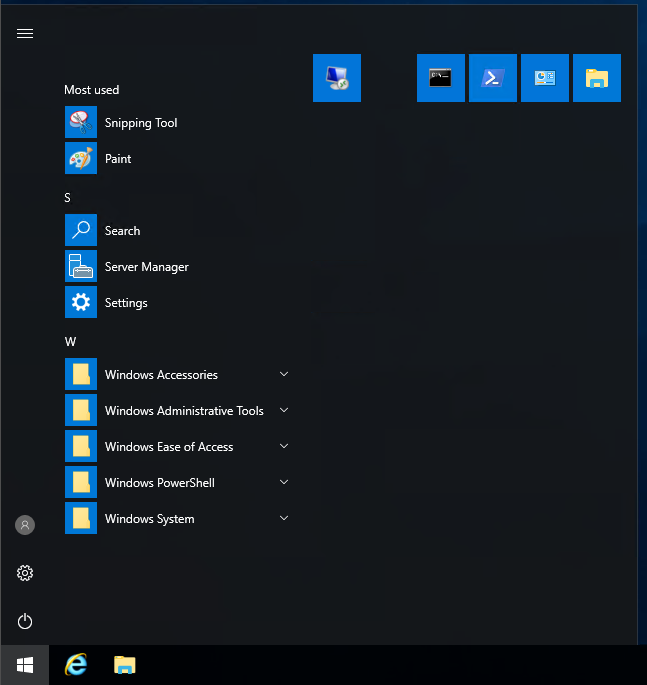 | In the start menu, I'm going to remove all the apps and things that I'm not going to use and then ones that I am going to use, I will change the size to small and organize them. I'll add the individual applications that we install after this at the same time towards the end. |
In Windows Server, we will have to turn off IE Enhanced Advanced Security mode so that we can navigate to websites without having to add every domain we go to to a whitelist.
| Screenshot | Description || -- | -- || 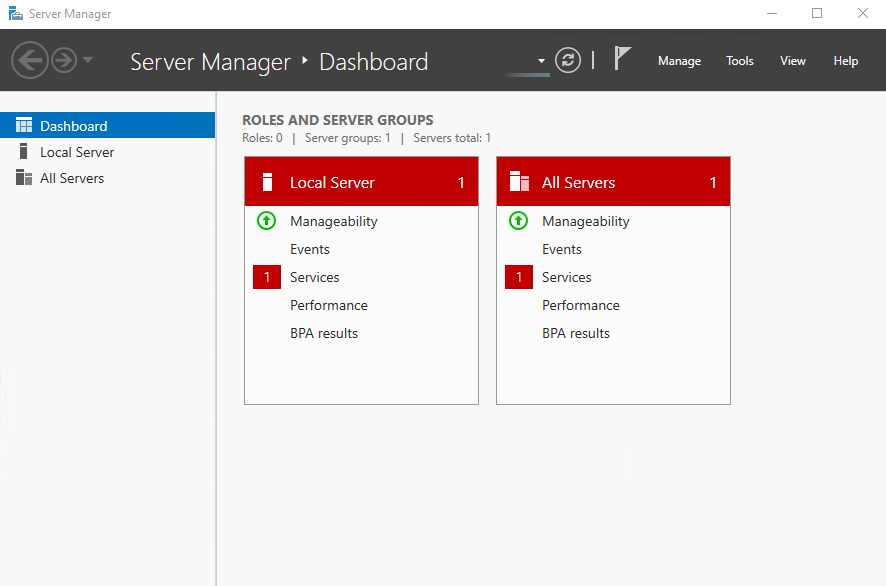 | Open the **Server Manager** || 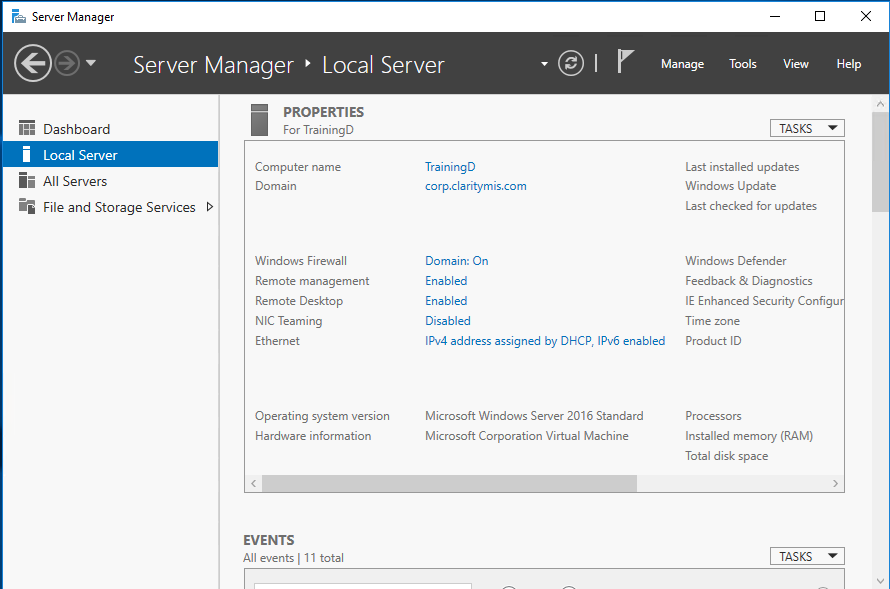 | Click **Local Server** in the left side-bar and wait for the data to populate instead of saying "Unknown" everywhere || 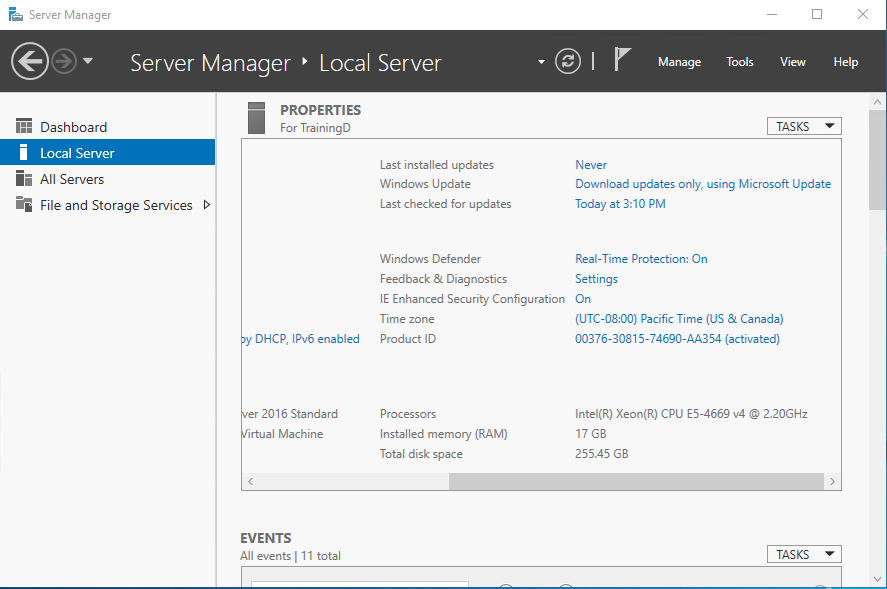 | You may need to scroll right to see the setting value, which is most likely "On" at this point || 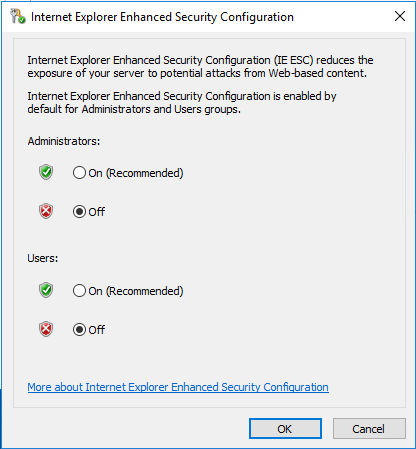 | Click the **On** and change both settings in the modal to **Off**, then click **OK** |
While you are here, you can change your time zone to the appropriate one. It normally defaults to **Pacific (UTC-08:00)**.
Close the **Server Manager**.
### NiniteNow I'm going to open the default browser (**IE** or **Edge**) and use it to go to **Ninite** where I can get a single install package that will install a bunch of programs for me instead of having to do them myself. Go to [ninite.com](http://ninite.com/) and then check the following applications:
| Screenshot | Description || -- | -- || 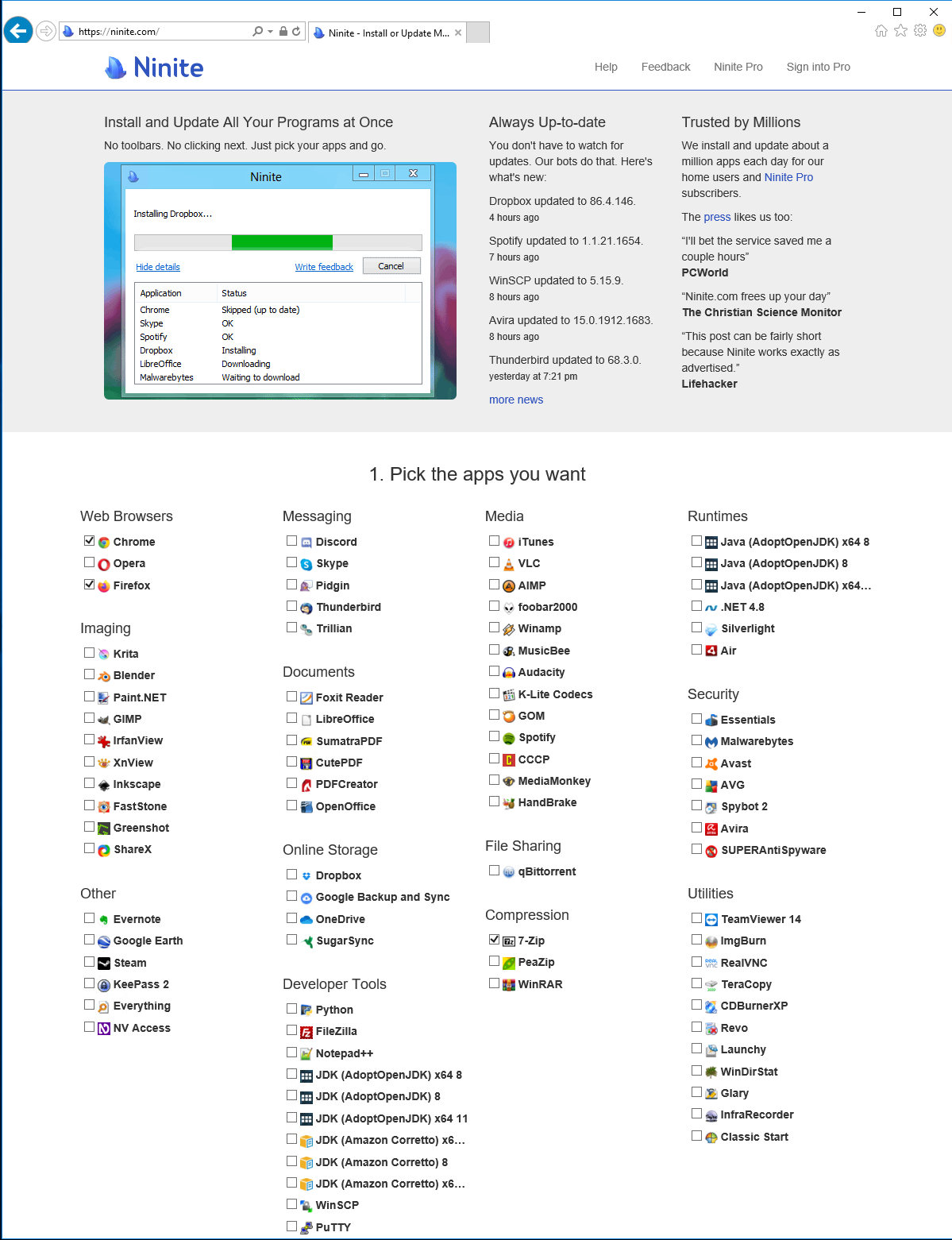 | - Chrome<br>- Firefox<br>- 7-Zip<br>- OneDrive<br>- .NET 4.8<br>- Silverlight<br>- WinDirStat<br>- FileZilla<br>- Notepad++<br>- WinMerge<br>- Visual Studio Code<br>- Any others you want to choose for your local || 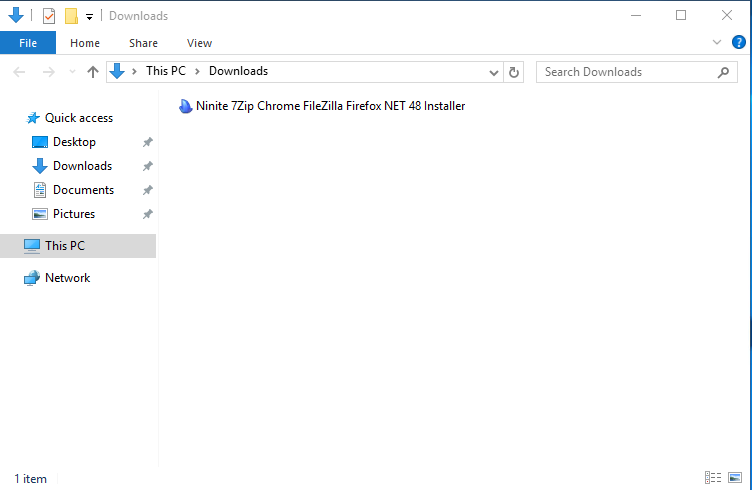 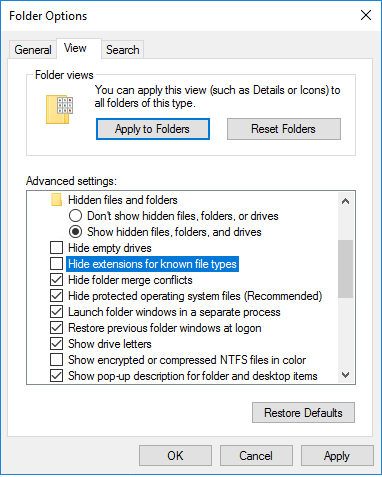 | Now download the package and save it to the **Downloads** folder.<br><br>Open **File Explorer** and navigate to the **Downloads** folder.<br><br>We can take care of a couple of settings while we are here:<br>1. Right-click the whitespace under **Network** in the left side-bar and select **Expand to current folder**. This will let the side-bar follow you as you navigate folders.<br>2. I normally also select **Show all folders**.<br>3. I normally unpin all of the folders under **Quick access**.<br>4. Change to **List View**.<br>5. Click **View** > **Options**.<br>6. Change **Open File Explorer** to **This PC**.<br>7. Uncheck **Show recently used files in Quick access** and **Show frequently used folders in Quick access**.<br>8. Click **Apply**.<br>9. Switch to the **View** tab.<br>10. Click **Apply to Folders**.<br>11. Change **Hidden files and folders** radio toggle to **Show...**.<br>12. Uncheck **Hide empty drives**, **Hide extensions for known file types**.<br>13. Check **Launch folder windows in a separate process** and **Restore previous folder windows at logon**.<br>14. Click **OK**. || 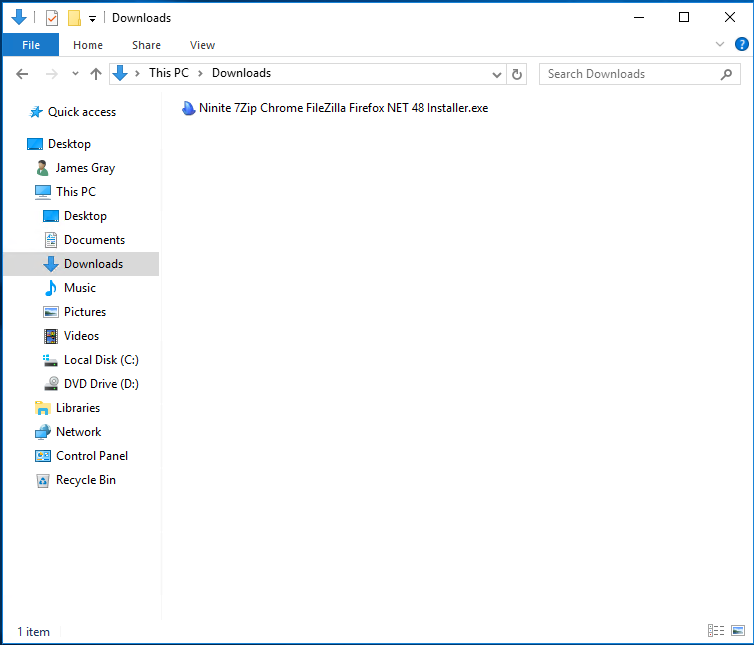 | Close **File Explorer** and reopen it and navigate back to the **Downloads** folder. It probably looks like the screenshot to the left now. || 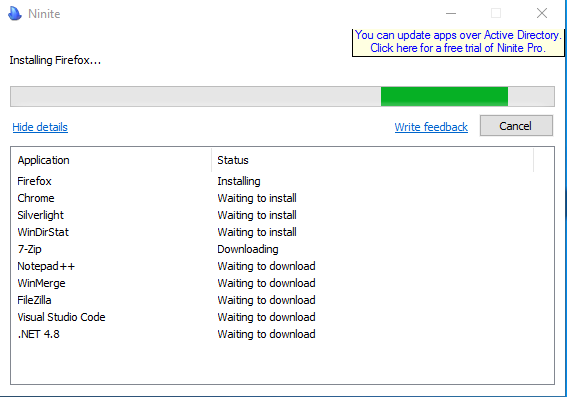 | Right-click the **Ninite** package and **Run as Administrator**. Click **Show details** in the bottom left when the window comes up (there will be a prep window first). |
### IISNext, we want to install and configure **IIS**. To do this, we have to go to **Windows Features** and turn it on with the settings we want. The end of this will require a reboot, so be careful not to trigger it unless the other installs from **Ninite** and **Windows Update** are at a stopping point.
| Screenshot | Description || -- | -- || 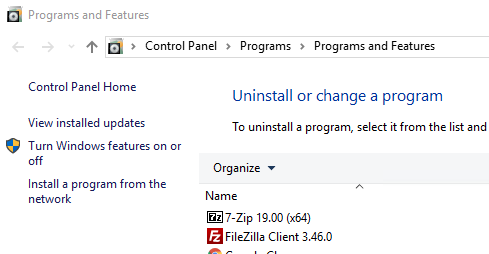 | Right-click the **Start Pearl** and select **Programs and Features** then click **Turn Windows Features on or off** from the left side-bar. || 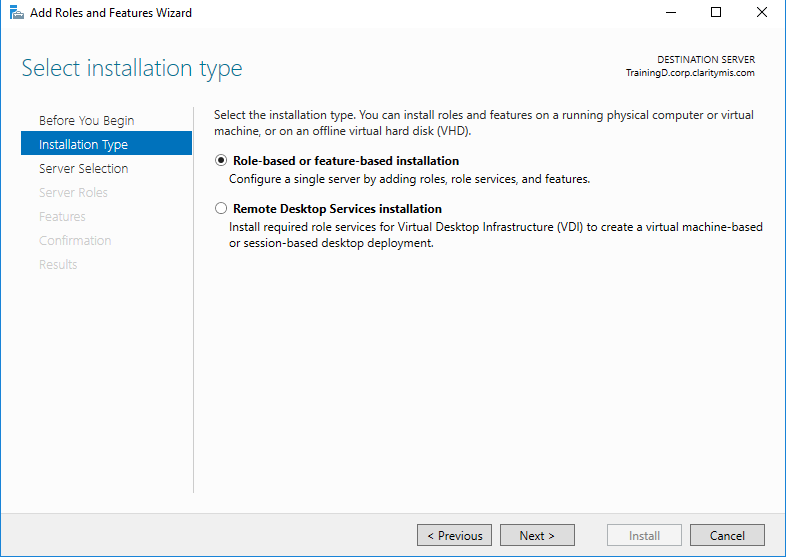 | If the first screen you get is **Before you begin**, you can check **Skip this page by default** and then click **Next**.<br><br>Choose **Role-based or feature-based installation** and click **Next**.<br><br>Choose **Select a server from the server pool** and ensure that the local box is highlighted in the **Server Pool** box and click **Next**.<br><br>Choose **Web Server (IIS)** from the list of **Roles** and click **Next**. || 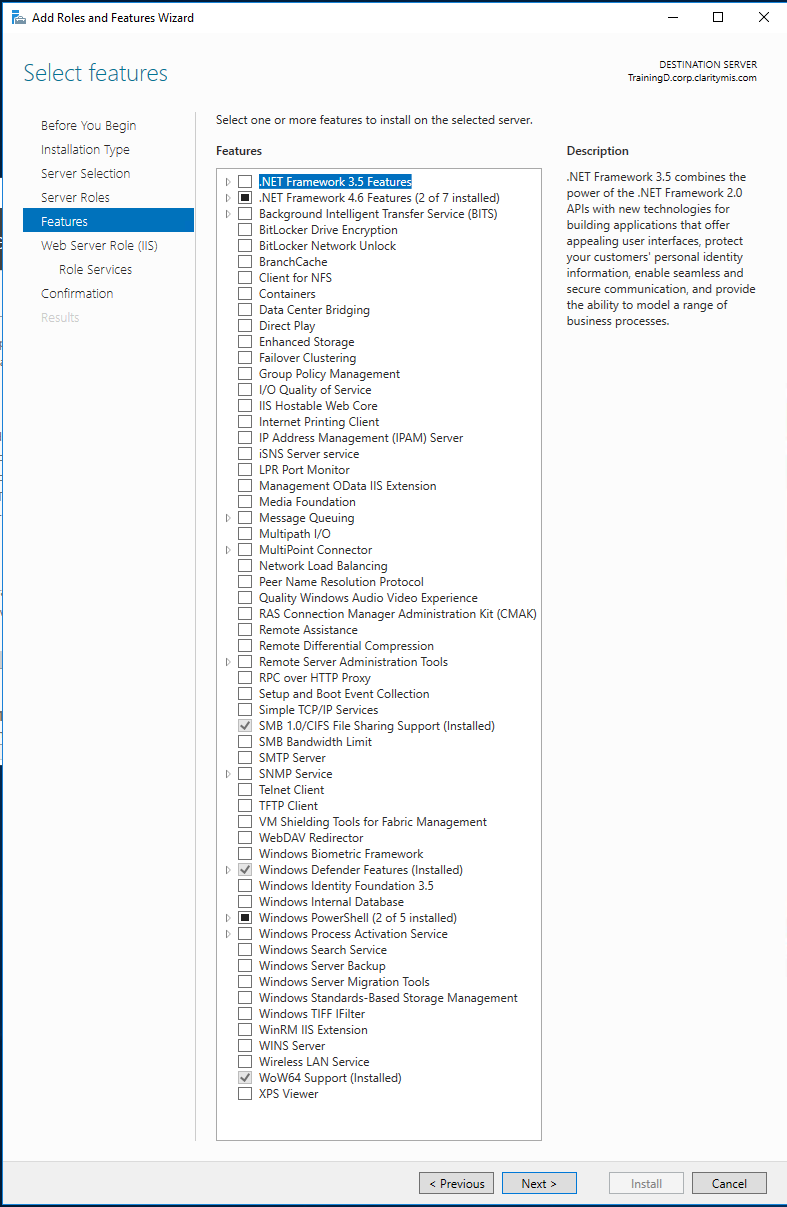 | Check the following **Features** if they are not checked:<br>- .NET Framework 3.5 Features<br>- Everything under **.NET Framwork 4.6 Features** except **Message Queuing (MSMQ) activation**<br>- IIS Hostable Web Core<br>- WebDAV Redirector<br><br>Click **Next**. || 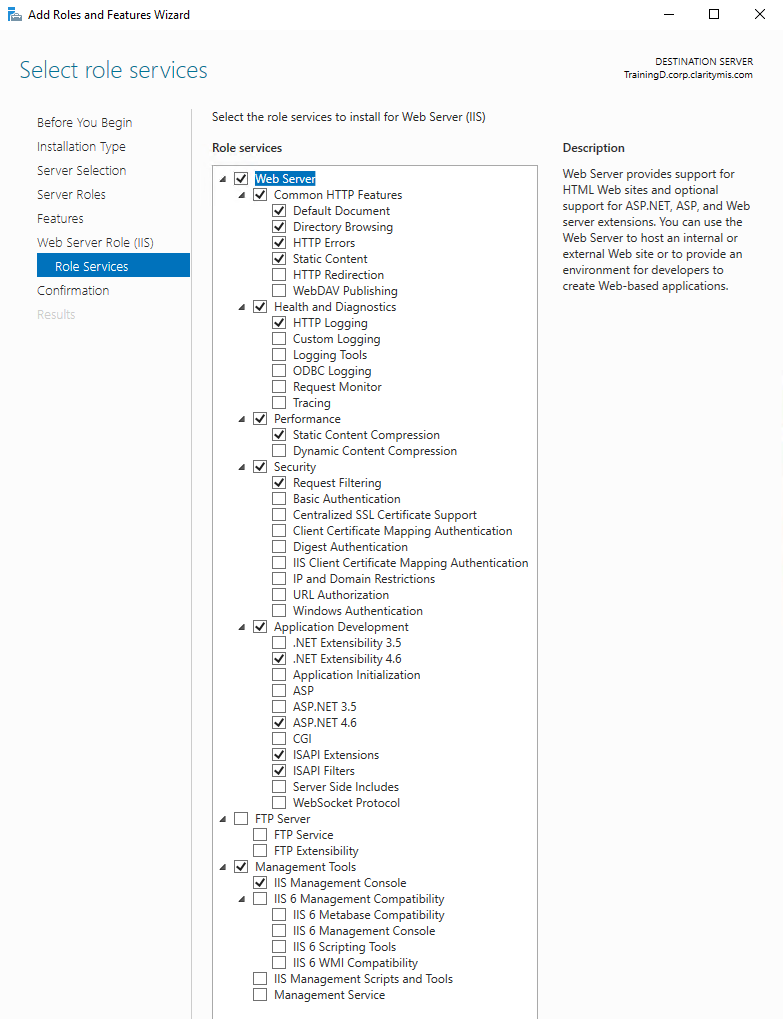 | Click **Next** again to see **Role Services**. Expand the entire tree so you can see it all at once and check the following options if not already checked:<br>- Everything under **Common HTTP Features**<br>- Everything under **Health and Diagnostics**<br>- Everything under **Performance**<br>- Everythung under **Security**<br>- Everything under **Application Development**<br>- IIS Management Scripts and Tools<br>- Management Service<br>- You can optionally include **IIS 6** if you need a local **mail server**, but I don't recommend it as it's not worth doing. || | For **Windows 10** Look for **Internet Information Web Services** and when you check that with the spacebar, it automatically selected certain things but not others and we need to make some choices that are not the defaults.<br>- Turn off **FTP Server**<br>- Turn on **Common HTTP Features**<br>- Turn on **Health and Diagnostics**<br>- Turn on **Security**<br>- Turn on **WCF**<br>- Turn on **HTTP Redirect**<br>- Turn on **WebDAV**<br>- You can optionally include **IIS 6** if you need a local **mail server**, but I don't recommend it as it's not worth doing. |
Click **Next**. Click **Install**. After continuing from this, it should download anything it needs from the internet and run the install.
## Completion CheckSince we have configured several installs to run by now, we need to do a completion check here to ensure that they have all finished, including any reboots, until there are no further updates before continuing on to the next section.
## Continuing Software Installs and Setups1. Set up **Chrome** 1. Open **Chrome** 1. **Sign In** to **Chrome** 1. You should be given the opportunity to set **Chrome** as the **Default Browser** with a button but if you don't, you can set it using **System > Default Apps** 1. Load the plugins that you will need for development in **Chrome**, these are a few very helpful ones: - [AngularJS Inspector](https://chrome.google.com/webstore/detail/angularjs-inspector/gjhmfjbfdbeeekiijofbikifokdkfhcc) - [ng-detector](https://chrome.google.com/webstore/detail/ng-detector/fedicaemhcfcmelihceehhaodggfeffm) - [EditThisCookie](https://chrome.google.com/webstore/detail/editthiscookie/fngmhnnpilhplaeedifhccceomclgfbg) - [JSON Formatter](https://chrome.google.com/webstore/detail/json-formatter/bcjindcccaagfpapjjmafapmmgkkhgoa) 1. Push addons that you don't need to click off often to hide in the menu instead of the bar, I usually keep **LastPass**, **uBlock** and **EditThisCookie** out<br>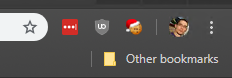 1. Whatever page you are on, open the Dev Tools in one of three ways: - With **Ctrl+Shift+I** - With **F12** - Right-click an element on the page and choose **Inspect** 1. Make the dev tools extra wide for now so we can manipulate settings, we can shrink it again after 1. In the top-right, thre is a vertical three dot menu where you can choose: - To dock the dev tools to a different side or undock it so it free floats - I don't recommend free float as it causes you to lose track of which window the dev tools are for, especially when you have multiple dev tools open at the same time, which is a common practice. - Show the **Console Drawer** - When not on the **Console** tab you can use this menu item or press **Esc** to open the Console on the bottom part of the dev tools, to be viewed in addition to whatever tab you have open. - The most common practice is either the **Elements**, **Network** or **Sources** pane open with **Console** below it. - Because of this, I normally re-arrange the tabs to move **Console** further to the right out of sight and into the following order (click and drag to reorder): - Elements - The HTML in the page currently - Network - The requests to servers - Set this tab up by: - Checking **Disable cache** - Clicking the top-right **Gear** icon - Checking **Use large request rows** - Many of our endpoints have multiple slashes in the route, large request rows lets you see more than just the content of the last slash, otherwise you will see a bunch that are the same like "*Cache*" and won't be able to tell the difference - Unchecking **Show overview** - Not a useful view and it takes up space - Clicking the top-right **Gear** icon again to close it - Clicking on **XHR** and then **Ctrl-Clicking** on **JS** to select these two together - Right-clicking the Headers row of the network requests view (you will have to do this multiple times) and: - Checking **Method** - Unchecking **Type** (you are filtered to two types, so you know what they are) - Unchecking **Initiator** (because of extensions like Usernap and how AngularJS runs, this almost always doesn't actually say what really started a request) - Checking **Response Headers** > **Content-Encoding** - Now resize your columns so that **Waterfall** is very narrow and the others are wide enough to read without becoming ellipses, starting with the 2nd column (the first one after **Name**). To get the last one before **Waterfall**, go back to the first one you resized (the second column) and drag it's left side to the right. - 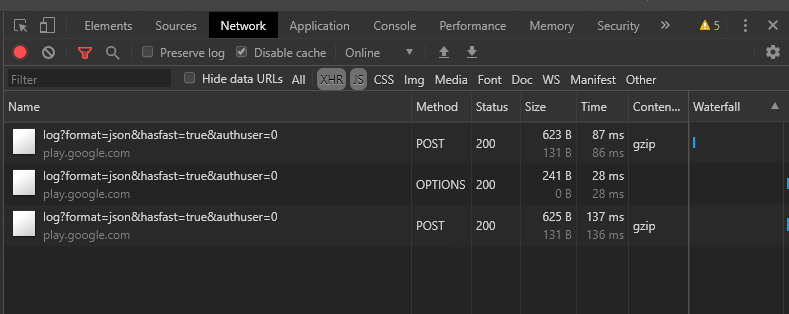 - Sources - The source code - Application - Access to cookies and other data - Console - Output that doesn't go to the page - ...Other tabs - Show the **Settings** pane and you can select a **Dark** theme (which will close the **Settings** pane as it reopens the dev tools with the theme change, you will have to reopen the **Settings** pane from there) - 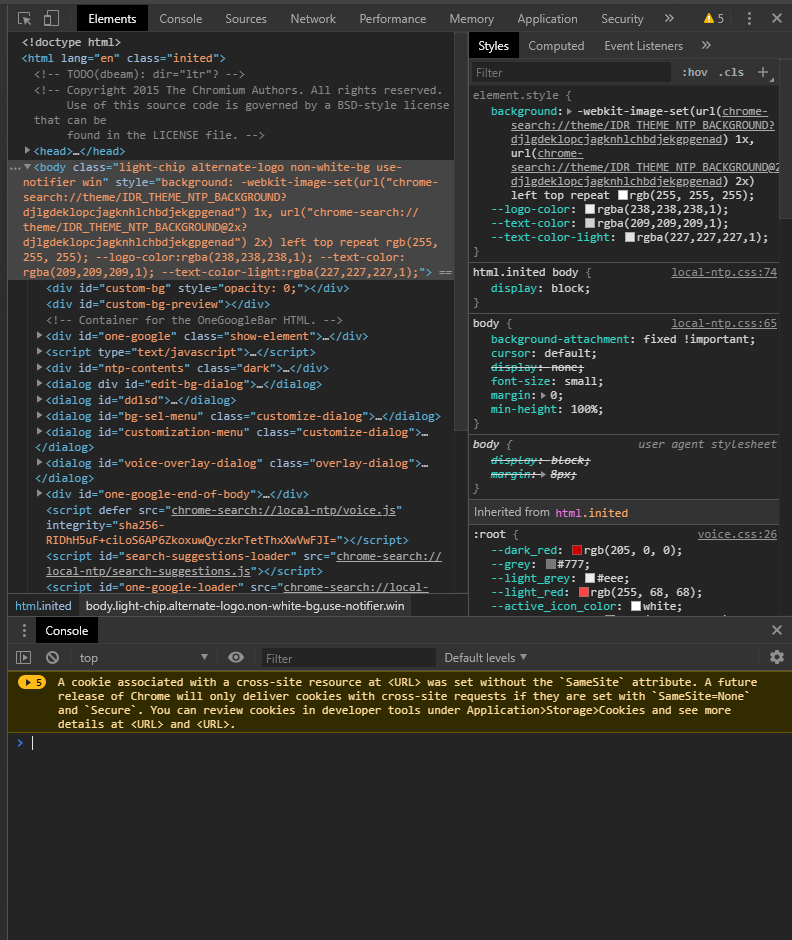 - On the **Elements** tab, there should be a section that has tabs in it named **Styles**, **Computed**, etc. Most likely, there is a double-right chevron/angle indicating there's more to see. Click this and choose **AngularJS Properties**. Unless you are actually on a page that has **AngularJS** running, this will be blank. I'm just making you aware that this is where you can inspect the **Angular Scope** of the elements you click to see the live data from the point it was clicked to find variable values, paths to functions, controllers, etc. If you do something in the page which should change the values, you will have to click a different element and click back to the original to see the changes as it doesn't update automatically. - Close the **Dev Tools** with **F12** or the **x** icon in the top-right1. Install **SSMS** and **SQL Server 2016 with Tools** - [SQL2016](https://my.visualstudio.com/Downloads?q=SQL Server 2016 Express with Service Pack 2&pgroup=) - If you are asked to sign in from this link, use your corporate email, which is also your MSDN account. - If your login isn't active in MSDN yet, get **Kevin Kramer** to assist you in completing the setup. - From the Download button on the right of this link's page choose the one without advanced services - 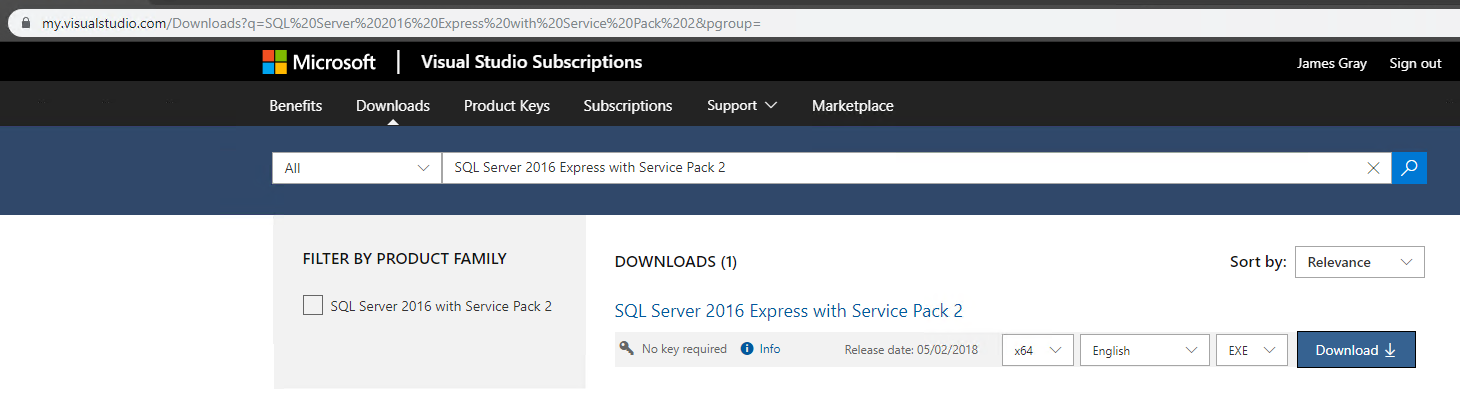 - A download of about 438 MB should start - On completion, go to your Downloads folder and right-click > **Run as administrator** - 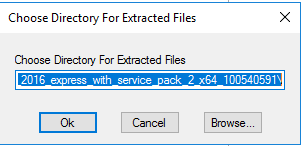 - Click **Ok** - Let the **Self Extractor** complete, when it does, it will automatically open the **Installation Center** - 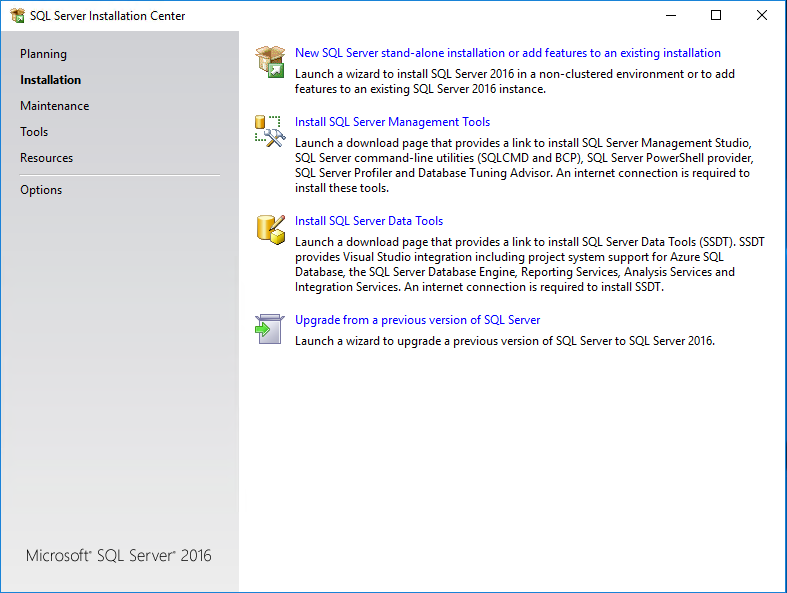 - Click the first item: **New SQL Server stand-alone...** - Accept the license terms - Click **Next** - On **Install Rules**, click **Next** - On **Feature Selection**, click **Next** - On **Instance Configuration**, change "*SQLExpress*" to "*SQL2016*" and press **Tab** (the ID should automatically update) - Click **Next** - On **Server Configuration**, click **Next** - On **Database Engine Configuration**, change **Authentication Mode** to **Mixed Mode** - Enter "*p4ssw0rd!*" as the new **sa** password - Click **Next** - The install will run - After completion, click **Close** - Close the **Installation Center** - [SSMS 18+](https://docs.microsoft.com/en-us/sql/ssms/download-sql-server-management-studio-ssms?view=sql-server-2016) - Click the download link **Download SQL Server Management Studio (SSMS)** - On completion, go to your Downloads folder and right-click > **Run as administrator** - Click **Install** - Let the installer run - It will ask you to restart, wait for other installs to be at a stopping point and then let it.1. [LastPass](https://lastpass.com/misc_download2.php) - Create a **LastPass** account - Download the **LastPass Universal Windows Installer** - This will install LastPass to all browsers on the system - Right-Click > **Run as administrator** from the **Downloads** folder - Follow all of the defaults until installation completes - You may be asked to enable side-loads, accept this - Open Chrome - There should be a new extention icon in the upper right that is a square with three dots, it may be gray or yellow indicating you are not logged in. Click this button - Sign in using your account - Dismiss the Upgrade to Enterprise advert that it opens with on the button - Send your username/email used for this account to James Gray to gain access to the Enterprise Share - This contains development logins across many client domains to assist with getting logged in more quickly and easily<br/>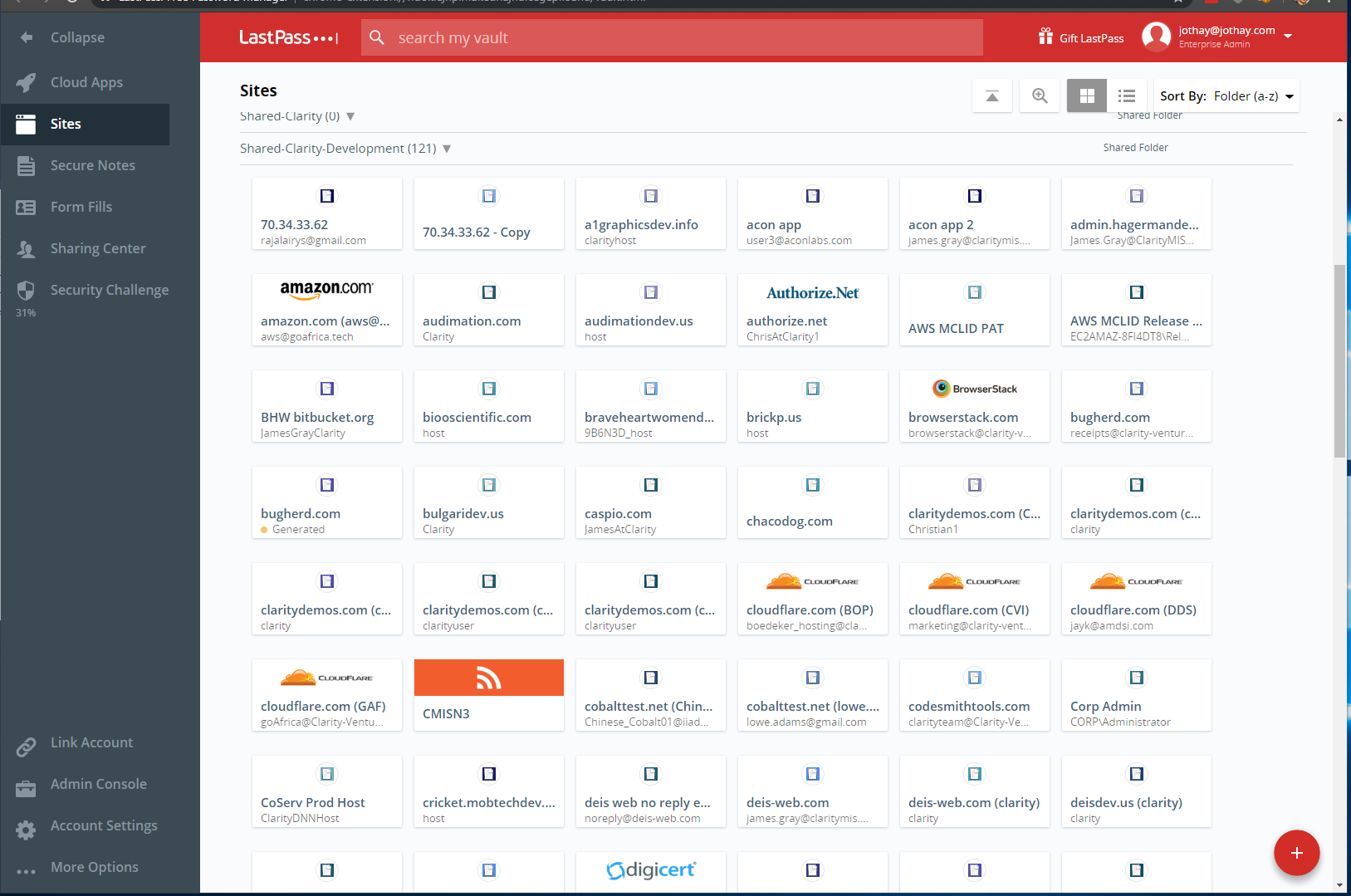1. [PassPack](https://www.passpack.com/online/#) - Sign in, the necessary values for all the form inputs should be in your **Welcome Packet** PDF file - **PassPack** is an older password sharing system that contains many legacy passwords. Each entry is usually only shared on a case-by-case basis as needed. It does not provide auto-fill options so entries in here have to be manually copied out and pasted into inputs.1. [Microsoft Teams](https://products.office.com/en-us/microsoft-teams/download-app) - Download **MS Teams** - Sign in using your corporate email and password - You should have access to several **channels** and as you are added to **projects** to perform work, the **Project Managers** will add you to their invidual **project channels**. - **MS Teams** is used as the primary form of electronic communication between team members to maintain an easy-to-use and persistant history. Emails are generally reserved for external communications.1. [Git for Windows](https://git-scm.com/download/win) - Download the **installer** - **Right-click** > **Run as Administrator** - On **Select Destination Location**, click **Next** - On **Select Components**: - If you are knowledgable of git bash, you can leave it integrated to Windows. I normally turn it off as I utilize other tools which also get added to the **Explorer** integration. - Check **Use a TrueType font in all console windows** and **Check daily for Git for Windows Updates** - On **Select Components**, click **Next** - On **Select Start Menu Folder**, click **Next** - On **Choosing the default editor used by Git**, choose your preferred editor (I use **Notepad++** for this), click **Next** - On **Adjusting your PATH environment**, choose **Use Git and optional Unix tools from the Command Prompt**, click **Next** - On **Chooisng HTTPS transport backend**, click **Next** - On **Configuring the line ending conversions**, click **Next** - On **Configuring the terminal emulator to use with Git Pash**, choose **Use WIndows' default console window**, click **Next** - On **Configuring extra options**, check **Enable symbolic links**, click **Next** - Click **Install** - Let the install run - Uncheck **View Release Notes** - Click **Finish**1. [TortoiseGit](https://tortoisegit.org/download/) - If you prefer another Git GUI program, feel free to use it locally (but not on the servers without permission) - Download the **installer** - **Right-click** > **Install** - Click **Next** - Click **Next** - Change the selection for **English (GB) dictionary** to **Entire feature will be unavailable** - Click **Next** - Click **Install** - You may be prompted to close programs, tell it not to close them and continue - This may occur more than once - Click **Finish** - The **First Start Wizard** will open - Click **Next** - Click **Next** - Click **Check now** - Ensure that a git version comes up (it should as we just installed it) - Click **Next** - Enter your **Name** (eg- "*James Gray*") and your corporate email (eg- "*james.gray@claritymis.com*") - Click **Next** - Click **Finish**1. Notepad++ - Open **Notepad++** - Go to **Plugins** > **Plugins Admin...** - Go through the list in the **Available** tab and check the following plugins: - Compare - EditorConfig - JSLint - JSON Viewer - JSTool - Save as admin - TexFX Characters - Tidy2 - XML Tools - Click **Install** - Click **Yes** - Wait for the plugins finish installing and Notepad++ to come back up1. WinMerge - Open **WinMerge** - Click the **Options** button (orange with a wrench on it) - Click **Import...** - Download this file with your browser (you may have to log in to Teams in the browser to do so): - https://clarityventures.sharepoint.com/sites/ClarityVenturesInc/Shared Documents/Back End Team/WinMerge-Options.ini - Select this file in the **Import** window - Click **Tools** > **Filters** - Select **Visual C# loose** - Click **Edit** - Download this file with your browser: - https://clarityventures.sharepoint.com/sites/ClarityVenturesInc/Shared Documents/Back End Team/CSharp_loose.flt - Open that file with **Notepad++** - Copy the contents to the filters file that is being edited from **WinMerge** - Save the file - Click **OK** in **WinMerge** - Close **WinMerge**1. Visual Studio Code - Open **Visual Studio Code** - Click **Extensions** (or press **Ctrl+Shift+X**) - Search for **Settings Sync** by **Shan Khan** and install it - An extension-specific **Settings** page will open - Click **Login with Github** - Sign in to **Github** (create an account if necessary) - Click **Authorize shalikhan** - Close the browser tab - Click **Skip** (it will create a Gist for you) or select one oreviously used for this if you already have one - Click **Close** - Press **Shift+Alt+D** to download your current **VS Code** settings, it should start automatically configuring and installing extensions for you if you had previous values - Search Extensions and install the following if not already installed (newer versions is fine): - aessoft-class-autocomplete v0.1.0 - angular-bootstrap v4.0.9 - Angular1 v0.2.1 - auto-close-tag v0.5.6 - auto-rename-tag v0.1.0 - autoimport v1.5.3 - beautify v1.5.0 - bootstrap-3-snippets v0.1.0 - bootstrap4-vscode v6.1.0 - code-beautifier v2.2.1 - code-runner v0.9.11 - debugger-for-chrome v4.11.6 - docomment v0.1.8 - docthis v0.7.1 - EditorConfig v0.13.0 - githistory v0.4.6 - gitignore v0.6.0 - html-css-class-completion v1.19.0 - html-snippets v0.2.1 - JavaScriptSnippets v1.7.2 - Material-theme v2.25.3 - mssql v1.6.0 - npm-intellisense v1.3.0 - path-intellisense v1.4.2 - prettify-json v0.0.3 - sass-indented v1.5.1 - search-node-modules v1.3.0 - t4-support v0.4.3 - t4-syntax v0.1.0 - tt-processor v0.8.0 - visual-studio-blue-theme v0.0.1 - visual-studio-light-theme v0.0.7 - vscode-color v0.4.5 - vscode-gulp v0.0.4 - vscode-html-css v0.2.0 - vscode-icons v8.8.0 - vscode-less v0.6.3 - vscode-npm-script v0.3.8 - vscode-scss v0.6.2 - vscode-svgviewer v2.0.0 - vscode-theme-onelight v2.1.0 - xml v2.5.0 - Close **Visual Studio Code**1. [Visual Studio 2017 (NOT 2019)](https://my.visualstudio.com/Downloads?q=visual studio 2017&wt.mc_id=o~msft~vscom~older-downloads) - Download the appropriate version from the above link Visual Studio Professional 2017 (version 15.9) - **Front End Team Members:** Visual Studio Professional 2017 (version 15.9+) - **Back End Team Members:** Visual Studio Enterprise 2017 (version 15.9+) - You don't need to grab a license key, it will read it when you sign in to Visual Studio after install - Download the **installer** - **Right-click** > **Run as Administrator** - Click **Continue** - Let the **Visual Studio Installer** installer run - The **Visual Studio Installer** will open automatically and start the install configure window - Check **.NET desktop development** - Check **ASP.NET and web development** - Check **Data storage and processing** - Check **.NET Core cross-platform development** - Click the **Individual Components** tab at the top - Check **.NET Core runtime** - Check **.NET Framework 3.5 development tools** - Check **.NET Framework 4 targeting pack** - Check **.NET Framework 4.5 targeting pack** - Check **.NET Framework 4.5.1 targeting pack** - Check **.NET Framework 4.5.2 targeting pack** - Check **.NET Framework 4.6 targeting pack** - Check **.NET Framework 4.6.1 SDK** - Check **.NET Framework 4.6.1 targeting pack** - Check **.NET Framework 4.6.2 SDK** - Check **.NET Framework 4.6.2 targeting pack** - Check **.NET Framework 4.7 SDK** - Check **.NET Framework 4.7 targeting pack** - Check **.NET Framework 4.7.1 SDK** - Check **.NET Framework 4.7.1 targeting pack** - Check **.NET Framework 4.7.2 SDK** - Check **.NET Framework 4.7.2 targeting pack** - Check **LINQ to SQL tools** - Check **NuGet targets and build tasks** - Check **Microsoft Test Manager** - Click **Install** in the bottom right - It should download and install which will take some time - At the end, it should open the sign-in prompt for the first time **Visual Studio** is opening - Sign in using your corporate email and password - Let **Visual Studio** come all the way up and then you can close it for now - Close **Visual Studio Installer** - The .NET 4.6.2 SDK that gets installed doesn't always work correctly, so get the direct package for it and install it: - [.NET 4.6.2 Developer Pack](https://www.microsoft.com/en-us/download/details.aspx?id=53321) - Get the TypeScript versions we have primarily used - [2.6.1](https://marketplace.visualstudio.com/items?itemName=TypeScriptTeam.TypeScript261forVisualStudio2017) - [3.7.2](https://marketplace.visualstudio.com/items?itemName=TypeScriptTeam.typescript-372)1. [ReSharper](https://www.jetbrains.com/resharper/download/#section=resharper-installer) - Download and install **ReSharper** (there is only one installer, what gets activated is based on your license) - Don't install the additional tools unless you intend to use them. Primarily the Testing tools and DotCover ones. Others are case-by-case. All of these additional tools require the Ultimate license - **Front End Team Members:** Pro - **Back End Team Members:** Ultimate - After your 30 day trial expires, see James Gray for a license key to use on your local - Servers such as DFO should use the license key for DFO (James Gray can provide this) as ReSharper is installed per Windows User Profile afdnd not globally to the system1. [Node.js](https://nodejs.org/download/release/v11.15.0/) - v11.15 is the newest version we can support. 12.x breaks with some of the npm packages we use - Download this file `node-v11.15.0-x64.msi` from the above link - Go to **Downloads** and **Right-click** > **Install** - Click **Next** - Check **I accept...** - Click **Next** - Click **Next** - Click **Next** - Click **Next** - Click **Install** - Let the installer run1. [Redis](https://github.com/MicrosoftArchive/redis/releases) - Expand the **Assets** under **3.2.100 Pre-Release** and download `Redis-x64-3.2.100.msi` - Go to **Downloads** and **Right-click** > **Install** - Run the install with all of the defaults1. [DevExpress Components](https://clarityventures.sharepoint.com/sites/CVI-CEF/Shared Documents/General/DevExpressComponents-15.2.9.exe) - If the link doesn't work, go to **CVI - CEF** in **MS Teams**, then **Files** and the **DevExpressComponents-15.2.9.exe** should be downloadable from there - I noticed that the first time **MS Teams** is run, it may have trouble starting downloads. If this happens to you, quit **MS Teams** and start it again. - Go to **Downloads** and **Right-click** > **Run as administrator** - Choose **Registered Installation** - Enter `receipts@clarity-ventures.com` / `qpzm9731` as the username and password - Click **Log In** - Uncheck the **Source Code** and **Demo Applications** buttons - Click **Next** - Click **Accept & Install** - Let the install run - 1. [ElasticSearch](https://clarityventures.sharepoint.com/sites/CVI-CEF/Shared Documents/General/Files From Slack/ElasticSearch.7z) - If the link doesn't work, go to **CVI - CEF** in **MS Teams**, then **Files** and the ElasticSearch.7z should be downloadable from there - Extract the zip's contents to a folder - Follow the instructions inside the `ReadMe.txt` file - You ***CANNOT*** use a different version of **Java JRE** - I suggest putting kibana in the C:\Data\Tools\kibana directory - [Add kibana content](https://clarityventures-my.sharepoint.com/personal/james_gray_claritymis_com/Documents/Microsoft Teams Chat Files/kibana-query.txt)
-----Restart the system to cement the recent changes and update PATH environment variables, this is important for the next steps.
-----
1. Install Gulp globally via Command Prompt: - `npm install --global gulp-cli`
1. First Time VS Open - Sign In - Theme - Keyboard Bindings - Layout windows - Team Explorer - Roaming Extensions (wait for the icons to load) - Productivity Power Tools - Web Essentials - VS Slow Downs (Help > Manage VS Performance)1. [Atomineer](https://www.atomineerutils.com/download.php) - **Back End Team Members Only** - After your 30 day trial expires, see James Gray for a license key1. [Tangible T4 Editor](https://t4-editor.tangible-engineering.com/Download_T4Editor_Plus_ModelingTools.html) - **Back End Team Members Only**1. Disable startup apps1. Pin desktop icons to the start menu and clear out1. Disk Cleanup (installers, downloads folder, SQLServer media)
## Development Code Setup1. Sign in to [Azure DevOps](https://clarity-ventures.visualstudio.com/)1. Create Project Folders - Naming conventions: By convention, Clarity stores repositories in the "C:\Data\Projects\{project acronym}" folder - LOCAL for these purposes but change to the acronym of projects as you check them out - Open Command Prompt - `md C:\Data\Projects\CEF-Configs` - `md C:\Data\Projects\LOCAL\CEF` - `md C:\Data\Projects\LOCAL\WEB`1. Clone the code - https://clarity-ventures.visualstudio.com/DefaultCollection/CEF-Product/_git/CEF-Product - https://clarity-ventures.visualstudio.com/CEF-Product/_git/DNN9-CEF - https://clarity-ventures.visualstudio.com/CEF-Product/_git/CEF-Configs - Default Branches - Config files that are not stored and why - Rapidly adjusting configs for a checkout - What are the settings? - Plugins folder for Providers1. Fetch and Prune bat1. Reset Hard bat1. Configure Atomineer to point at CEF-Configs files1. Create a Symbolic Link in Windows (sort of a virtual directory for the OS itself) for the Skin by running the following command in an command prompt running as administrator: - `mklink /D "Link" "Target"` - For Example: - `cd "C:\Data\Projects\2019.3\_DEV\WEB9\Portals\_default\Skins\"` - `mklink /D "Clarity-Admin" "C:\Data\Projects\2019.3\_DEV\CEF\08.Clarity.Ecommerce.UI.SKins\Clarity-Admin"` - Using TortoiseGit, mark the new sumlink directories as Ignore On Commit - Note that older versions don't do this, DNN just has the skin folder directly1. IIS Site Setup - CORS variables - 4 new app pools - Naming Conventions - New site - DNS (goDaddy or Notepad++ run as admin C:\Windows\System32\drivers\etc\hosts) - Sub-Applications and Virtual Directories - Server-side SEO metadata service - External Images folder - Ensure the app pools are all turned off1. Pulling a database backup of DNN to local - Add DNN Portal Alias - DNN cache loading issue1. Pull the config files into CEF/WEB folders, especially rewrite configs - DNN Connection string - CEF Connection string - CEF App Settings - Old vs New - CEF Gulp Config - Old vs New - Restart the app pools after *.config changes so it picks up the new values1. Setting up connections to all the different instances in SSMS1. npm_uber_install.bat to restore packages - Note that older versions have same bat file in the skin folder1. Gulp and running Tasks, including watches - Older tasks vs new ones1. First time load CEF solution - Must Run as Administrator to attach to w3wp.exe - Loading the tool windows - Unit Test Explorer Window - Unit Test Sessions Window - Task Runner - DataModel as startup project for package manger console - Unloading Projects as last resort - Config the Error List window (Group by Project, File; Remove Suppression State, Project, File; Add Column) - Some Default Provider stuff (good examples) - ReSharper Performance Tools - Restore NuGet Packages - Build Solution - Run Update-Database for EntityFramework - Run the Seed Database tests - Injecting the Translations to CEF1. Opening in the browser - Common websites to keep open - FontAwesome 5 vs 4 - Turn on DNN App Pool - DNN Page loaded - Dev Tools open and config - Turn on API App Pool - Fixing configs - Restart the app pools after *.config changes so it picks up the new values - Turn on API App Pool - Getting to CEF Admin - Default CEF Sign ins - Run elastic index from CEF Admin - Turn on Scheduler App Pool - Review Scheduler locations (Direct and Embedded) - Turn on Reporting App Pool
\
)
)
)
)
)
)
)
)
)
)
)
)
)
)
)
)
)
)
)
)
)
)
)
)
)
)
)
)
1.)