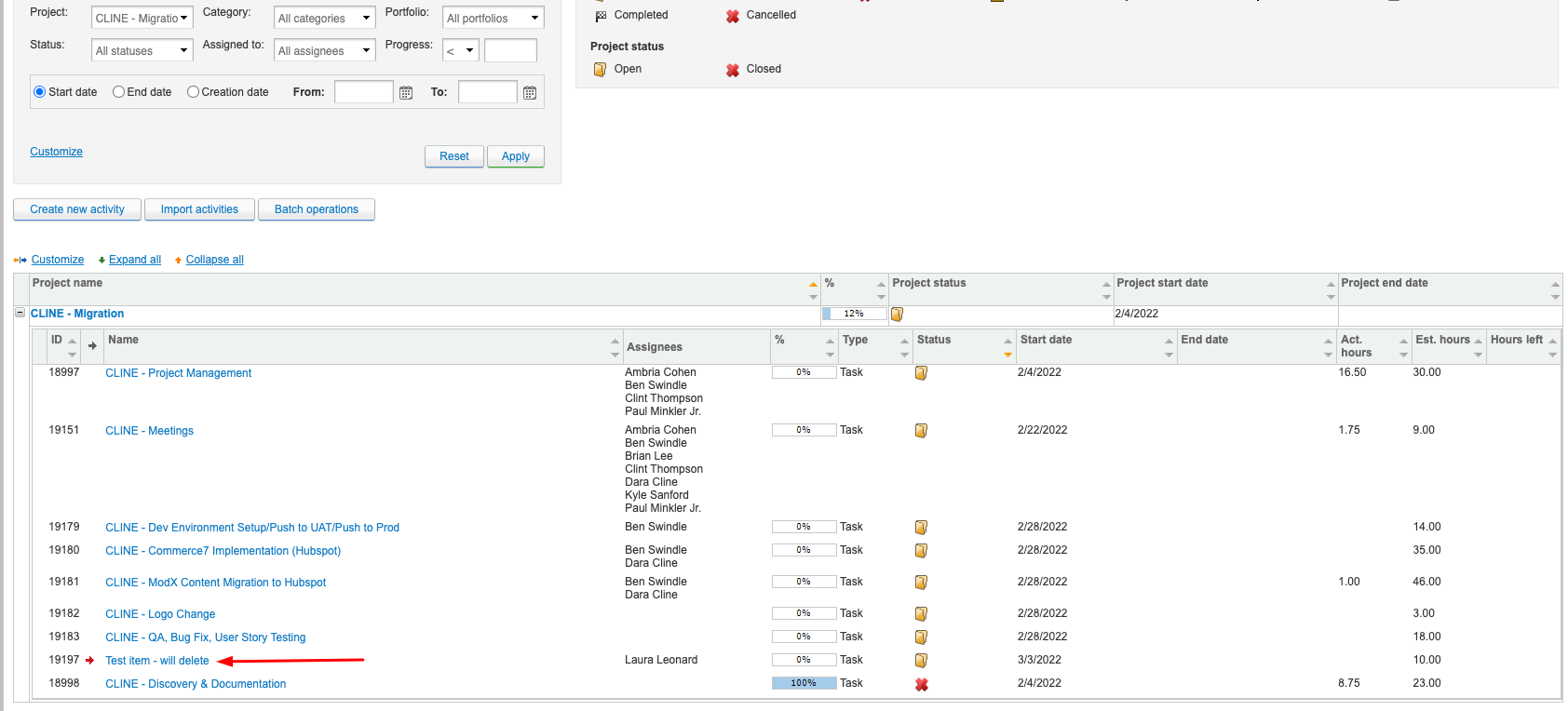
This article will give you instructions on how to create tasks in EP.
- Technology: EP – Easy Projects
- Sphere: Reporting
- SDLC: Ongoing throughout the life of the project
- Cadence: As needed
Make sure when you are going to create a task, it follows the FSD. Our goal is to have all tools being used for the project match up. The FSD, EP, Power BI, Azure, Teams, Basecamp and any others should all look the same. Occasionally there will be one-off tasks that don’t match the FSD but make sure you confirm with the PM before adding tasks.
Have your FSD ready to cross-reference.
- Step 1: Log into EP
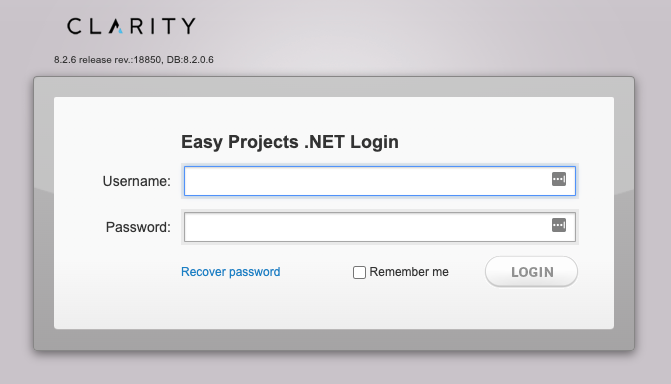
- It will take you to this screen

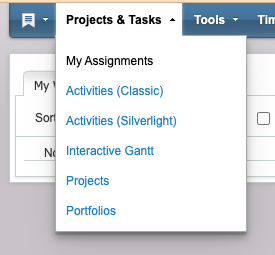
- Step 2: Click the Projects & Tasks dropdown in the upper right hand corner and select “Activities (Classic)”
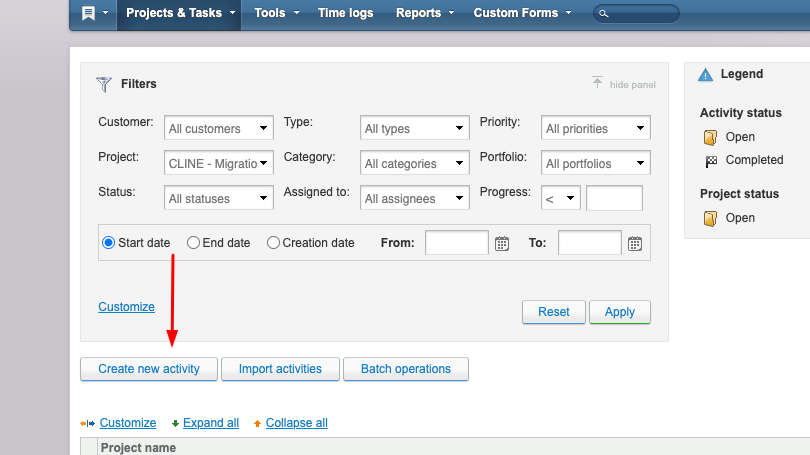
- Step 3: Make sure you have selected the right project under Filters and then click “Create new activity”
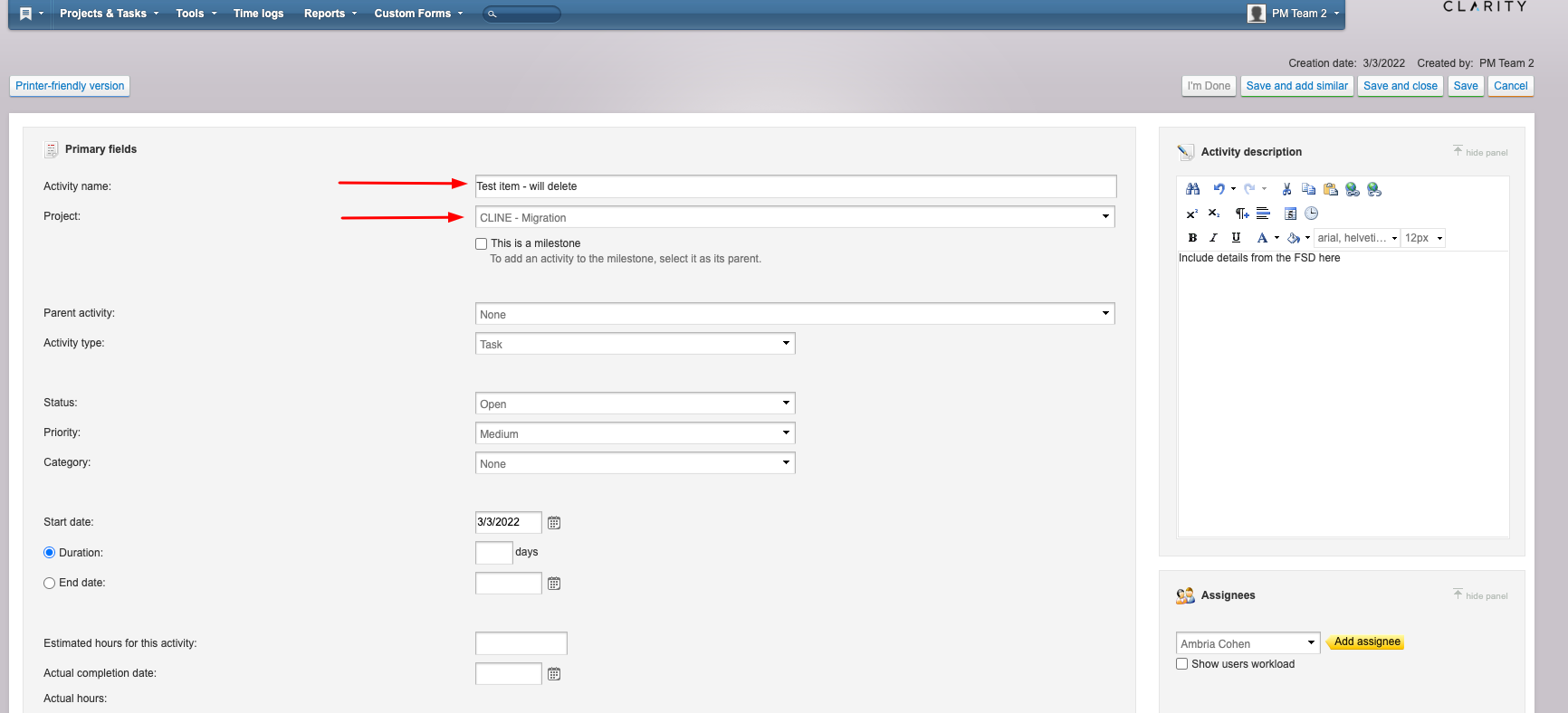
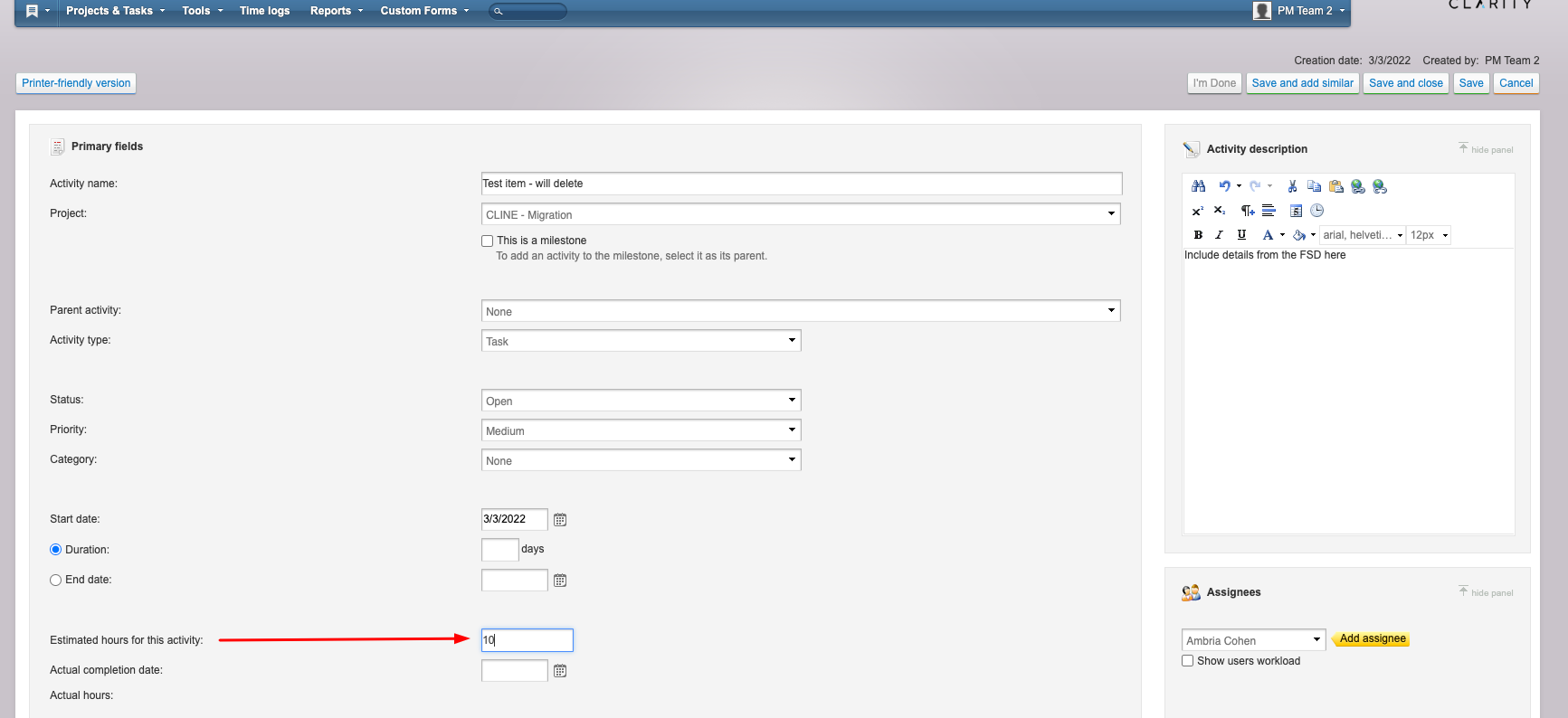
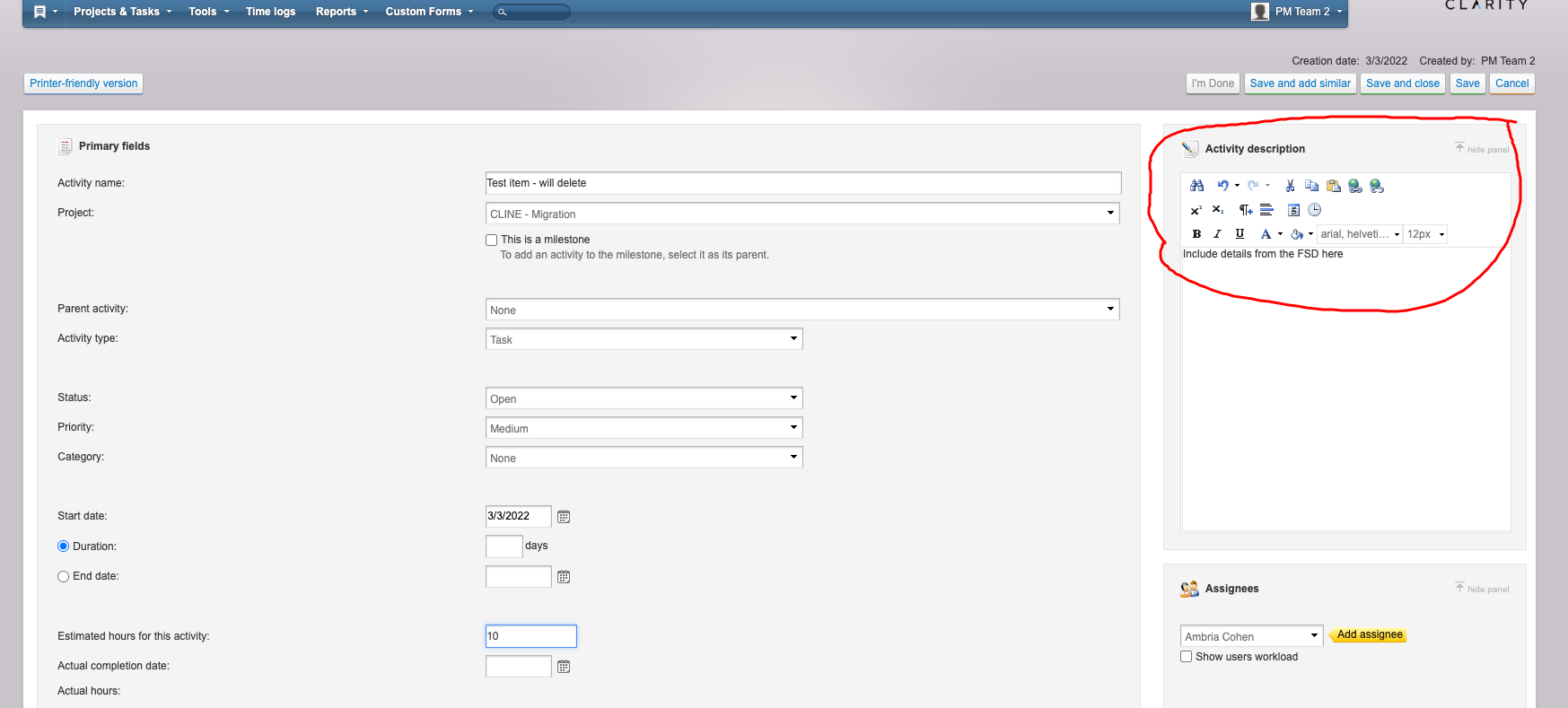
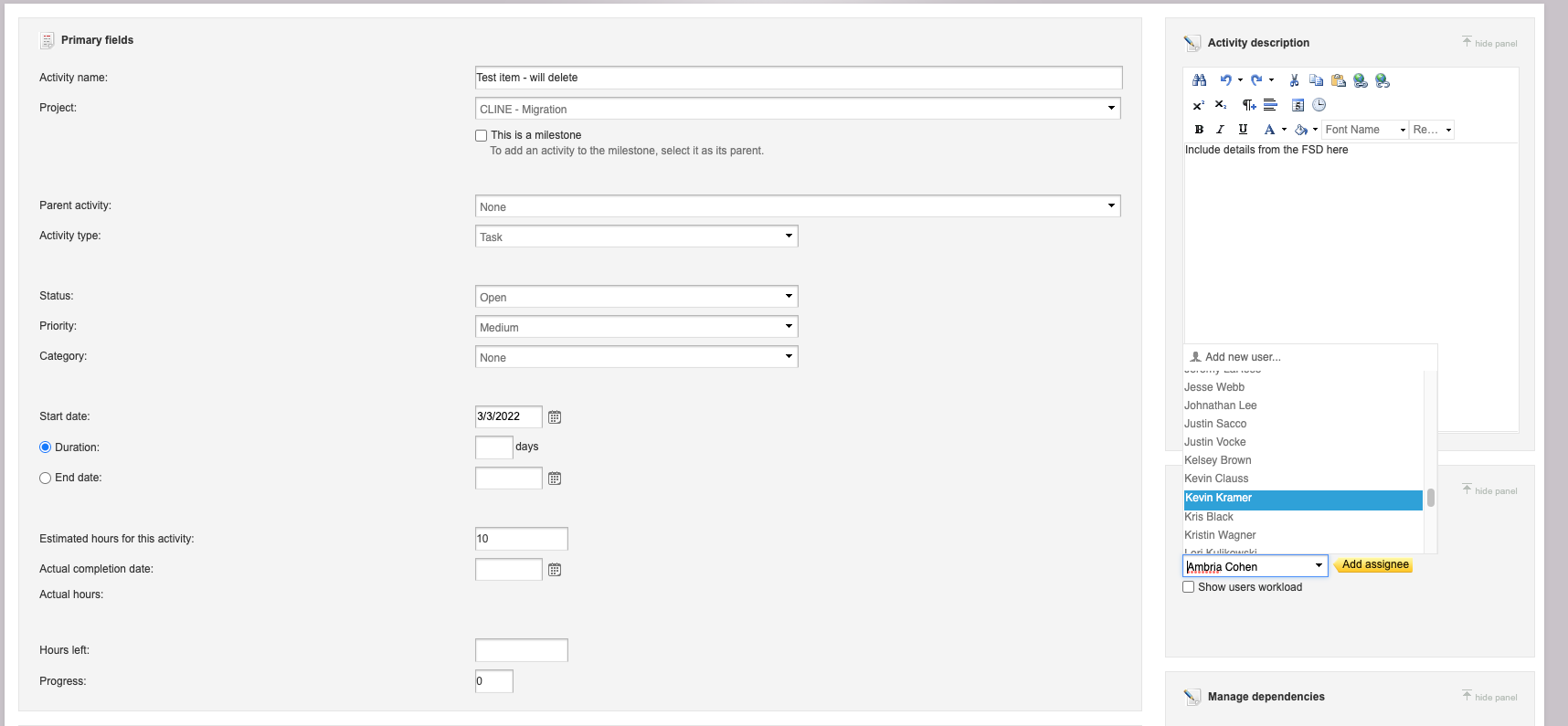
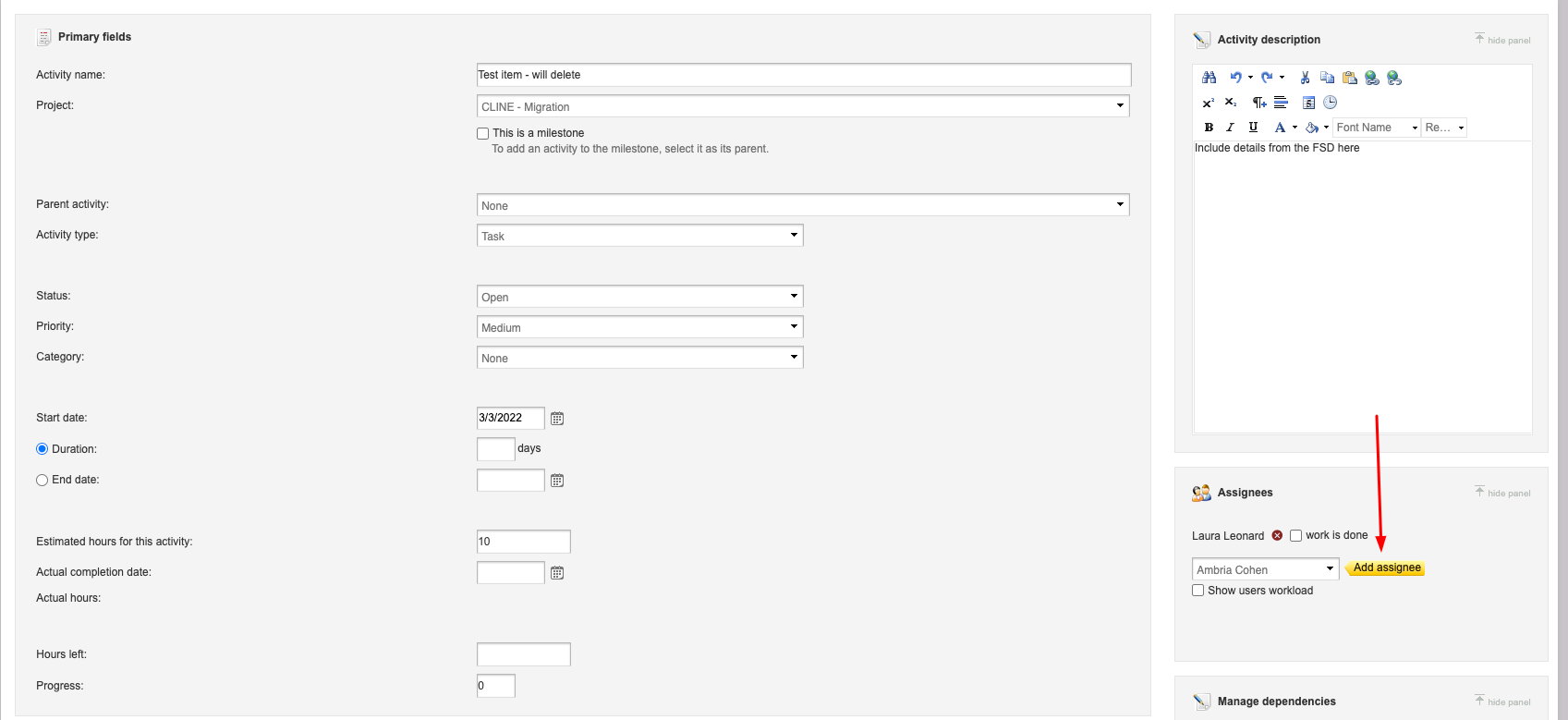
- Step 4: From here, you’ll use the FSD to fill in all information.
- Task Name
- Project
- Estimated hours
- Description
- Assignees
- Step 5: IMPORTANT - When everything is filled in, you’ll click “Save and close”

- You should be redirected back to the project’s task page we were originally on, and your new task should now be visible.