This task is also sometimes called an Azure / EP Audit.
Goal: We want to ensure that the only people who can enter time logs for a specific project are assigned to that project in EP. We want a 1:1 match between what developers are working on in the sprint and what projects they can allocate their time to.
- Tools: EZ Projects / Azure
- Sphere: Sprint Planning / Reporting
- SDLC: Ongoing for the life of the project
- Cadence: Bi-Weekly
When a Developer / User is assigned to too many line items in an individual project, the chance of misappropriating a time log is much higher. This misappropriation can cause mistakes when entering time, which will cause a need for more hour audits. When in doubt, ask the PM and / or the developer if they are working on the project through the next sprint.
-
Open a window with the current sprint pulled up in Azure.
-
Open a window with EP.
-
Project by project, we will want to ensure that each Developer is ONLY assigned to the projects they are working on and the specific activities they are working on.
-
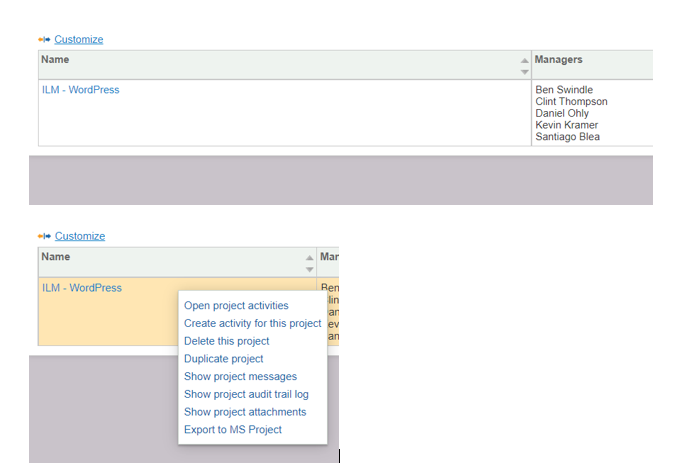
Navigate to the project you are auditing in EP by clicking the Projects & Tasks drop-down and selecting "Projects."
-
Click the white space around the displayed project name under the “name” bar, then click “Open project activities.”
-
Select your project from the “project” dropdown.
-
If a project is out of discovery and design phase, we will want to remove all users from the line items associated with that phase. To determine if this phase has ended, check with the relative PM.
-
Discovery & Design Phase line items include Web Strategy, Discovery, Design, Re-estimates.
-
To ensure that everyone who has ACTIVE work in Azure is assigned to the related line item, you will navigate to the current sprint, bring down the filter bar, and isolate the project by using the "Area" filter. Take note of all of the developers who are working on that project in this sprint.
-
Upon that project being isolated, you will search by Developer to see what active work they have. This is done by entering their name in the “Filter by keyword” bar.
-
If you are unsure what feature they are working on regarding the correlation between Azure and EP, click on the User Story level item in the sprint. On the right-hand side of the User Story, you will see a section titled "Related Work."
-
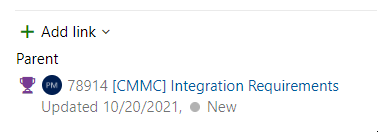
In this "Related Work" section, you will see the "Parent" of the User Story level item. This parent is traditionally a "Feature" denoted by the purple trophy icon.
-
This Feature is traditionally the corresponding line item in EP. If you can not find the correlating Feature in EP, you need to reach out to the PM.
-
If the user does not have work in the sprint for the project, remove them from the project in EP.