Logging time to "CVI-Needs Reallocation" occurs when a developer has logged time on a project but does not know which line item to bill to, or when they have not been added to the respective line item for their feature.
PMs do their own project time log audits every 1 to 2 weeks and we want to assist in making those audits as easy as possible so please do your best to bill to correct line items when moving needs reallocation logs.
-
Tools: EZ Projects
-
Sphere: Accounting/Reporting
-
SDLC: Ongoing throughout the life of the project
-
Cadence: Daily
-
Overall Summary of Reallocation:
-
Open Easy Projects in two windows. One window focuses on CVI – Needs Reallocation while the other focuses on the Projects.
-
Reallocate tasks appropriately.
-
You can copy and paste all of the activities into a spreadsheet to let the PM know what you changed.
Detailed instructions of reallocation
-
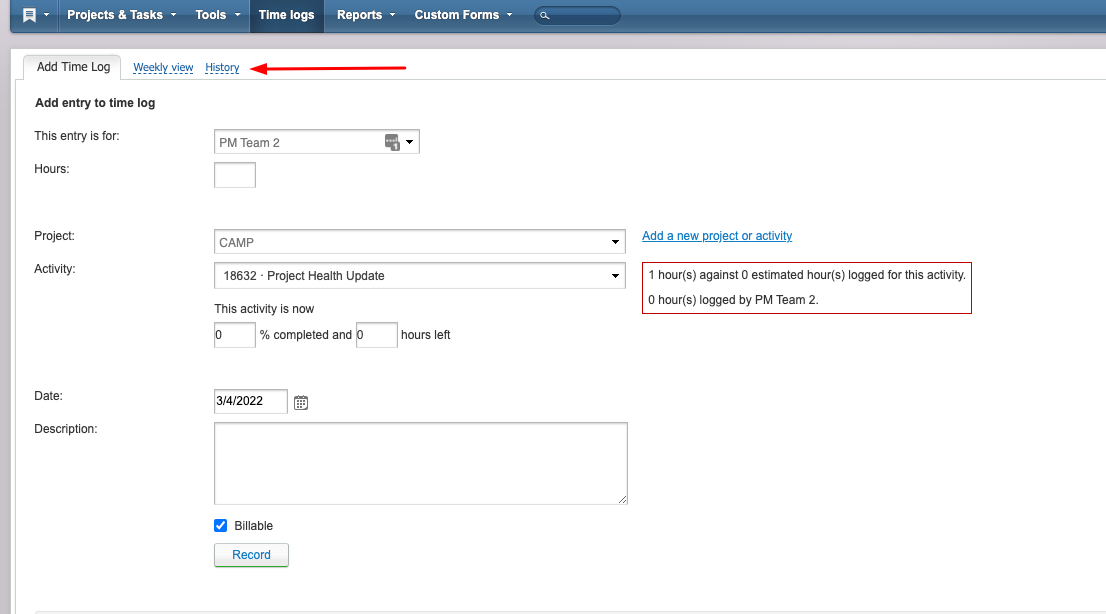
Click to the Time Logs tab

-
Click on the History sub-tab
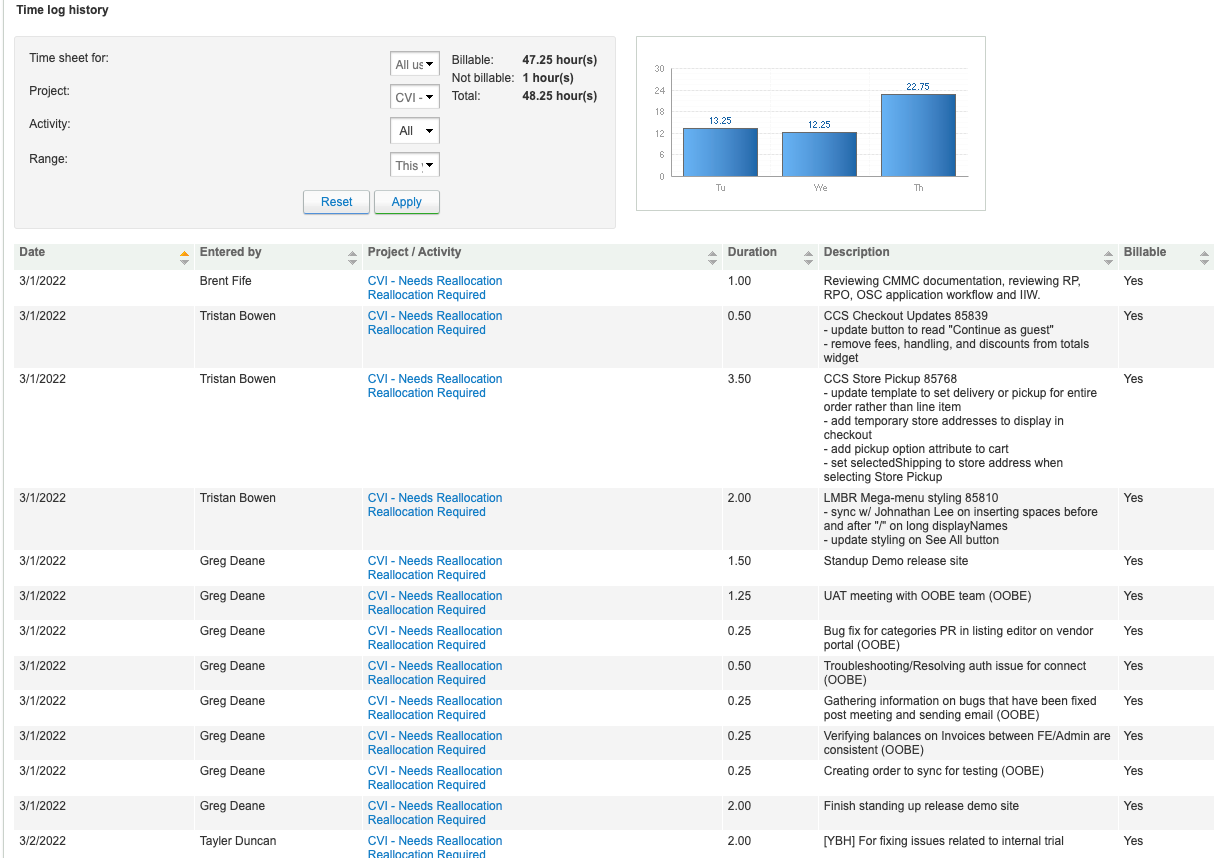
- Dropdown the "Time Sheet for" and select "All Users"
- Dropdown the "Project" to "CVI- Needs Reallocation"
- Dropdown the "Activity" to "All"
- Dropdown the "Range" to "This Year"
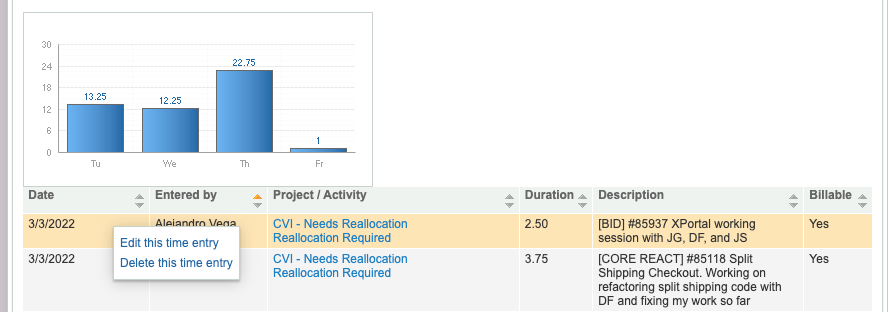
- Click "Apply" to see the logs and the results should look like this:
-
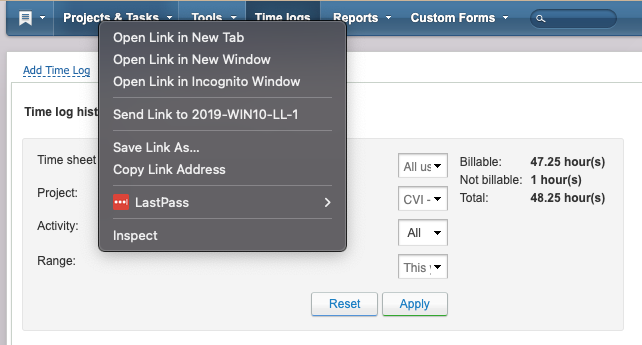
Right click the Projects & Tasks tab and select "Open link in a new window"
- Click the white space around the project displayed under “Name”, then click “Open Project Activities.”
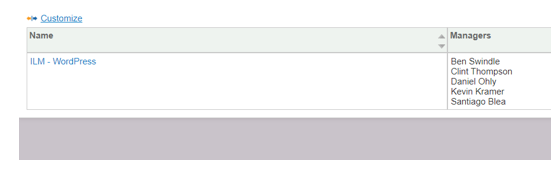
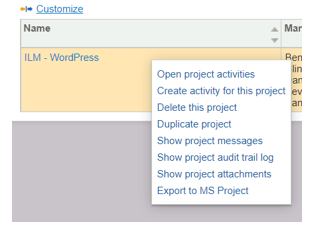
- Click the white space around the project displayed under “Name”, then click “Open Project Activities.”
-
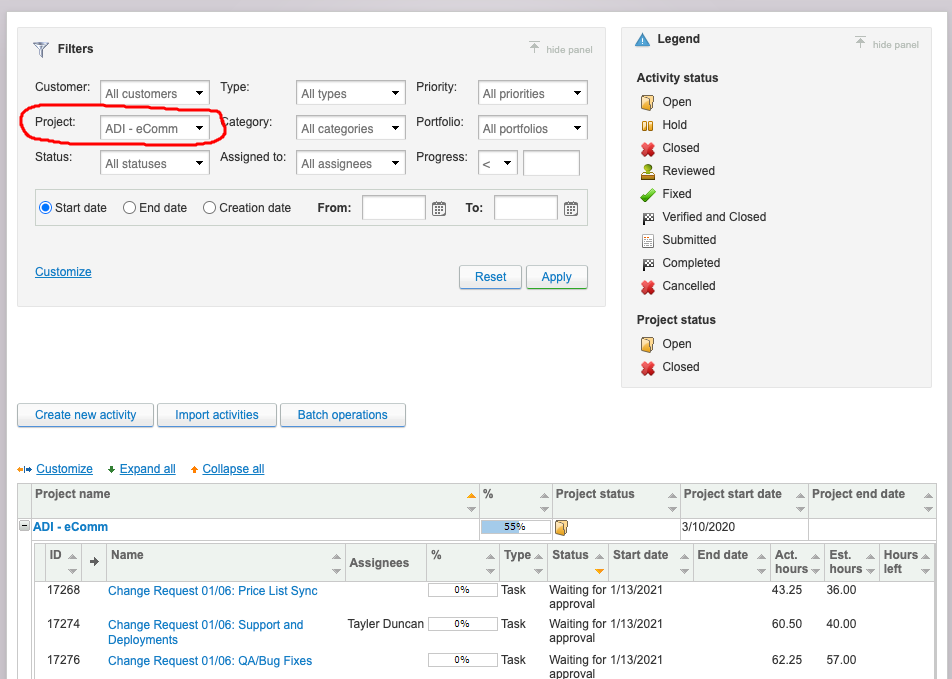
Select the appropriate Project from the "Project" drop-down, and click "Apply."
-
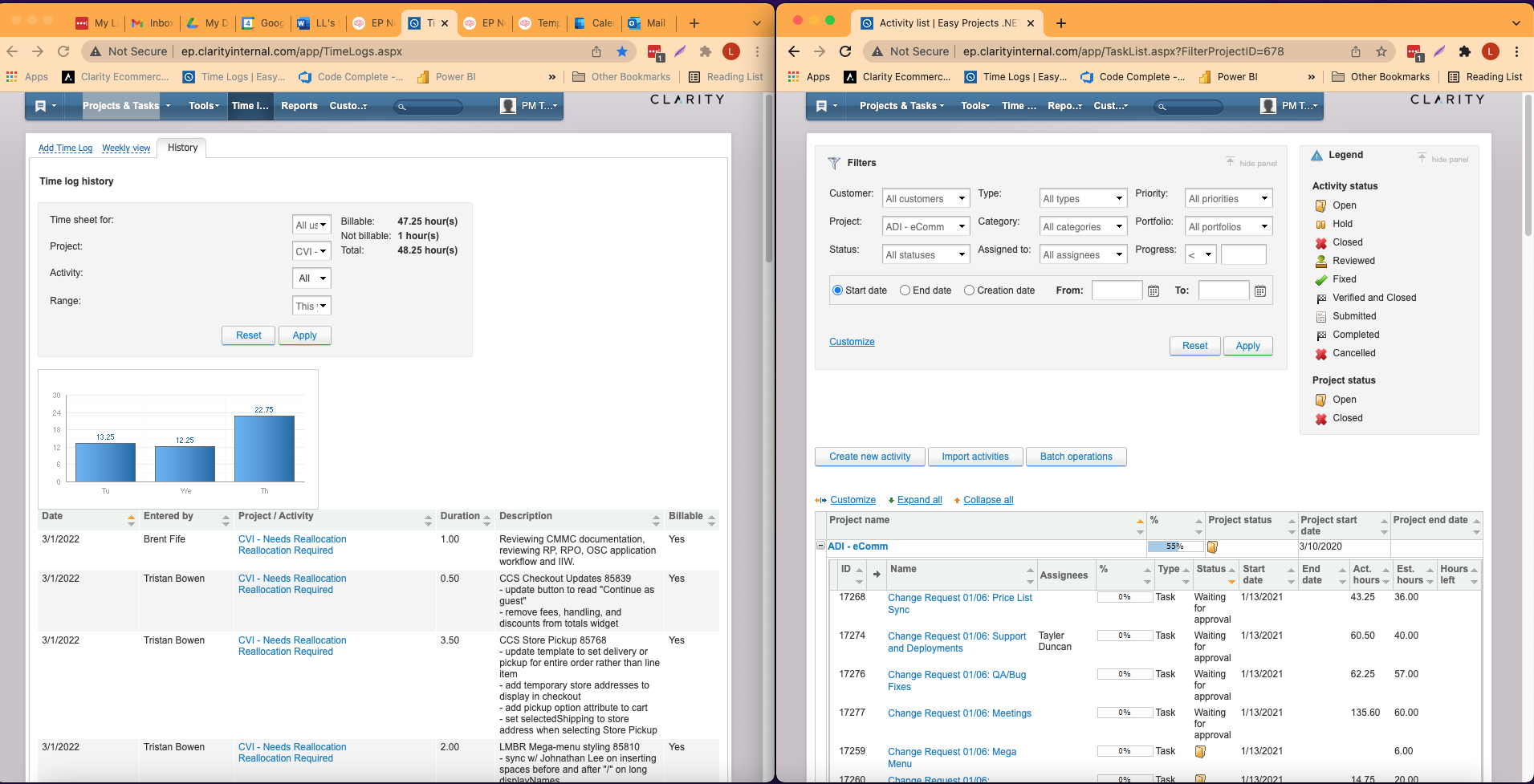
Place your windows with the Needs Reallocation time logs and the project filters side by side.
-
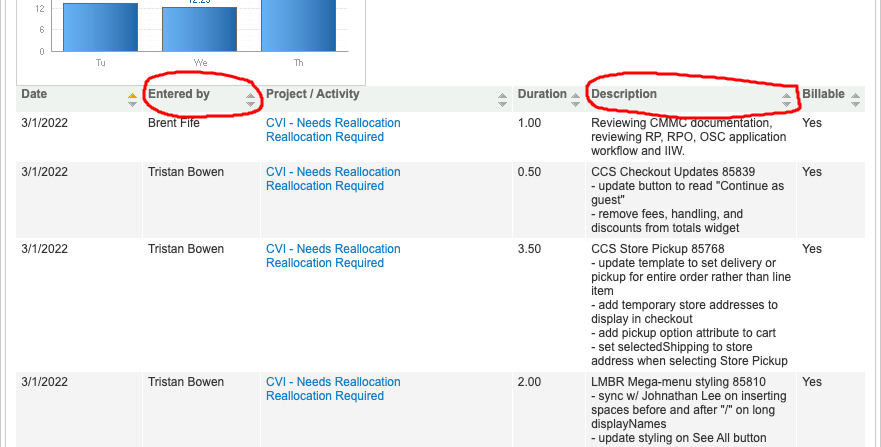
From here you can either go down and edit the time logs one by one, filter by the person who entered the time log or filter by the time log description.
-
Looking over the time logs, pay close attention to the project acronym and description.
-
The project acronym is missing, message the person in Teams to ask for more info.
-
If the description goes to a specific project but the Billable column says, "No" we need to correct this to yes. Anything project specific should be marked as billable unless the PM states otherwise.
-
If the dev left a ticket number, do a search for it in Azure and follow the branch until you find the task it falls under.
-
If a current EP task is not applicable, message the PM for guidance and ask if you should create a task so the time can be billed properly.
-
-
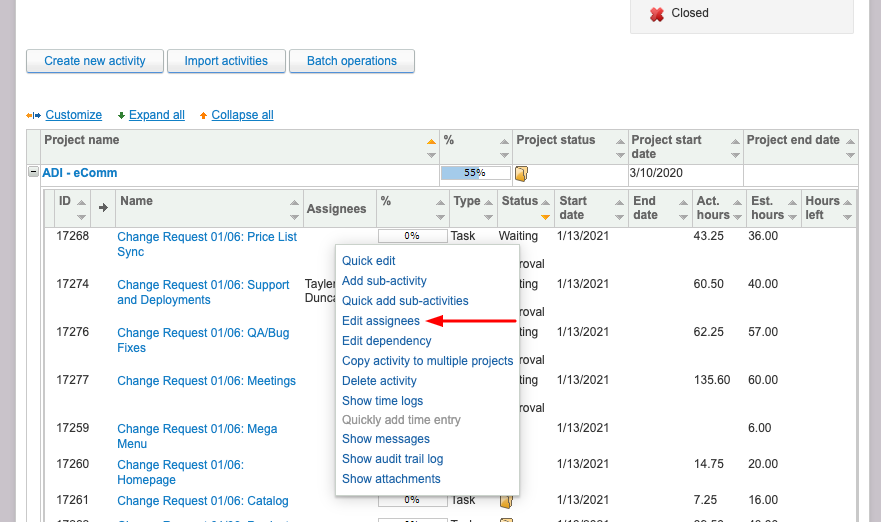
With the Project Activities visible, look for the most appropriate Activity, and assign the Developer to that line item by clicking the white space around the Activity, and selecting "Edit Assignees."
-
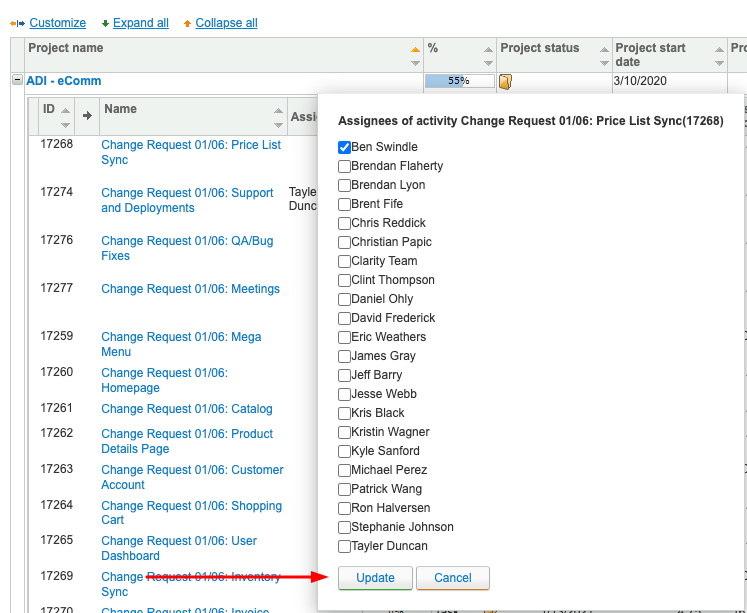
A list will appear with anyone who has been assigned to this project in the past.
-
If the person you need to add to the line item is listed, you will select them (a blue box with a white checkmark will appear next to their name) and click "Update."
-
-
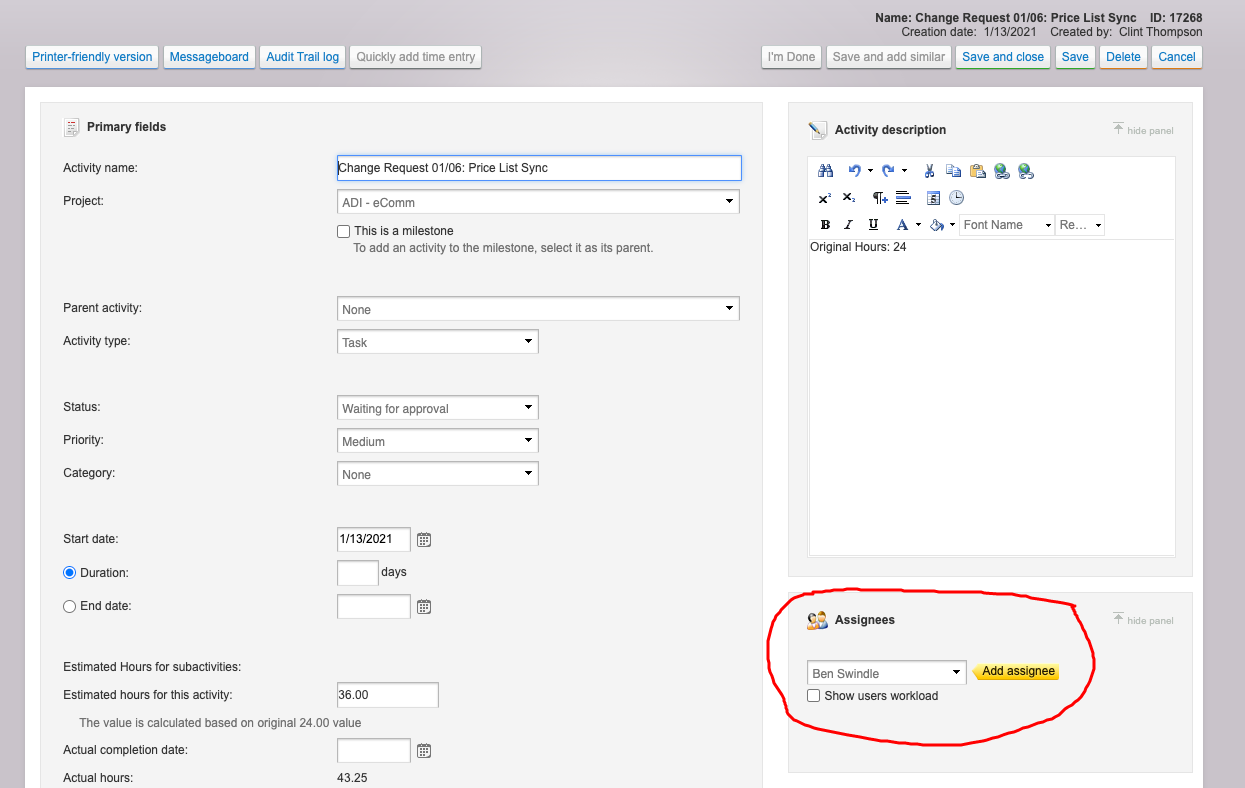
If the user is NOT on the drop-down of Assigned users, we will need to click into the Activity itself by clicking on the Name of the Activity.
-
On the right-hand column, there is a box titled "Assignees."
-
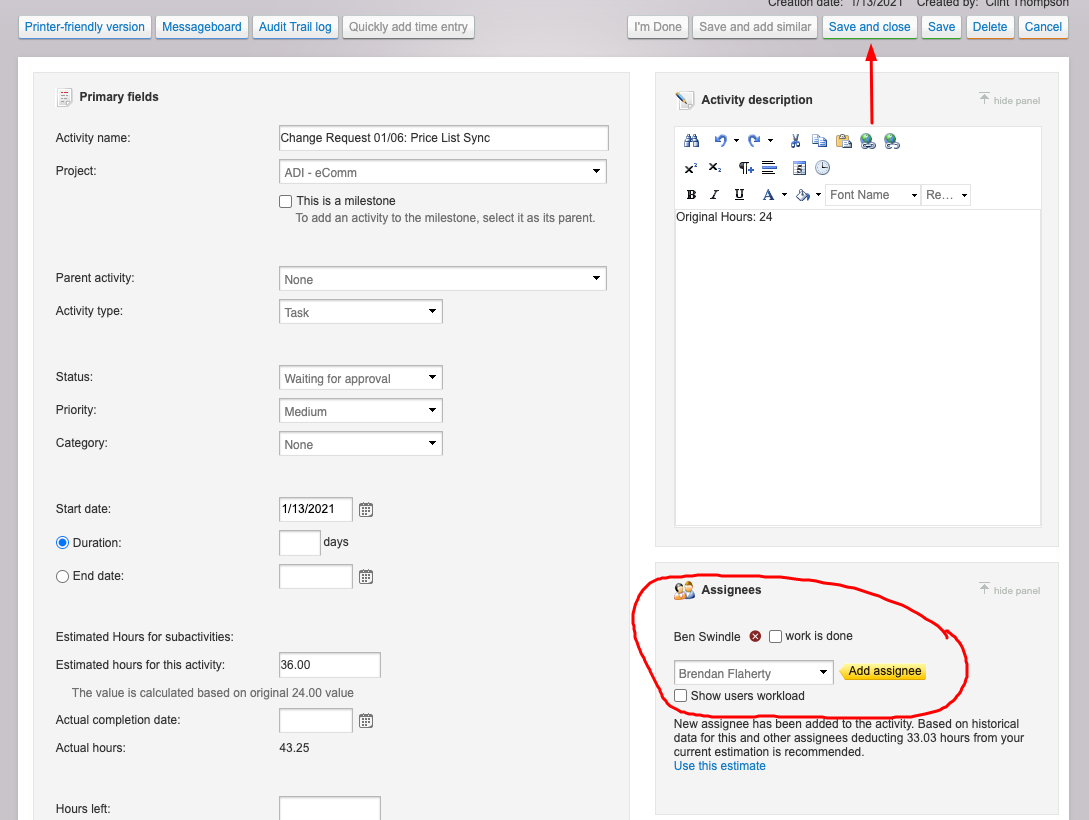
Select the appropriate user from the drop-down, and click "Add Assignee."
-
Click "Save and Close" from the bar across the top of the page.
-
Navigate to your other window with the open "Needs Reallocation" time logs, click on the white space around the Project/Activity for the particular time log, and click "Edit this time entry."
-
Click on the drop-down, and select the appropriate Project and Activity
-
Click the "Update" button.

-
If it is a new project, the appropriate category may not be created yet in EP. In this scenario, consult the PM to add the activity into EP, assign hours to it, and add the appropriate person to the activity.
Gotchas:
If you do not see the Acronym you are looking for in the projects section of EP; you can ask the Developer and PM if there is another Acronym that the project should be under.
When in doubt, if the dev left an Azure ticket number, look that up and follow the branch until you identify the line item. If this does not work, reach out to the Dev and / or PM for more information.