How to Create Microsoft Teams, Channels, and General Team's Administration
- Technology: Teams
- Sphere: Communication
- SDLC: Sales and Project Introduction
- Cadence: Once
1. Select the option at the bottom right of the teams window that says Join or Create a Team
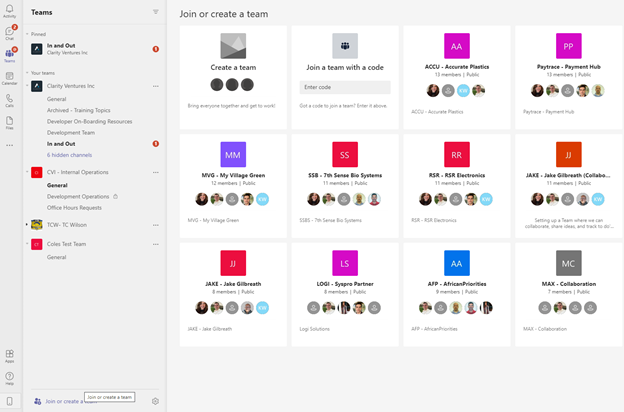
2. Select the option that says Create a Team
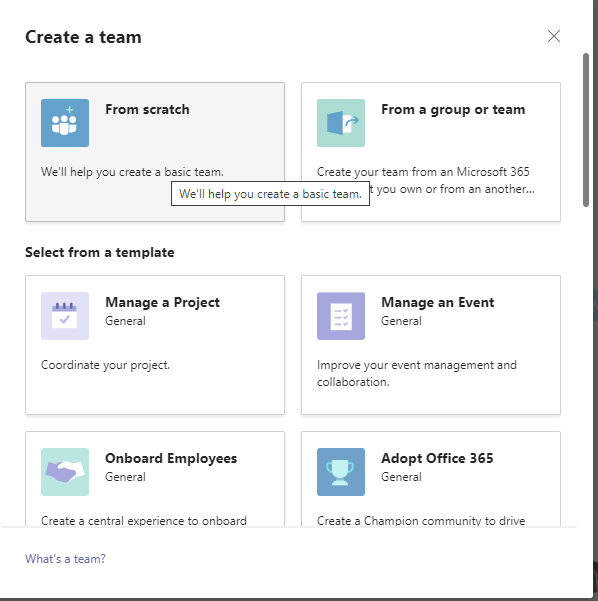
3. You will have a variety of options when creating a team such as: From Scratch, From a group or Team, Manage a Project, Manage an Event, Onboarding Employees, Adopt Office 365 to name a few. If you scroll down there will be more options to choose from. For this example we will select From Scratch.
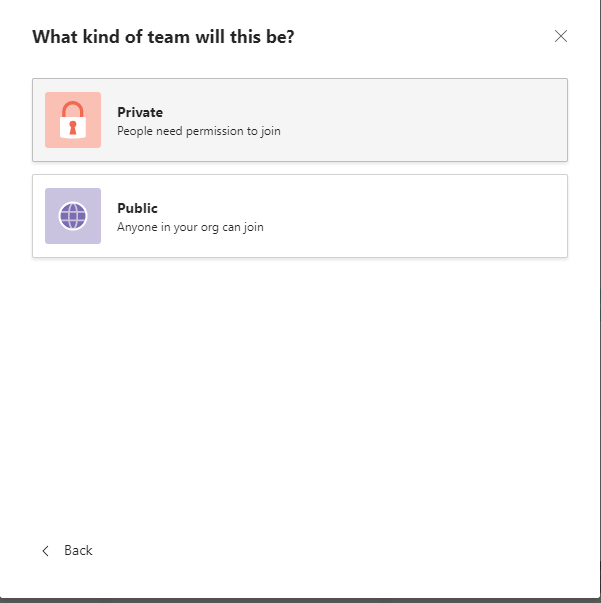
4. Once you select the team design you will be presented with two options: Private or Public. Since this is an example we will select Private. But in most cases you will want to create a Public team that is visible to the organization and to the members of the company.
5. Create the Team Name and a short summary of the purpose of the Team. When you are certain of your name and description select Create.
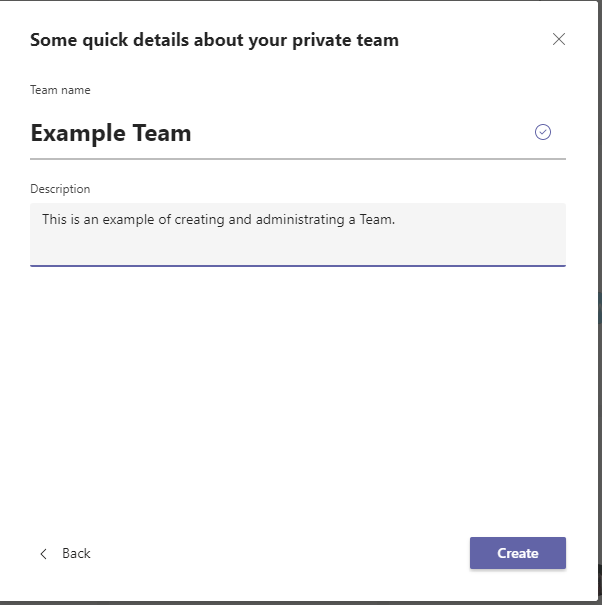
6. Once you complete your set up for the Team you will be presented with the following screen to better tailor your Team to suit your needs
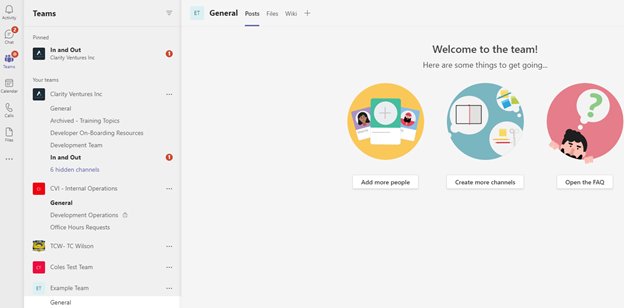
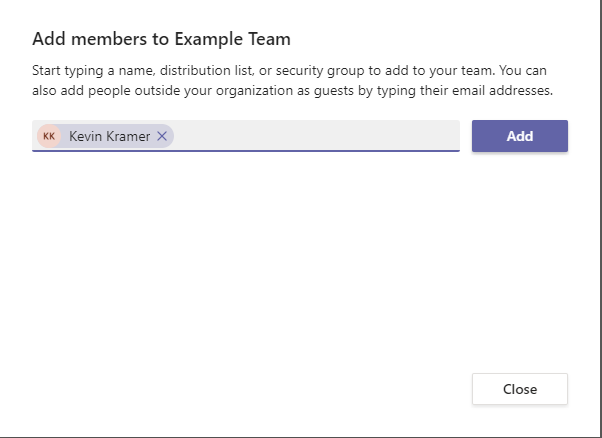
7. To add someone to your Team select Add more people Then type the Name of the person you wish to add
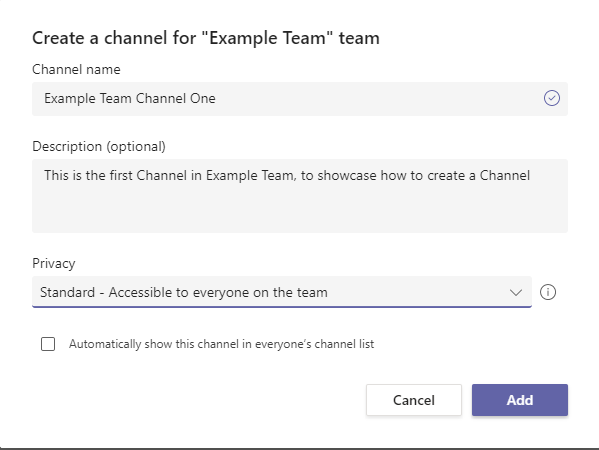
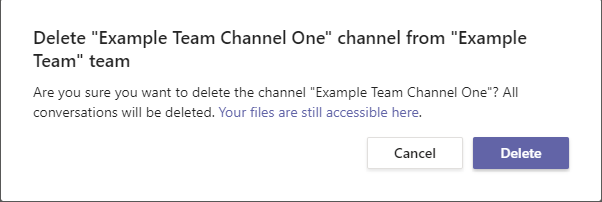
8. To create a Channel select the Create more Channels option, then give the Channel a descriptive name, and information about the channel and what it does, then select the privacy setting you wish for the channel.
-
a. Standard = Accessible to everyone on the Team
b. Private = Accessible only to a specific group of people within the Team
- You can also choose to automatically show this channel in everyone’s channel list.
- Useful for important Channels everyone should have and be able to easily access.
- You can also choose to automatically show this channel in everyone’s channel list.
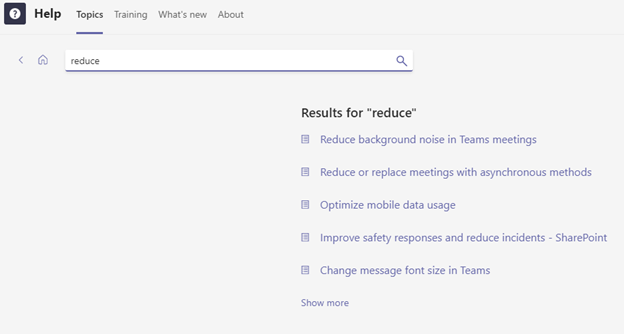
9. Microsoft Teams provides a FAQ section that users can take advantage of to get help with various topics such as reducing background noise
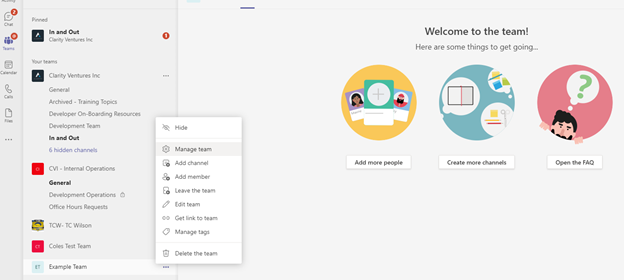
10. To get more in detail with managing a team you can right click your team and select manage team to gain access to more options for administration purposes.
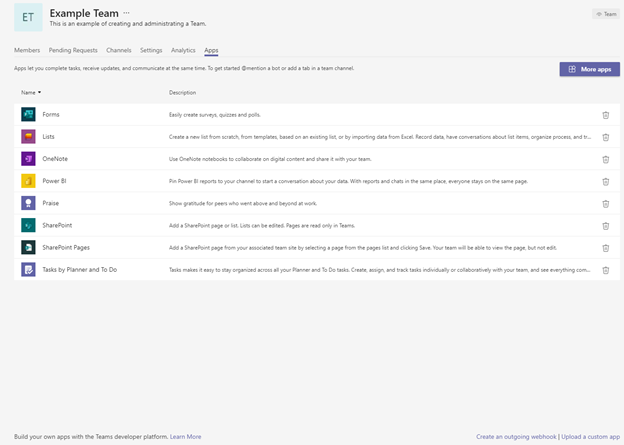
11. In the managing section you will have various headings such as: Members, Pending Requests, Channels, Settings, Analytics, and Apps
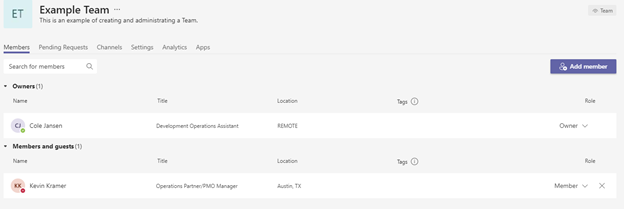
12. To edit members and their permissions go to the Members tab and click the down echelon to select either Member or Owner.
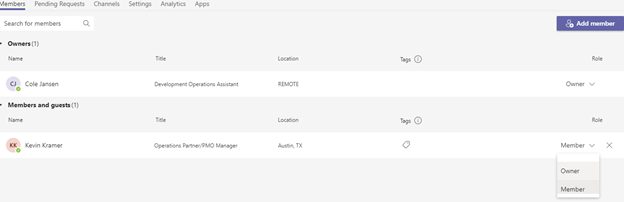
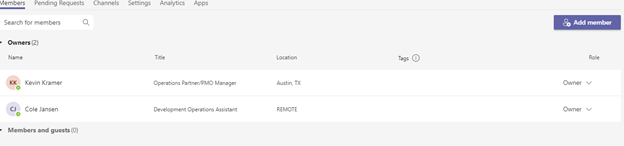
13. To remove an Owner, select the down echelon and move the user from Owner to Member

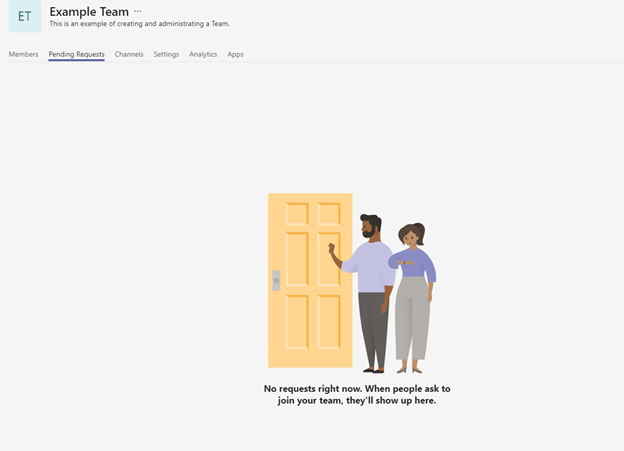
14. Pending Requests will be listed here for user management
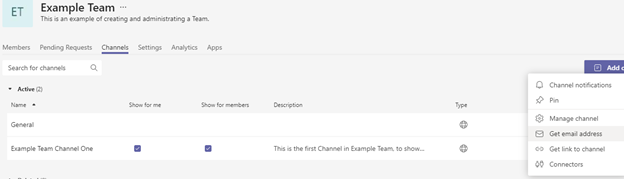
15. In the Channels section you can get an overview of your Channels to better manage them and take actions such as managing the channel, getting a link for the channel, and channel notifications to mention a few
16. Channel Settings you can manage what gifs are allowed to be sent, tags, who can post in general channel
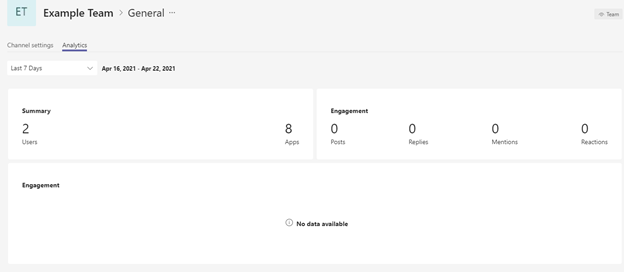
17. Analytics overview for your Team
18. Apps section lists some installed apps but also allows for adding more apps or adding a custom app
a. You can uninstall apps by selecting the trash can icon