This step-by-step guide walks you through installing a Connect site in IIS. The links are screenshots of the various steps.
- Publish the application and put it in C:/Data/Projects/[CLIENT ACRONYM]/Connect/STG or PROD
ex. C:/Data/Projects/ACME/Connect/STG
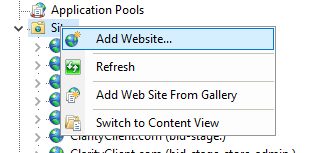
- Open IIS and right-click on Sites > Add Website
3a522cc9-f9f9-4272-9695-eed4ba162c0d.png
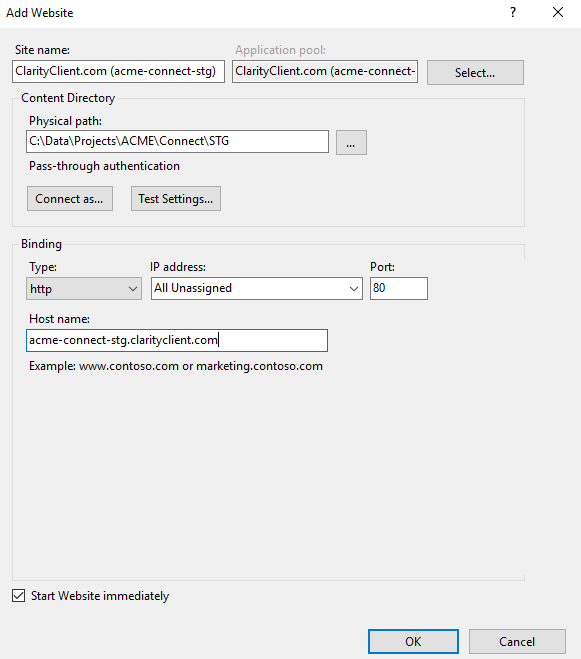
- Site name: ClarityClient.com ([client acronym]-connect-stg.(or prod.)
ex. ClarityClient.com (acme-connect-stg.)
- Application Pool: This will auto-fill to the Site name.
- Physical Path: the STG or PROD directory where you published to.
- Binding:
- http
- Type: http
- IP Address: All Unassigned
- Port: 80
- Host name: [client acryonym]-connect-stg(or prod).clarityclient.com
ex. acme-connect-stg.clarityclient.com
- Start Website Immediately: checked
f939bb4c-d998-4012-8370-644b1d913d7b.png
- Right-click on the new website and select Edit Bindings...
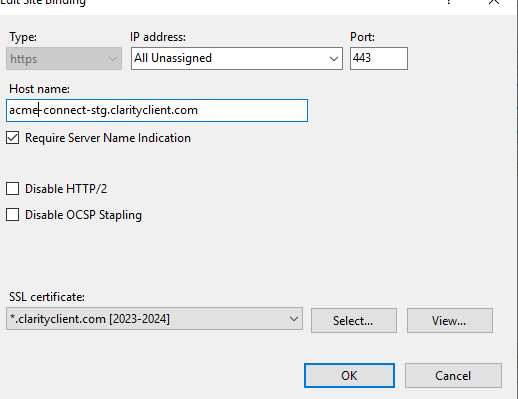
- Select Add...
- https (Same as http EXCEPT)
- Type: https
- Port: 443
- SSL certificate: If it's on our box: *.clarityclient.com (can have year it is good after)
ex. clarityclient.com (2023-2024)
e47d5b03-3ba2-483e-97fa-2b8ea3217243.png
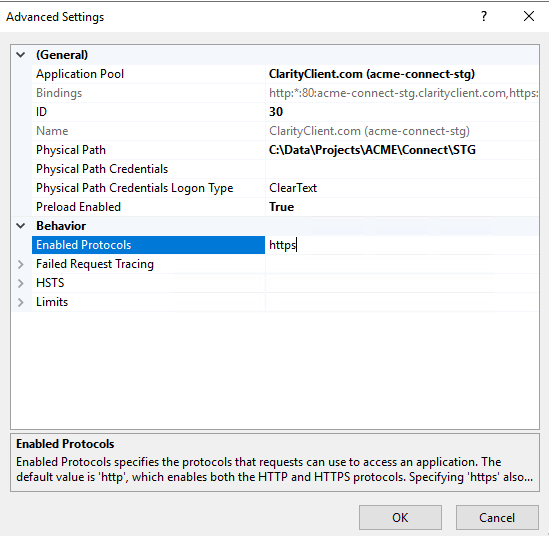
- On the right under "Manage Website", click Advanced Settings
- Change these if they aren't set
- Preload Enabled: True
- Enabled Protocols: https
ff6bd52a-26a5-4443-98fd-22494cdae24c.png
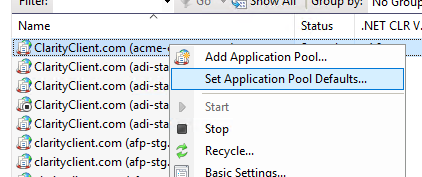
- Click Application Pools at the top and find the Application Pool that you just created in step 2.2.
- Right-click the application pool > Set Application Pool Defaults
a15e3e2c-54d7-4512-b3d7-23c231fe6787.png
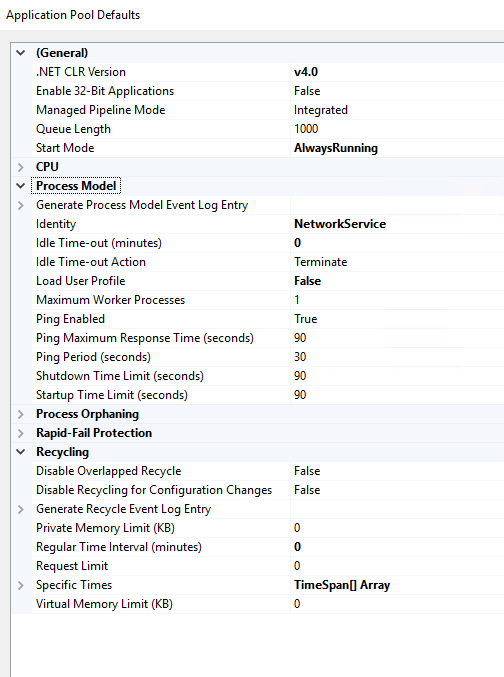
- Change these if they aren't set:
- General
- Start Mode: AlwaysRunning
- ProcessModule
- Identity: NetworkService
- Idle Time-out (minutes): 0
- Load User Profile: False
- Recycling
- Regular Time Interval (minutes): 0
- Specific Times: Empty TimeSpan[] Array
75912c83-f6d7-4393-9a31-a4f18fed86d5.png
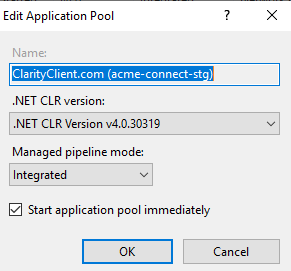
- Right-click the application pool > Basic Settings...
- Start application pool immediately: checked
ed2fc1f9-69cf-4b5f-abc4-d4c20da6d3c8.png
- Right-click the application pool > Advanced Settings...
- These should be the same as Application Pool Defaults
- Make necessary additions to hosts file (C:\Windows\System32\drivers\etc\hosts)
- Add: IPaddress [client acronym]-connect-stg(or prod).clarityclient.com
Ex. 127.0.0.1 acme-connect-stg.clarityclient.com
55173ad0-ef34-4127-b80e-17c1ba82f44e.png