- Tools: Azure
- Sphere and SDLC: Development
- Cadence: Mondays, Tuesdays and Thursdays
Checking Daily Azure Ticket Status involves looking for any User Story levels that have closed tasks, tasks that do not have any remaining time, blocked tasks, and tasks that have exceeded estimation. Work with the Scrum master, the project manager, and developers to resolve any issues.
Azure Color Key:
- Sage Green – Normal
- Kelly Green – High
- Periwinkle – Critical & Critical and Urgent
- Orange – Something is missing
- Colorless- Colorless/White
- Pink – Blocked External
- Red- Blocked Internal
- Grey - closed
Tip: Azure is like a grid and should be read as such. New items need to be in New section, active items in the active section, closed in closed section, and the information in the tickets must correspond with their state of being. A closed ticket, for example, should have hours entered in for completed work.
- Open Azure, and navigate to the current sprint.
- Open a filter, and select every Area Path for the projects that you are managing.
- Go through every Task that has any aberrations.
Aberrations To Look For:
- User stories in the incorrect state (IE: New when the task is active)
- Closed tasks with no value in “Completed”
- New tasks must not have work in the "completed" field, and the digits in the "remaining" field should match the "original" field.
- User Stories with no tasks
- Missing Fields
- Active tasks with no value in “Original” and “Remaining”
- Verify Priority Level if marked high, critical, or critical and urgent
- Blocked User Story without a Blocked Task
- Blocked tickets with no impediment
¶ Closed tasks with no completed work.
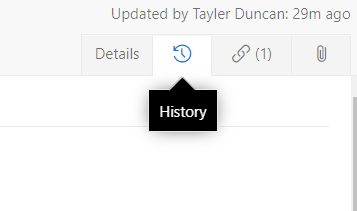
- Investigate the Task by using the "History" tab within the Task to look at the historical changes to the Task. (This is an icon to the right)
- Determine if there is secondary action that needs to be taken on the Task.
- Check for a “0” in the completed section to determine if it is closed with no completed work.
¶ New Tasks - Active/Inactive
- If a task is in "New" it must not have any completed work in the related fields.
- If a user story is marked as new but the task in the sprint is closed, reach out to the developer or PM to determine if the state should be changed to Deployed or Code Complete.
¶ Missing Fields
If a ticket has missing fields it will be orange. PMC can complete the fields by first clarifying the missing sections with the PM.
¶ Active tasks with no values listed for Original and Remaining.
If a task is in "Active" it must have numerical values in the Original and Remaining fields.
If a task is Active as evidenced by the Work Completed section, but is still in the New section, it can be moved to Active.
- To move a task to "Active", you need only drag it into the "Active" swim lane.
¶ User Stories with no tasks
- If a User Story is "New" and has NO tasks underneath it in the current sprint, check with the Project Manager to see what they would like to do with the associated Task.
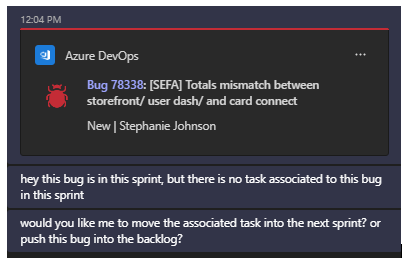
Options of what to do with the associated task:
- Move it to the next sprint- Open the Task, change the iteration path to the next sprint.
- Move it to the backlog (Cef- Product)
- To move to the backlog or the next sprint, change the iteration path. This is done by clicking the space next to "iteration" on the user story itself, or by clicking into the user story and selecting a dropdown option next to "iteration." In the dropdown, the backlog is titled "Cef- product", while each iteration is titled by its respective date.
- If you need to find which developer worked on a user story that has no tasks in the sprint, click into the user story, check the prior closed child tasks, and open them to see the developer's name at the top.
¶ User Story State.
- If a User Story's State is "New," every work item associated should have NO completed work in the New Column. If a User Story has active tasks, change the State to "In Development."
- If a user story is marked as "in development" but only has tasks in the "new" column, before changing the user story state to "new", be sure to click into the user story and see if there are any child tasks associated that are closed or in development. If there are, the state would stay marked as "in development."
¶ Checking Priority in the Sprint
- While reviewing your projects' work in the sprint, keep a close eye on tasks/User Story level items with a higher than "Normal" Priority.
- For every Task you find that has a higher priority than "Normal," you will alert the Developer and the project manager to that Task's Priority.
- EX: "Hey {Developer X}, Task {12345} is of Critical Priority. This Task should be completed within the next couple of days. Do you have any issues with this? Or is this on track?"
- If the Developer does not believe that they can meet the priority expectations, work with the Project Manager to get the Priority adequately addressed.
- If a task is closed, the user story may remain in critical, depending on what the developer
¶ Moving a Task with “Completed” work out of the Sprint
- If you are moving a Task/Work Item out of the sprint, and that item has "Completed" work on the Task.
- Open the Task.
- On the top right hand side of the Task are three ellipses, click on them.
- Select "Create a copy of work item"
- Select "Include Existing links", and "Include existing attachments"
- Ensure that it is in the proper iteration.
- Save the work item.
- Then set the State to "Closed"
- Save the work item again.
- Remove the "Completed" time from the Task that you are going to move to the next sprint.
- Change the Iteration path for the Task.
- Save the Task.
¶ Blocked User Story without a Blocked Task
A user story level item with the "Blocked" set to "Yes" can not be worked on.
This may be due to another piece of work that needs to be completed first, a training session requirement, information from the client, network issues, etc.
Any work that can not be worked on immediately, should be blocked.
- If a User story is in a blocked state, the task must be blocked as well.
- If the user story is blocked but the task is not, reach out to PM to ask why, and block the task if needed.
- To find out if a task should be blocked, read through the comments
- If development is not blocked, that means the task is not blocked.
- If a task is blocked, typically the user story needs to be. However, if the task block is only blocking a portion of the user story, the user story can stay unblocked.
- For a block on a User Story to exist, there must ALSO be an impediment associated to the User Story.
- To create an impediment, click on the green "+" square underneath the Task level associated with the blocked User Story and select "Impediment"
- Naming an impediment: "{Project Acronym} [Issue in under 5 words]"
- Assign the Impediment to the Developer who is impeded.
- Describe the Impediment more thoroughly within the Impediment using the description field.
¶ Blocked Tickets with No Impediment
- If a ticket is blocked, an impediment should be created under it by clicking the green arrow, selecting impediment, then titling it "[Project Name] Reason for block". Then, assign this to the PM.
- The reason for the block can be found in either the comments of the task, the user story itself, or in the "child" section of related work within the task itself. If this does not provide insight, one can gain further info by speaking to the developer and PM.
- If a user story/task no longer need to be blocked, be sure to unblock them.