¶ How to Seed a CEF Database with Default and Sample Data
Seeding a CEF database is an essential part of creating a functional
website. This involves generating and inserting a set of records to many
tables to provide things like Countries, States, Product Types, Sales
Order States and many other things. There is more than one way to
accomplish seeding a database but the most common is to run the Seed
Database Unit Tests provided using the ReSharper Unit Test Runner.
- Go to the web.connectionStrings.config file under the
05.Clarity.Ecommerce.Workflow.Testing project and open it in a text
editor (or Visual Studio)
- Ensure that you have a valid connection string set to the database
you want to seed:
https://i.gyazo.com/b4ddaa53895a7a7d460a9f10e30152ab.png
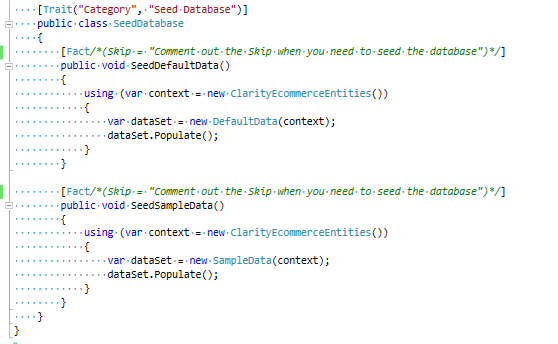
- Open the SeedDatabase/SeedDatabase.cs file. It should look like
this https://gyazo.com/4c3b1532cad0a8ff6986c2d7431d9a06
- Select the first Skip and it's comment statement and press Ctrl + K
then Ctrl + C. This is the Visual Studio Shortcut to comment out code.
It behaves differently in different file types, but always does the
comment action. It should now look like this:
Click here to view screen
capture
- Next to the SeedDatabase class declaration, there's two little green
and orange circles, click that to open the Test Runner menu and
select Run All:
https://i.gyazo.com/37a09b289461395e42d59f4e4be79d2e.png
- The Unit Test Sessions window will open (also accessible via
Ctrl + Alt + T) with a new session, or use an existing session if you
have one and then run the tests. To do this, it may compile the
solution up to the Workflow.Testing project.
- If the tests succeed, you will get a green checkmark if it fails
you will get a red circle with a white line in it. If you forgot to
comment out the skips, you will get an eye with a red slash through
it.
- When you are done, uncomment the Skips by selecting them again and
pressing Ctrl + K then Ctrl + U (the uncomment command).
WARNING! DO NOT COMMIT COMMENTED OUT SKIPS TO SOURCE CONTROL
- Check that your database has the sample data by going to CEF Admin
and loading the Sales Orders screen. There should be a handful of
Sales orders for Walmart ACCT-1121
Some devs don't have ReSharper installed and have to use the default
test runner. Where you would have selected the Green and Orange circles
in the ReSharper Tests, instead right-click the SeedDatabase class
declaration and choose Run Tests (Ctrl+R, T) and that should trigger
VS's version of the test runner.
- Create an empty database on SQLA\SQL2014 following the naming
convention.
- Ensure that the SQLLogin SQL Account has full rights to the database
(it should by default).
- Point your connection strings in the Service project at that new,
empty database.
- [Optional] Set your AppSettings value for
Clarity.Ecommerce.EnableSampleData from false to true:
https://i.gyazo.com/75b23d88a68ac513925c7a0755e143bb.png
- Open the /API link to start the services up. The database will be
automatically migrated to latest, the DefaultData will run and then
the SampleData will run if set.
- If you don't enable SampleData, you will get the core required data
only but no products, orders, accounts, etc for testing and
development. This is a good choice when just making an empty
database before an import from client resources like Connect or a
Google Sheet