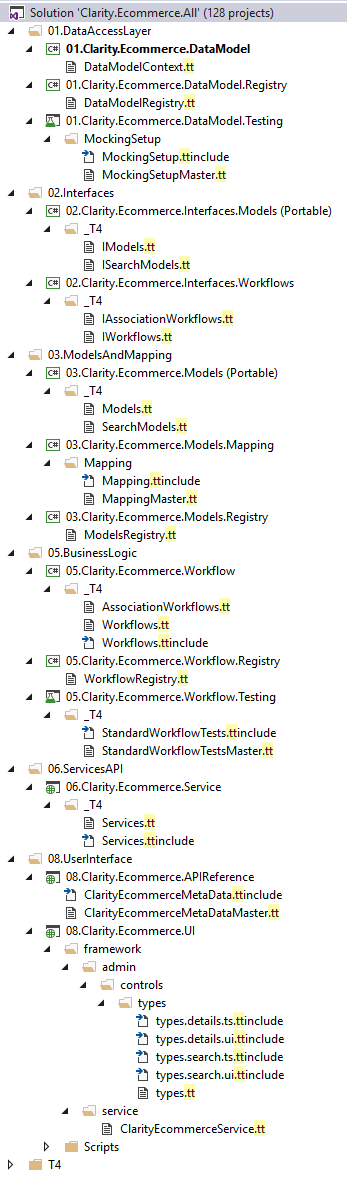
https://i.gyazo.com/6394164e7e546a0de6aac26a6a70afbf.png
T4 Text templating is a powerful way of creating large contents of code
and other resources with a more concerted effort. In areas where the
same actions must be taken repeatedly, in nearly but not quite identical
circumstances, T4 can assist with this.
Writing T4 template code is extremely similar to writing MVC code in
that there are wrapper tags which can be used to drop a variable or
function’s return value or enable longer code chains such as for loops
and if statements. Essentially, if you could write something that would
output to a file with C#.NET or VB.NET, you can write the same code
into a T4 template.
For example:
<#
string companyName = "Clarity Ventures, Inc.";
#>
/// Company Name: <#= companyName #>
namespace fabrikam
{
... // Code to output here
}
You can see in the above example that we are setting a variable inside
<# … #> tags. This is how you denote open code to use areas in a
T4 template (.tt). In a .ttinclude file, you would use <#+ … #>
with the extra + character.
We can get the value of the variable we set (or a function return value)
by using <#= … =>. The = means return and output the value of
something.
This is an excellent resource on MSDN for how T4 templating works:
1
To run the T4 files, right click on them in the "solution explorer"
section of Visual Studio. Then click on the menu option that says "Run
Custom Tool." If you would like to debug instead, you can choose the
"Debug T4 Template" option instead.
In CEF, we use T4 templating against our Database Schema primarily. This
allows us to generate models, workflows and other objects dynamically
just by following the tables and columns in the database schema. Before
T4, when you needed to add a new table you would have to manually
generate every interface, class, workflow, service, etc. throughout all
the layers of the CEF architecture. This resulted in over a hundred
individual steps which had to be followed and was largely undocumented.
This usually meant that persons implementing new CEF features never
reached 100% completion state with the feature. In some cases, less than
50% completion.
This lack of "completeness" for CEF meant that further extending CEF
became more and more arduous over time. Developers attempting to add
more features had to go back and make corrections to older features to
enable their new feature to work.
By following the guide on the SharePoint Wiki: Working in CEF 4.X you
can see how the number of steps has been reduced and only requires a
lower amount of effort to complete a feature, while reminding the
Developer what steps are actually required to complete a feature.
While the above does provide a significant reduction in maintenance
requirements for CEF, there are certain limitations. For instance, on
most big features we are saving time adding the information and logic to
all the layers. Unfortunately, on very small feature adds, it can
provide a "minimum time consumption" for steps that you might not
otherwise have had to run. There are also requirements around how you
name classes and utilize the interfaces available in the DataModel layer
where failing to do so can cause T4 templates to fail with little
knowledge as to why they are failing. If you are running into issues
because of this, please contact James Gray.
The following steps are a 4.6 guideline to adding a new feature to CEF.
There are many steps which must be performed every time and some which
can be skipped. For instance, if you aren't adding modifying the
database then you generally don't need to run the T4 objects throughout
the system. However, if you are editing the schema, then you most likely
will need to run every step.
Compile as noted in the step list means to Build. We recommend only
building up to the layer you are working in to reduce overhead. You
should rarely, if ever actually perform a Clean and Rebuild or Rebuild
action and Clean/Rebuild should not be part of your normal
troubleshooting steps. Not having the DLLs in place and attempting to
run T4 templates will result in failures because it reads DLLs to know
what to produce. It does not and cannot read the code files directly,
only a successfully compiled DLL. The primary area where this will
become a concern is the Workflow DLL as it has to read its own output to
create the appropriate constructors for Workflows that include the
additional Workflows, like ProductWorkflow including a
ProductTypeWorkflow.
Run the
01.Clarity.Ecommerce.DataModel.Registry\DataModelRegistry.tt
template
Run the 02.Clarity.Ecommerce.Interfaces.Models\_T4\IModels.tt
template
Run the
02.Clarity.Ecommerce.Interfaces.Models\_T4\ISearchModels.tt
template
Run the
02.Clarity.Ecommerce.Interfaces.Workflows\_T4\IWorkflows.tt
template
Add partial interfaces for Models to implement non-inherited
properties in
02.Clarity.Ecommerce.Interfaces.Models\<Schema Folder>\I
<Table>
Model.cs
Add partial interfaces for SearchModels to implement non-inherited
properties in
02.Clarity.Ecommerce.Interfaces.Models\<Schema Folder>\I
<Table>
SearchModel.cs
Add partial interfaces for Workflows to implement non-inherited
functions in
02.Clarity.Ecommerce.Interfaces.Workflows\<Schema Folder>\I
<Table>
Workflow.cs
Add partial interfaces for Associate Workflows intended to be used
later in
02.Clarity.Ecommerce.Interfaces.Workflows\_Associations\<Primary Schema Folder>\IAssociate<Primary Table><Secondary Table>sWorkflow.cs
Compile 02.Clarity.Ecommerce (right-click project > Build)
Run the 03.Clarity.Ecommerce.Models\_T4\Models.tt template
Run the 03.Clarity.Ecommerce.Models\_T4\SearchModels.tt template
Run the 03.Clarity.Ecommerce.Models.Registry\ModelsRegistry.tt
template
Add partial classes for Models to implement non-inherited properties
in 03.Clarity.Ecommerce.Models\<Schema Folder>\
<Table>
Model.cs
Add partial classes for SearchModels to implement non-inherited
properties in 03.Clarity.Ecommerce.Models\<Schema Folder>\
<Table>
SearchModel.cs
Compile 03.Clarity.Ecommerce.Models (right-click project > Build)
Run the 06.Clarity.Ecommerce.Service\_T4\Services.tt template
Add your new service endpoints to
06.Clarity.Ecommerce.Service\Framework\<Schema Folder>\
<Table>
Services.cs
Compile 06.Clarity.Ecommerce.Service (right-click project >
Build)
Compile the full Solution
If your T4 locks up during the "Run Custom Tool", and you have to kill
your Visual Studio process, make sure that you also kill the process
"T4VSHostProcess.exe". If you forget, you will get errors about the DLLs
not being able to copy during builds.