¶ Overview
The Project Management team uses Basecamp as a communication platform between clients and development team members. Therefore, regular maintenance of Basecamp is necessary to ensure communication during the project is kept at a high quality. Maintenance includes regular updates to the client, creation and updates to Basecamp to-dos, and organization of the Docs & File section.
- Technology: Basecamp (https://launchpad.37signals.com/)
- Sphere: Communication & Development
- SDLC: Discovery, Development, User Acceptance Testing, & Live Support
- Cadence: Daily
¶ Basecamp Sections
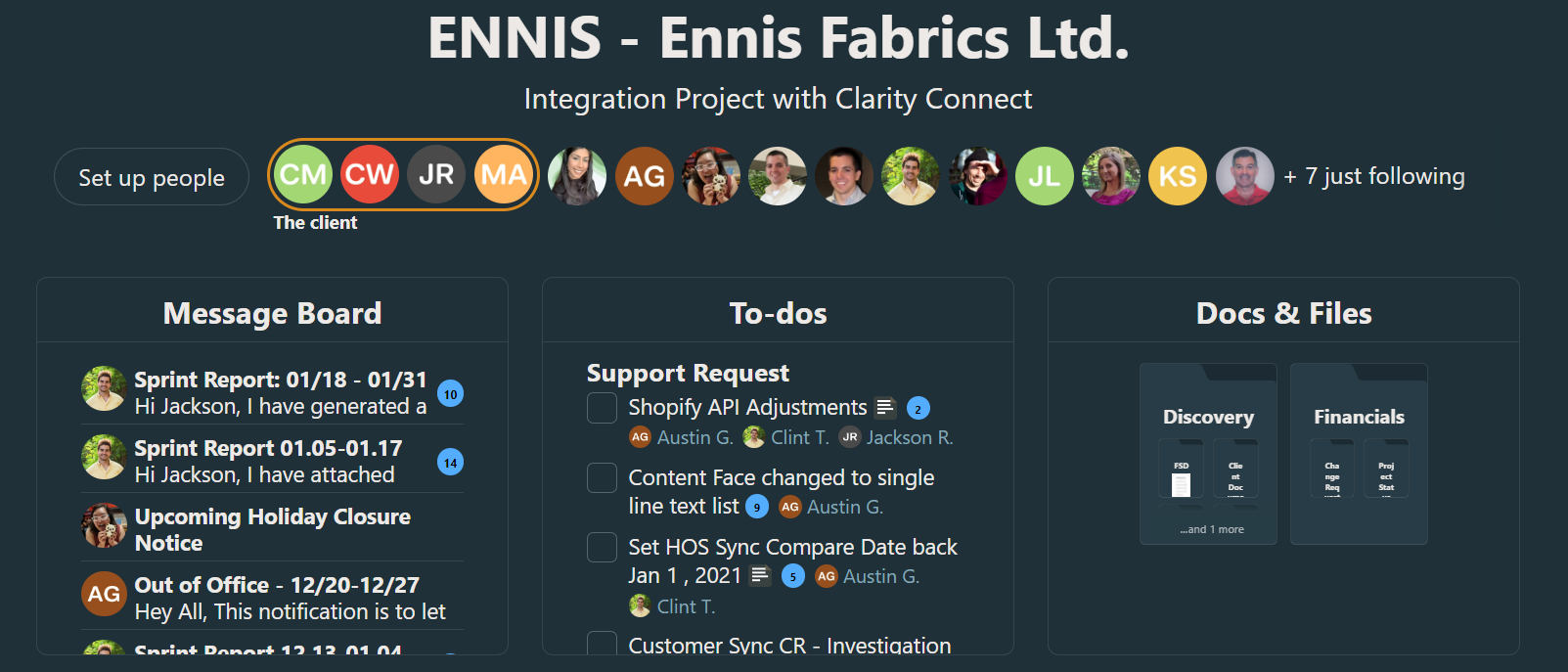
The main sections of Basecamp include the Message Board, the To-Do, and Docs & File. Each team is helpful for different purposes and must be maintained to ensure ease of use. Each section can be navigated via clicking the boxes titled by the section name.
¶ Message Board
Message boards provide general project status updates, sprint reports, and notifications. A message board post's goal is to notify clients of details that do not require a response. The creation of a message board is simple.
- On the Message Board page, click the "New Message" button
- Who should be allowed to see this message? You can type out the post before allowing the client team to view the message.
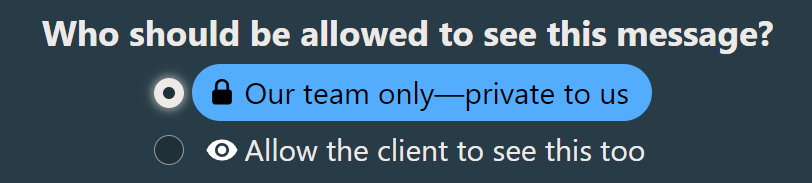
- Note: Be aware that posting the message without changing to allow the client the ability to view the message will prevent the client from responding.
- Type a title (Example: "Project Status Update YYYY.MM.DD") and then format message as required.
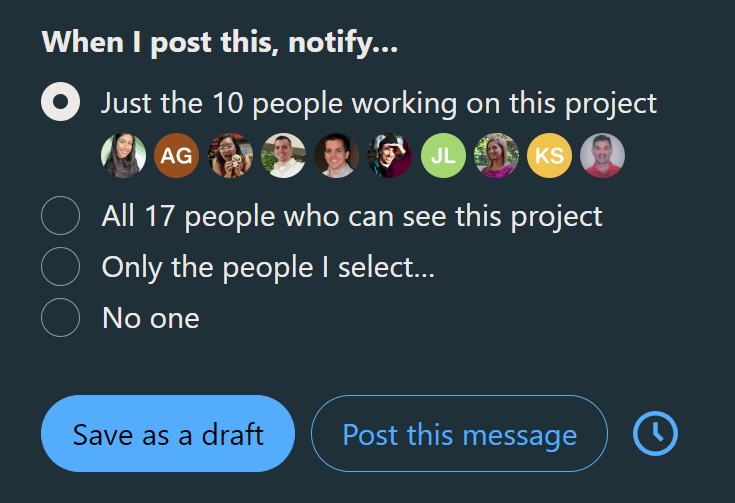
- Adjust who will be notified and post the message.

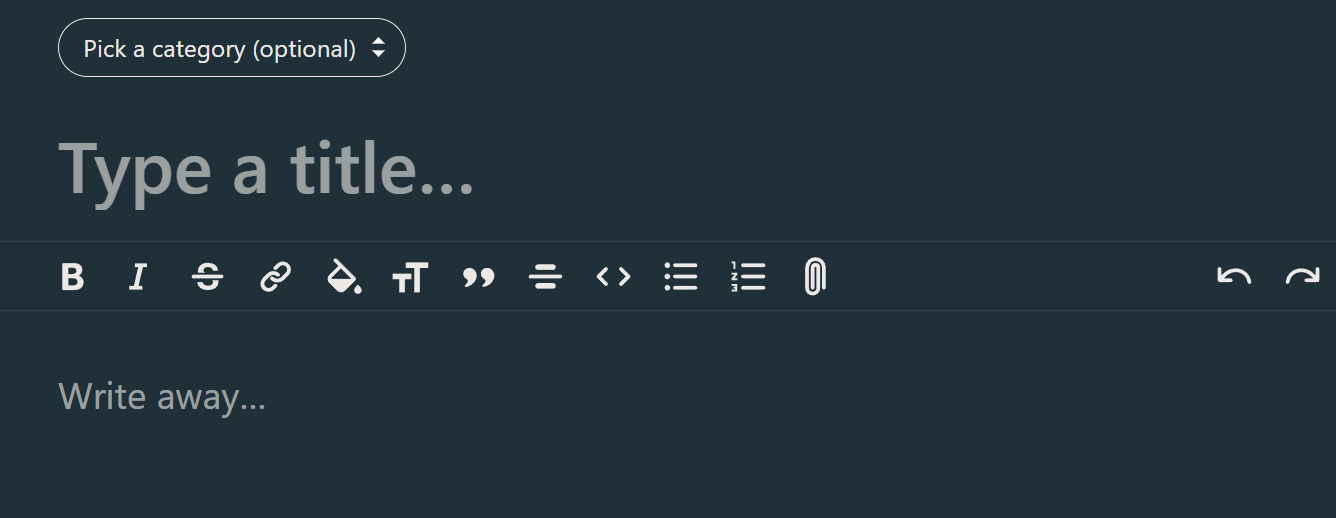
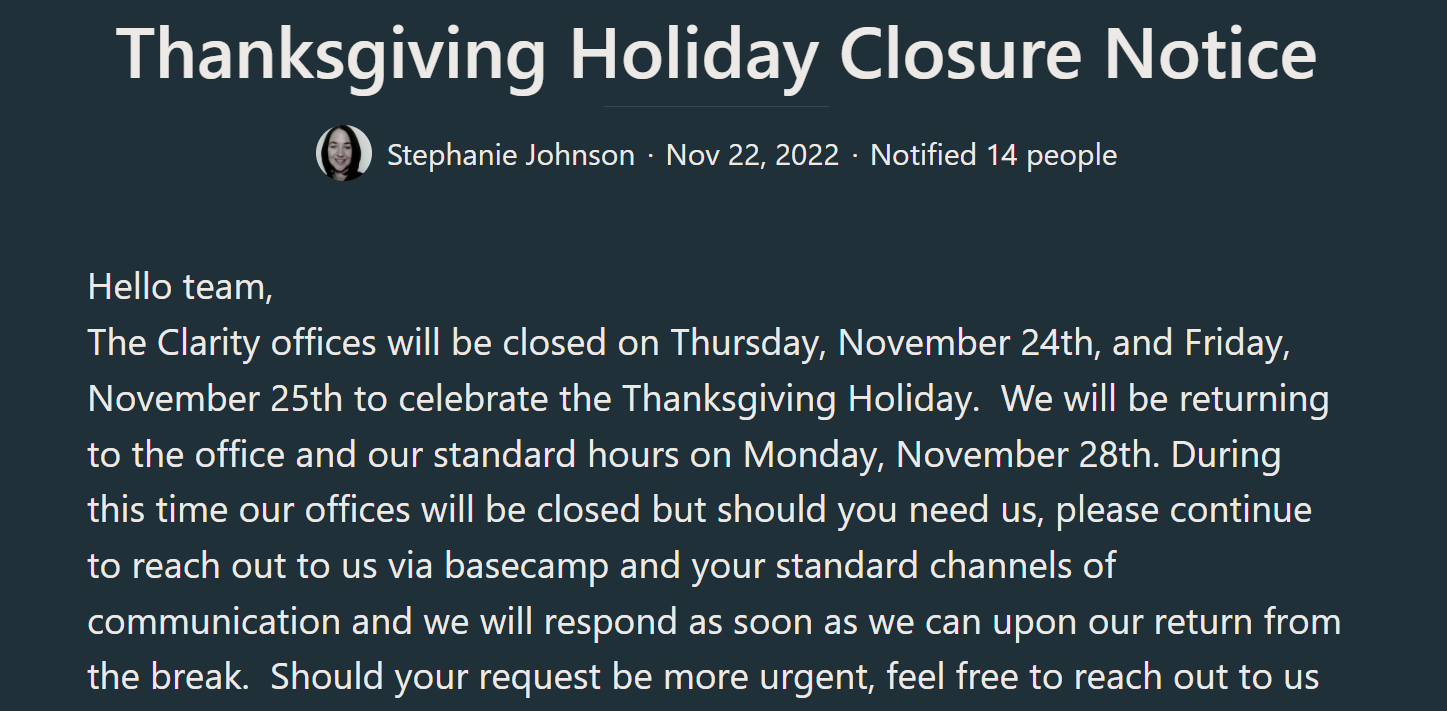
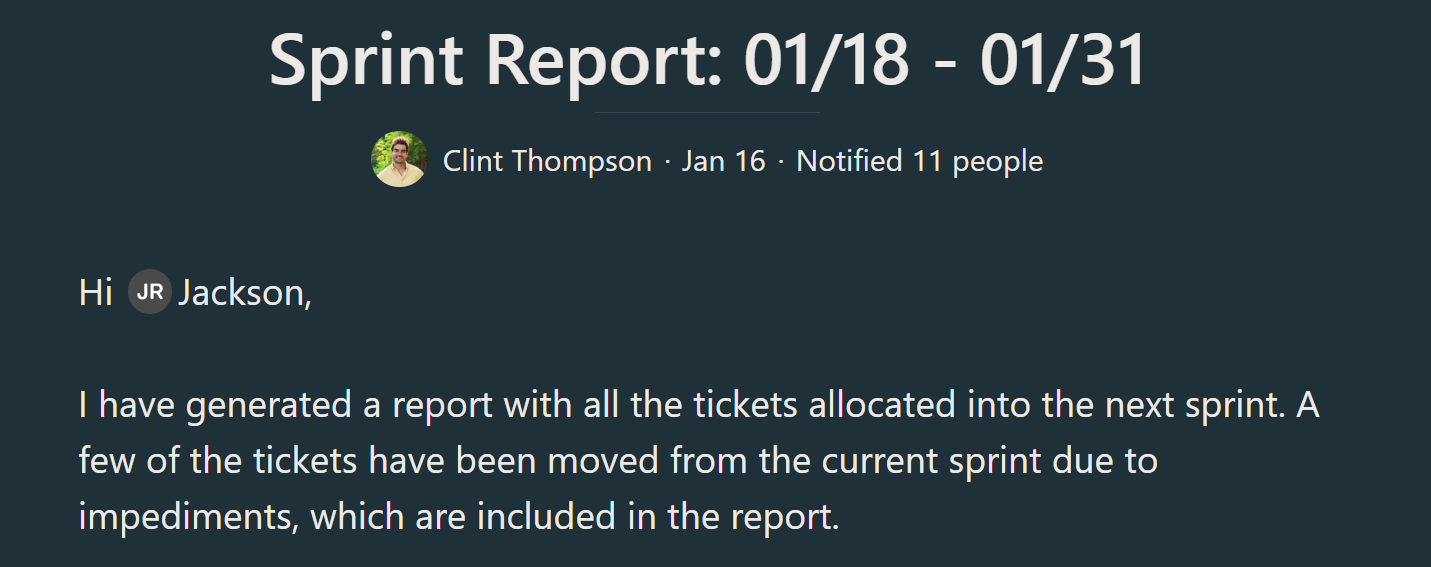
Examples are provided below:
- Out of Office / Holiday
- Sprint Report
¶ To-Dos
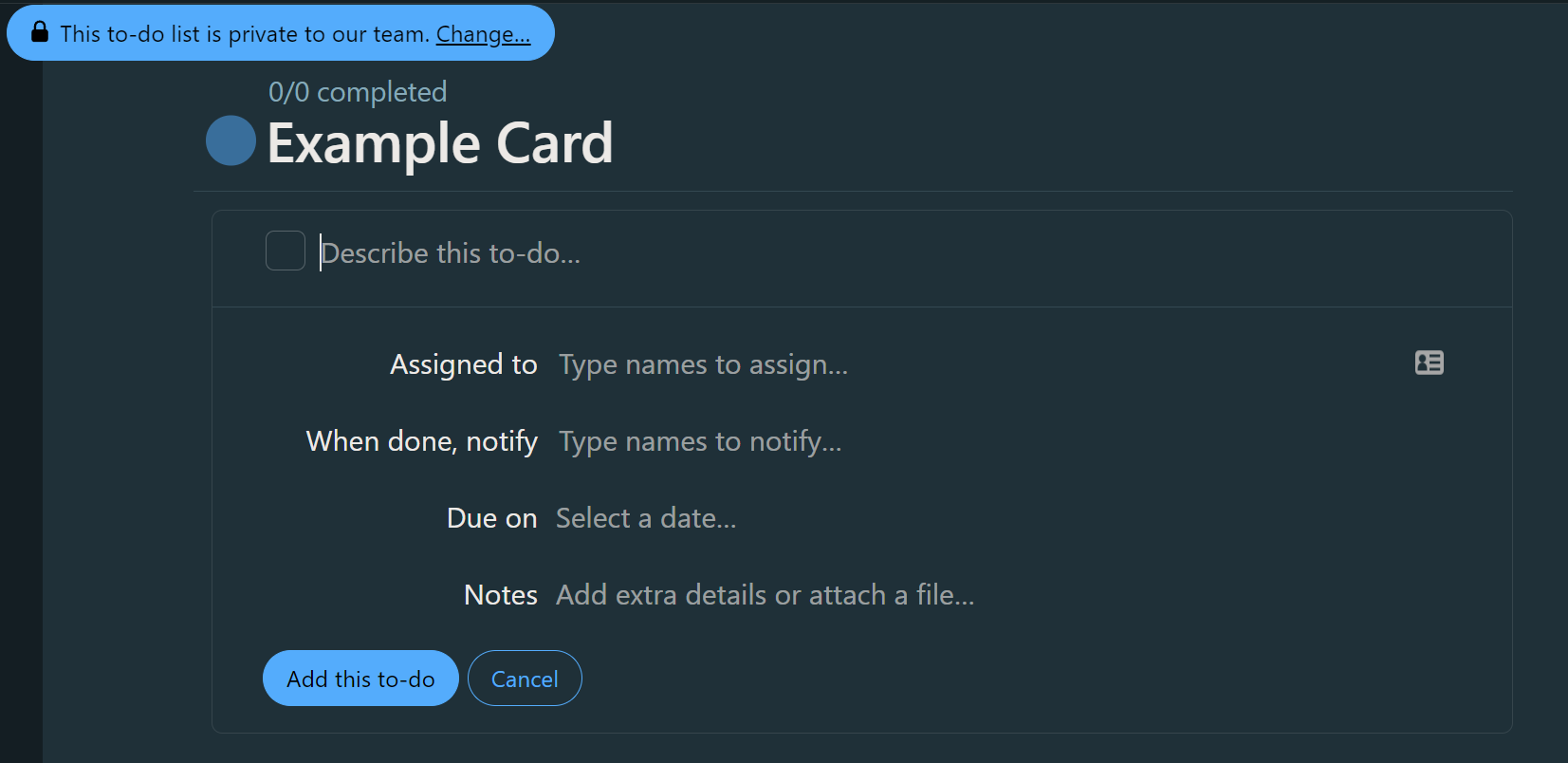
The To-Do section is used to maintain action items between both the client and Clarity team. The to-dos can be organized in both Card and List format. Each Card/List is used to organize the type of request on the project.
- Navigate to the Basecamp To-Do section and create/update the To-do Card/List.
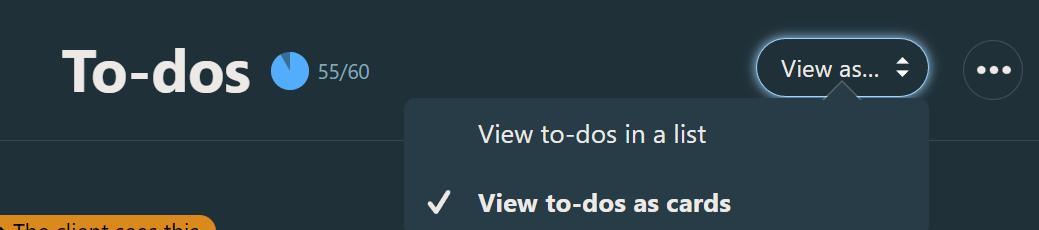
- List & Cards
- Cards are useful for showing all the to-dos in an easy-to-view list format.
- List are used to easily navigate between to-dos within minimal clicks
- Create a new List/Card when applicable
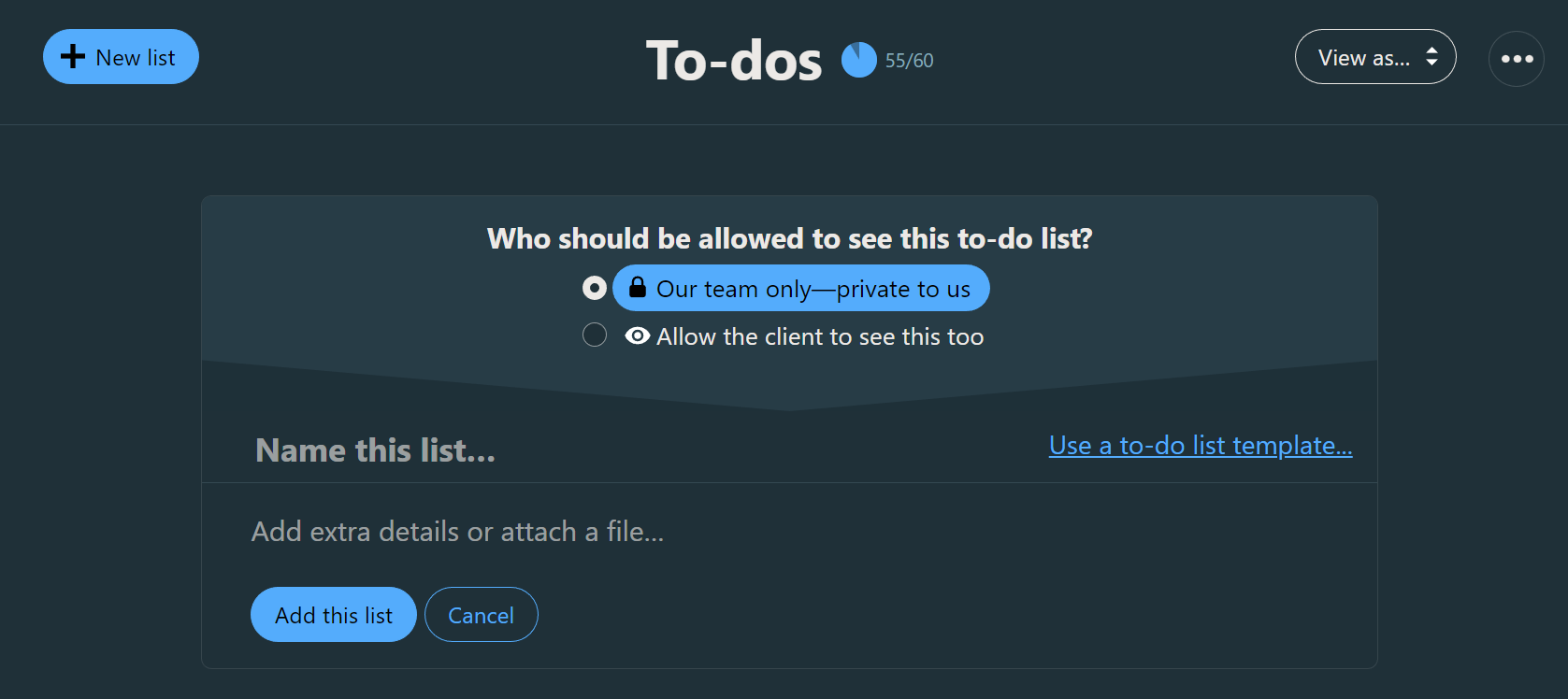
- Note: By default, all lists are private to the Clarity team. You must enable client access to ensure they can be assigned to the to-do.
- Describe the To-Do to create a title that is easy to understand at a glance
- Assigned to: is used to notify any team members once the To-Do is created. Type the person's name to add them to the To-Do.
- "When done, notify:" is used to create a notification once the to-do has been "checked off"
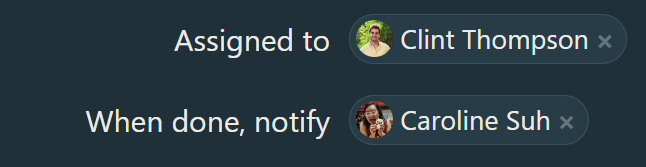
- Note: Adding a person to the When done, notify section DOES NOT add them to the subscriber's list or provide any initial notification
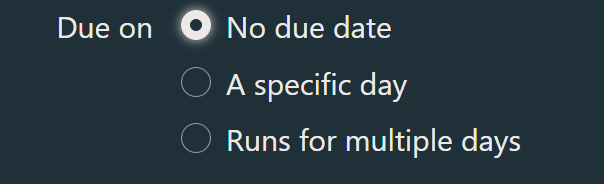
- Due on: provides a set timeline for when the to-do should be completed. Can be used by either the client or Clarity team to set a deadline.
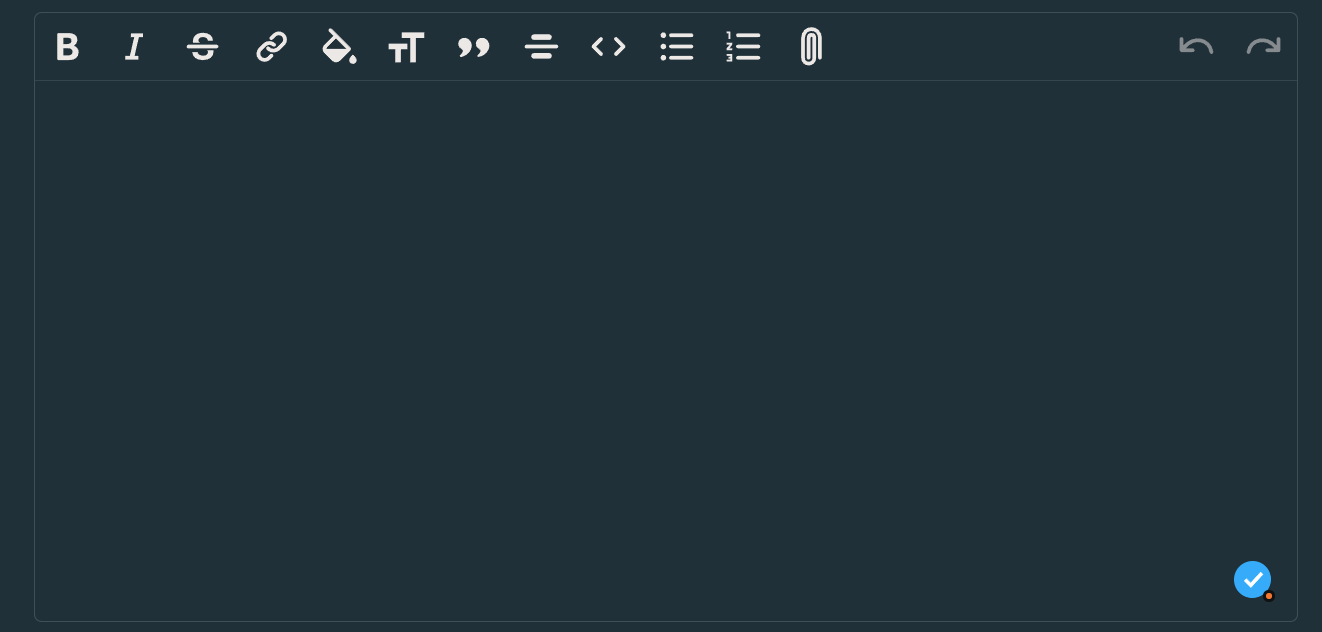
- Add any notes, details, and attachments to finalize the To-do and post to those on the Assigned to list.
- Once posted, add any other relevant team members to the "Subscriber's List" to ensure others are notified when the To-do is updated.
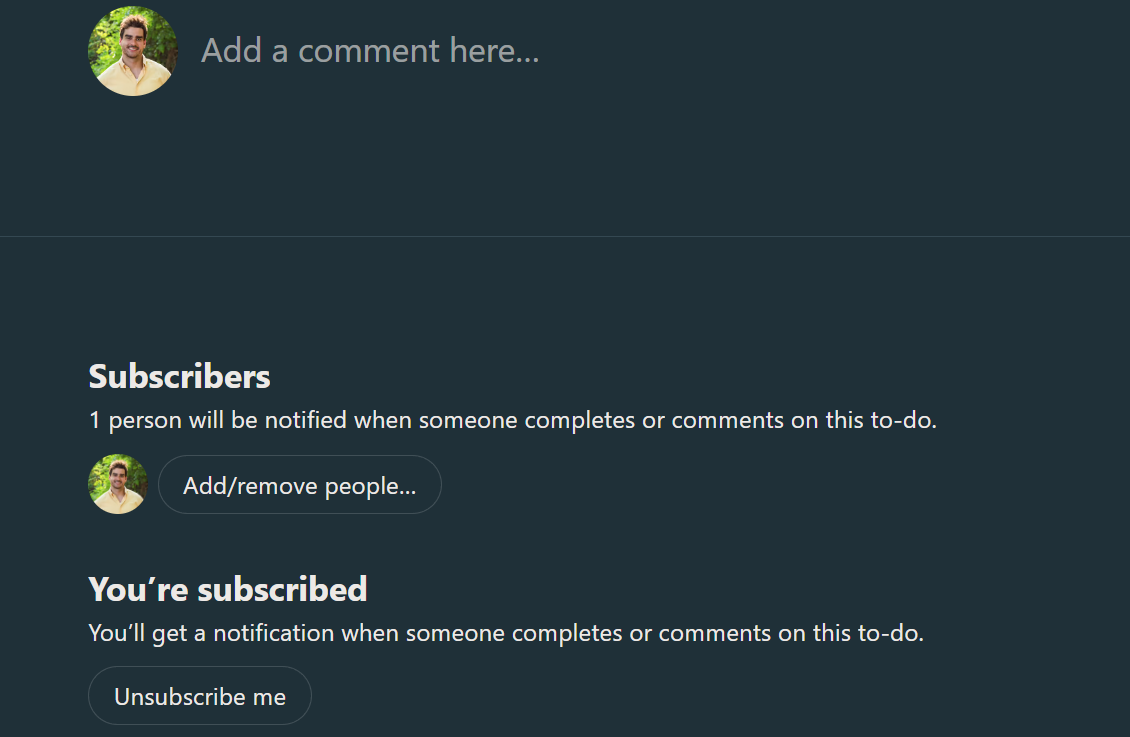
- Note: Any comment made under the to-do will only notify those in the Subscribers list.