¶ Overview
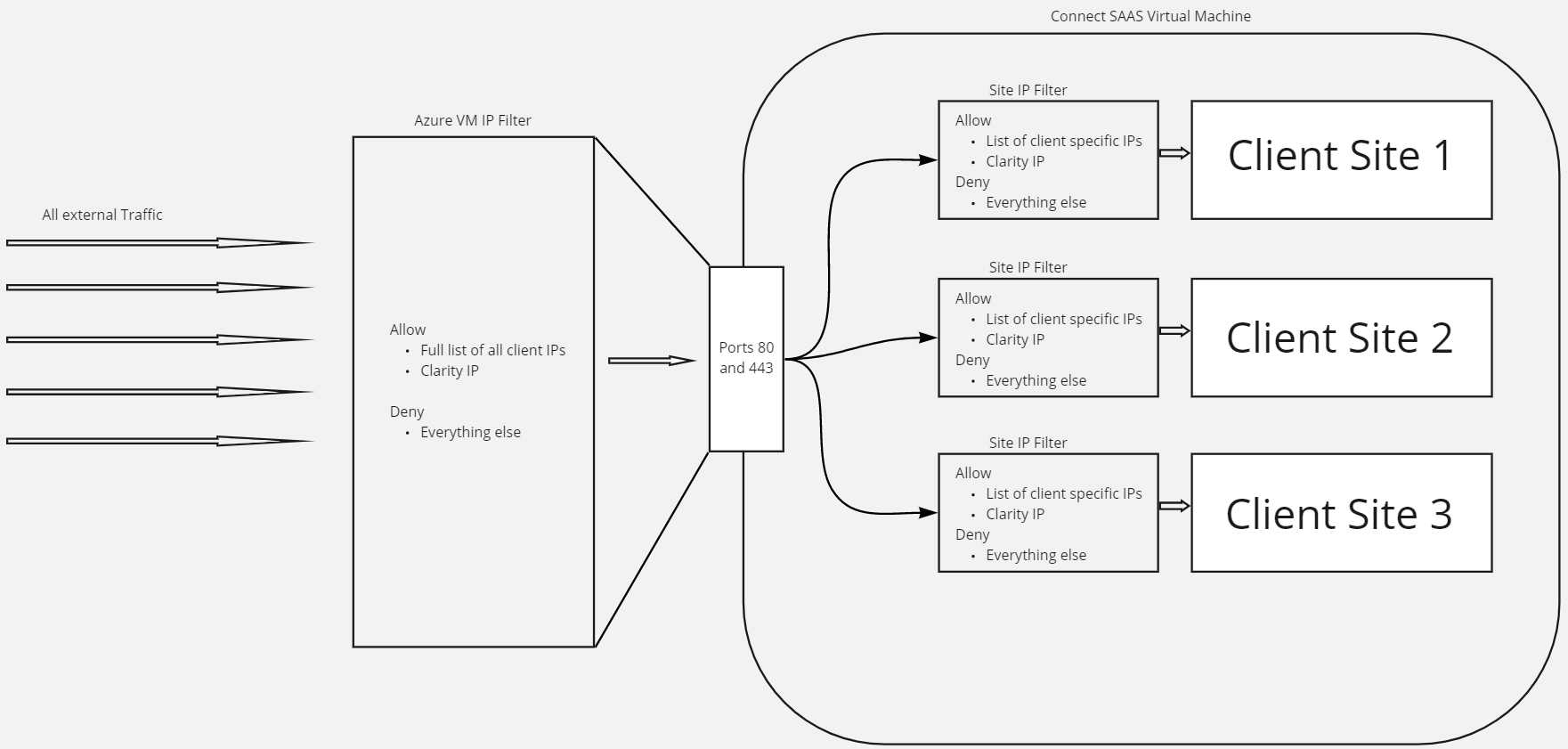
Security for Connect dashboards on the Connect SAAS box is set up through 2 layers of IP whitelist and a host file. Please refer to the diagram below for the following explanation
- The Connect SAAS Azure VM holds a list of VM wide IP filtering
- This will restrict all access to ports 80 and 443 to only the lists of IPs that are designated at portal.azure.com for the Virtual Machine (see instructions below)
- Note that Clarity IP is also part of those rules as well as another rule to allow clarity IP to RDP as well.
- The second layer of security is at the IIS site level.
- Here only the Clarity IP and the list of the specific client's IPs will be allowed to view the dashboard while all other traffic is denied access.
- The third level of security is use of the host file.
- As the URL does not have any public DNS record (by default) anyone wanting to access the dashboard will need to add in an entry into their host file to direct the URL to the SAAS box.
- Note that at the clients request, they can provide an SSL cert for a public DNS and remove this layer of security, however, the above 2 layers will still need to be in place.
¶ Adding Virtual Machine IP Filter for a client
note that this requires access as an owner of the connect saas azure portal. If you are not an owner either contact an owner to handle this section or request access to add these yourselves. Current owners as of 11/17/2021 (Eric Weathers, Chris Reddick, Cole Jansen, Ben Swindle)
-
Login to portal.azure.com and ensure that "CONNECT SAAS" organization is selected

-
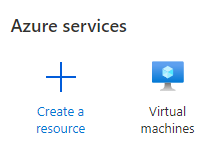
Find the "Virtual Machines" option in the Azure Services banner at the top (Or search for it in "→ More Services" and click on it.
-
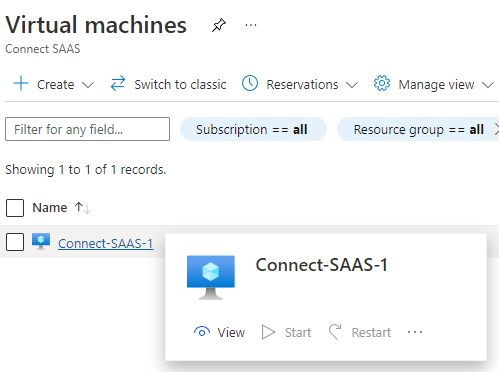
Click on Connect-SAAS-1 in the list of Virtual Machines
-
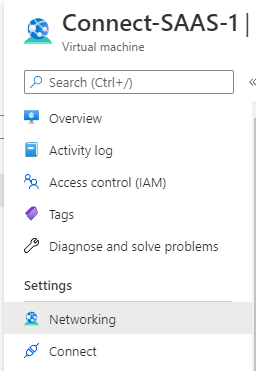
Navigate to the "Networking" tab on the left nav bar
-
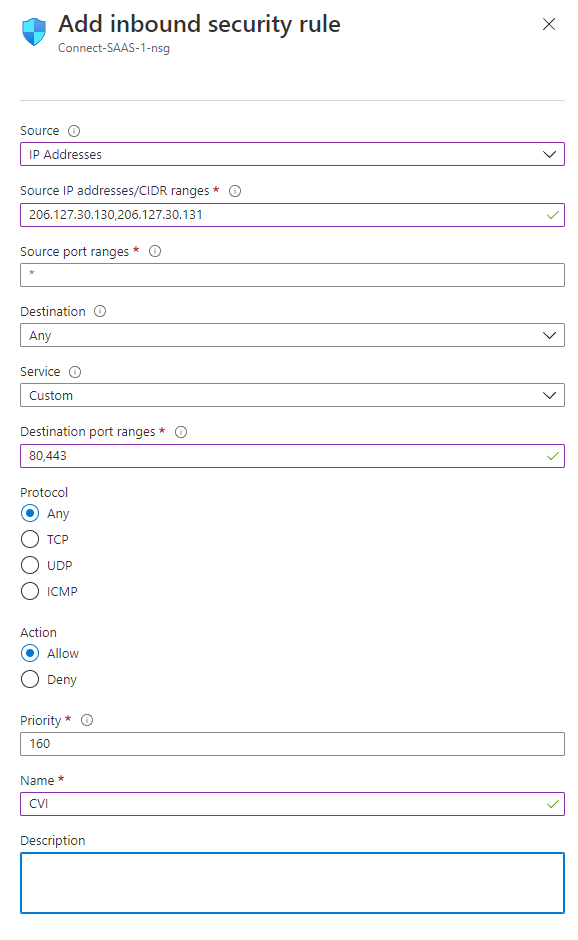
Click "Add Inbound Port Rule" or if you are adding new IPs to a rule that already exists, find the rule and click on it
-
For Source change to "IP Addresses"
-
Source IP Addresses will be a comma delimited list of all of the IPs that should be added for the client.
-
Leave Source Port Ranges as *
-
Leave Destination as "Any"
-
Leave Service as "Custom"
-
Change Destination Port Ranges to "80,443"
-
Leave Protocol as "Any"
-
Leave Action as "Allow"
-
Leave the priority to whatever it is currently set as
-
Change Name to be the upper case client acronym
-
Add a description if you would like, but is fully optional
-
And click "Add"
¶ Adding Site Specific IP Filter
-
Remote into the Connect SAAS virtual machine (note that you will need to be on the Clarity VPN)
-
Open IIS
-
Click on the site that you want to add the filter for
-
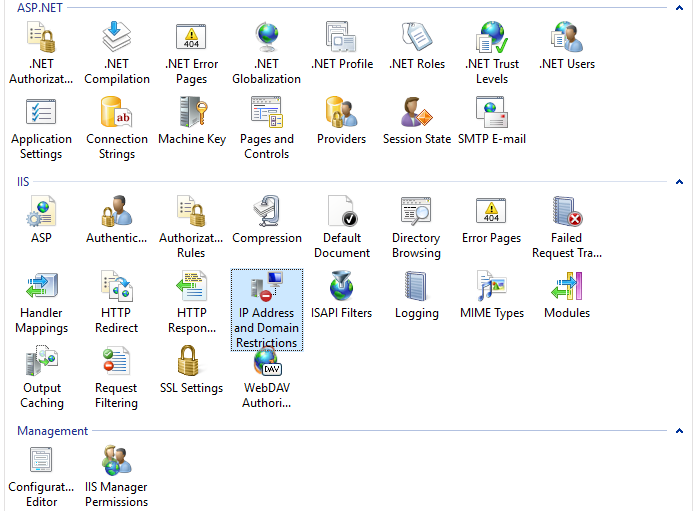
In the main screen under the "IIS" sections double click on "IP Address and Domain Restrictions"
-
For each IP that you need to whitelist
-
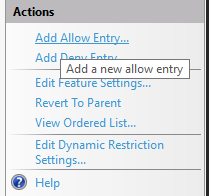
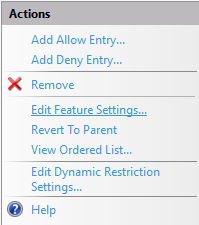
click "Add Allow Entry" in the top right corner
-
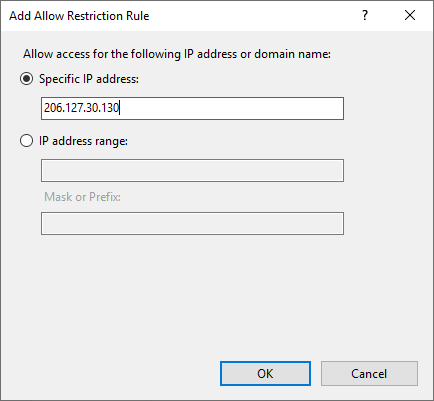
Add the IP to the "Specific IP address" field and click "OK"
-
-
Once you have added all of the whitelisted IPs we need to "Deny" all other unspecified IPs
-
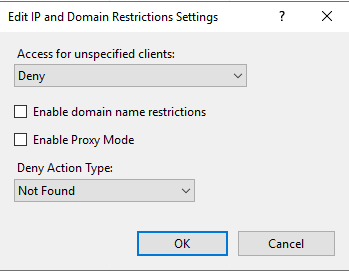
click "Edit Feature Settings..." in the top right
-
Change "Access for unspecified clients" to "Deny"
-
Change "Deny Action Type" to "Not Found"
-
¶ Update Client's host file
-
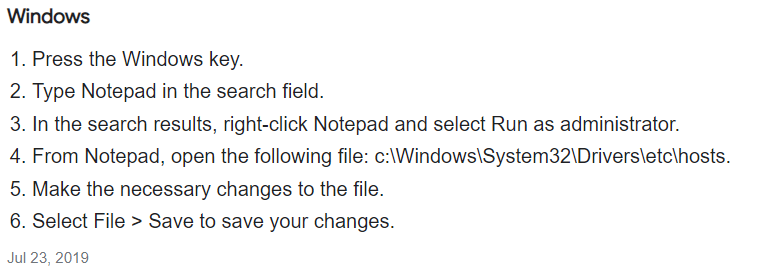
Have the client update their host file
-
Add the following entry (Replacing {{Client URL}} with the correct Connect site URL)
13.90.131.253 {{Client URL}}