¶ Nuclino Environment Info
¶ Llama 3 70B with Conda Environment for Nuclino Fine-Tuning
environment location on root python server: C:\ProgramData\anaconda3\envs\Llama3_70b_Nuclino
¶ HFToken (Hugging Face API Token, with Llama 3 approval to repo)
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
¶ In-house LLM sandbox
¶ Llama3-8b and instruct, Llama3-70b and instruct models Conda Environment Llama3
Work Location: D:\Data\BF_AI_Playground\Llama3
¶ How to run script to activate the LLM
- Open folder in Visual studio code
- Open a new python terminal
- Activate the Environment: conda activate Llama3
- Run script: python .\BaseLlama3.py
- the script in visual studio code may have IntelliSense errors but will still run in the terminal if its in the correct environment. If you want those script errors to disappear do the following:
- Open Command Palette: Press
Ctrl+Shift+Pto open the Command Palette. - Select Python Interpreter: Type and select
Python: Select Interpreter. This will show a list of available Python interpreters. Then choose Llama3.
- Open Command Palette: Press
- the script in visual studio code may have IntelliSense errors but will still run in the terminal if its in the correct environment. If you want those script errors to disappear do the following:
¶ How to set up the Environment
- pip install torch torchvision torchaudio --index-url https://download.pytorch.org/whl/cu117 (This installs the latest version of torch that is compatible with our cards)
- pip install transformers
- pip install tensorflow
¶ In-house Audio Transcription
¶ OpenAI Whisper model Conda Environment Whisper
Work Location: D:\Data\BF_AI_Playground\Whisper
¶ How to run script to activate the Whisper
- Open folder in Visual studio code
- Open a new python terminal
- Activate the Environment: conda activate Whisper
- Run script: python .\Recorder.py
- 5/31/2024 The current script is set up to iterate over 200 hour long podcasts
¶ How to set up the Environment
- pip install torch torchvision torchaudio --index-url https://download.pytorch.org/whl/cu117 (This installs the latest version of torch that is compatible with our cards)
- pip install whisper
¶ OLlama Access
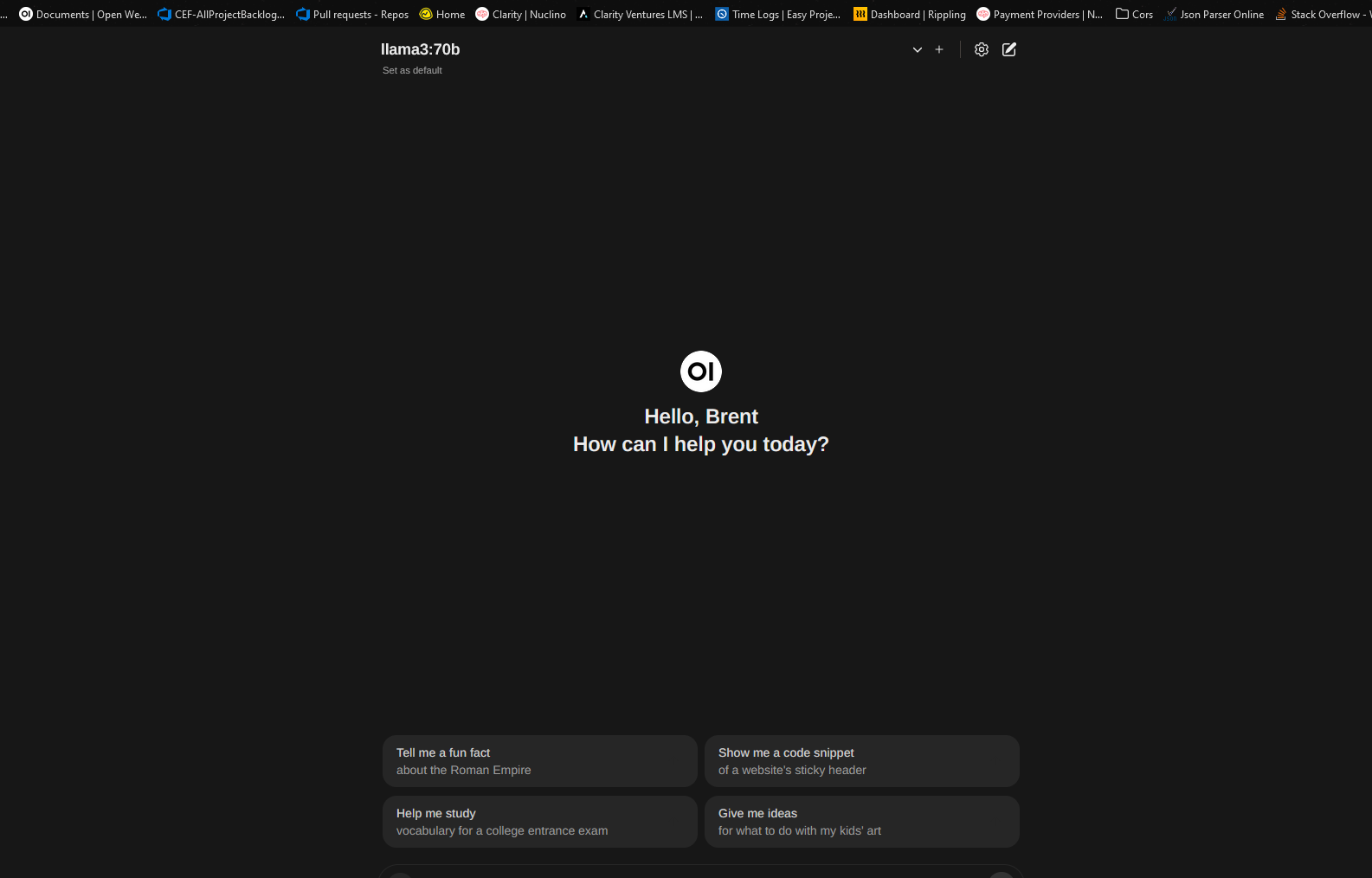
- https://gpt.clarityhosts.com/documents/
- Get Access credentials
- Sign up for an account and then message an Admin to get access approved.
- Choose your Language model at the top right
- Chat away
- Add documents or use existing documents to have the LLM analyze them by adding a # in the chat window